Skip to content
LogoTechnipages
technipages logo
  • Topics
        • Android
        • Browsers
        • Gaming
        • Hardware
        • Internet
        • iPhone
        • Linux
        • macOS
        • Office
        • Reviews
        • Software
        • Windows
        • Definitions
  • Product Reviews
  • Downloads
  • About

How to Increase the Size of Text on Any Website on iPad

Judy SanhzApril 12, 2021 Comments (1)
Safari

The bigger text is, the easier it is to read. Even if you don’t have vision problems, enlarging the text of a site reduces the chances of getting a headache from reading that small text. The good news is that you don’t have to install a third-party app to do this. It’s a feature that sitting in Safari, waiting for you to use it.

How to Make Reading Easier on Safari – iPad

To increase the text size of any site when using Safari on your iPad, open the browser and tap on the uneven A’s to the left of the address bar.

After you tap, you’re going to see that the text setting will be set at 100%. To make the text smaller, tap on the small A. To make the text bigger, tap on the big A. The more you tap on either one, the bigger or smaller the text is going to get. You’ll get a preview of how big the text is going to get in real-time. When you’ve reached the right size, simply continue browsing. The percentage you choose will be seen between the two A’s, and you can go as small as 50% or as big as 300%.
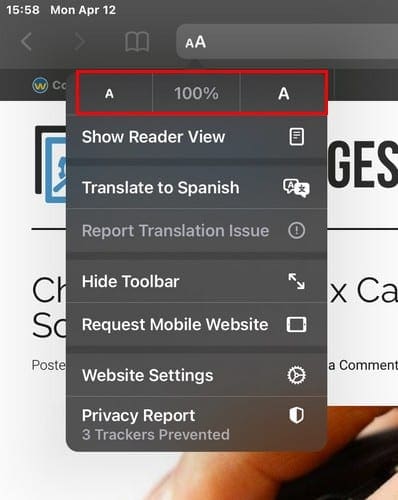
The next time you visit the site, Safari will remember the text setting you chose. If you ever change your mind and want to go back to the default text settings, simply tap on the percentage value button in the middle. This option also works in Reader View, just in case you were wondering. If you set a text size for a site in Reader View, Safari will also remember those.

Conclusion

Sometimes a feature has been staring you in the face for a while. But, since it hasn’t been anything you needed to use, you didn’t pay much attention to it. Some sites use tiny text that can hard to read for many. By knowing how to increase the size of the text, reading can be a lot more pleasant. How big will you be using the text? Let me know in the comments below.


Categories: iPhone

Author Judy Sanhz

You Might Also Like

  • Apple logo

    How to Reset iPhone X & 8

    Mitch BartlettiPhone
  • iPhone & iPad: How to Clear Safari Browser Cache

    Mitch BartlettiPhone
  • Facebook Header

    How to View Desktop Version of Facebook on iPhone & iPad

    Mitch BartlettiPhone
  • How to Download Pictures from Dropbox to Your iPad

    Judy SanhziPhone

Comments

  1. carolinearthur says:
    January 14, 2022 at 9:03 pm

    How do you change the font settings in Word?
    Go to Format > Font > Font. + D to open the Font dialog box. Select the font and size you want to use. Select Default, and then select Yes.
    Fonts Monster

Leave a Reply

Your email address will not be published. Required fields are marked *

This site uses Akismet to reduce spam. Learn how your comment data is processed.

300x600
Turning on Triple Touch Zoom on Android

Turning on Triple Touch Zoom on Android

How to Connect Outlook 2023 to Gmail

How to Connect Outlook 2023 to Gmail

Netflix: Change Password

Netflix: Change Password

Everything You Need to Know About WhatsApp Delete for Me

Step-by-Step Guide: How to Use WhatsApp on Your Computer

Android: Enable or Disable Background Data

Android: Enable or Disable Background Data

300x250
profile pic

The Experts Behind Technipages

My name is Mitch Bartlett. I've been working in technology for over 20 years in a wide range of tech jobs from Tech Support to Software Testing. I started this site as a technical guide for myself and it has grown into what I hope is a useful reference for all.

Learn More

300x250 2
technipages logo white
linkedin icon

Technipages is part of Guiding Tech Media, a leading digital media publisher focused on helping people figure out technology. Visit guidingtechmedia.com to learn more about our mission and team.

© 2026 Guiding Tech Media All Rights Reserved

  • About Us
  • Contact
  • Legal & Privacy

© 2026 Guiding Tech Media All Rights Reserved

Information from your device can be used to personalize your ad experience.
Do not sell my personal information.