Skip to content
LogoTechnipages
technipages logo
  • Topics
        • Android
        • Browsers
        • Gaming
        • Hardware
        • Internet
        • iPhone
        • Linux
        • macOS
        • Office
        • Reviews
        • Software
        • Windows
        • Definitions
  • Product Reviews
  • Downloads
  • About

How to Download Pictures from Dropbox to Your iPad

Judy SanhzApril 29, 2019 Comments (0)

When you think of cloud storage, Dropbox is always at the top five of your list, isn’t it? Whether you have an Android or iOS device, it’s the app you usually upload your images to. But, there will come a time when you’ll need to download them to your iOS device.

There are things such as downloading an image, that may seem easy, but when it’s time to do it you can’t seem to find the options you need. The following guide will show you everything you need to know on how to download an image on an iPad.

Option 1 – From App

To download your images from the Dropbox app to your iPad, launch the app. If you’ve been using the app regularly, then you’ve already signed in and won’t have an issue getting in. Open the folder and the picture you want to download.

When the image is open, long-press on it and three options will appear Copy, Save to Camera Roll, and Open in. Tap on the Save to Camera Roll.


Option 2 – From Web

Having the Dropbox app on your iPad makes downloading an image faster. But, not everyone prefers having the app on their device, maybe they already have one app to many on their device and prefer to access Dropbox through Safari (for example).

Open Safari (the same steps apply for Chrome) and go to the Dropbox site. Locate the folder the image you’re looking for is in and locate the image without opening it. To the right of the image, you’ll three dots, tap on those dots and the download option will be the first one on the list.
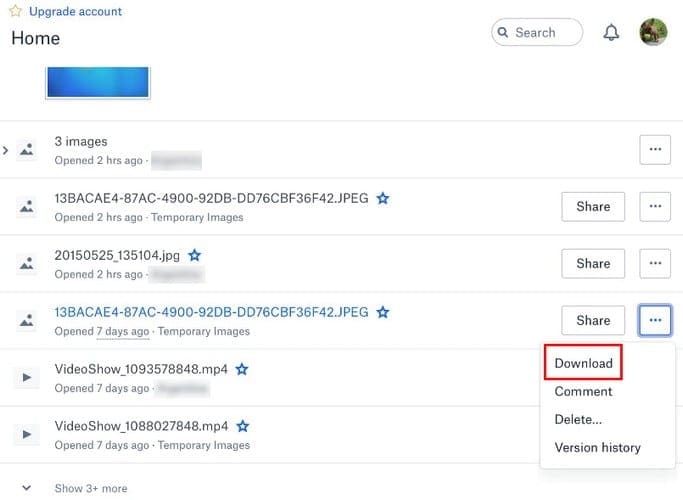
If the image you want to download is already open, simply long-press on the image and select the Save Image option. When you open the Photos app on your iPad, the image will be under today’s date.


Conclusion

As you can see, downloading an image from Dropbox to your iPad is easy, and you have different ways to choose from. You’ll obviously with the option that is easiest for you, but despite which one you want it will get the job done.


Categories: iPhone

Author Judy Sanhz

You Might Also Like

  • Apple logo

    How to Reset iPhone X & 8

    Mitch BartlettiPhone
  • iPhone & iPad: How to Clear Safari Browser Cache

    Mitch BartlettiPhone
  • Facebook Header

    How to View Desktop Version of Facebook on iPhone & iPad

    Mitch BartlettiPhone

Leave a Reply

Your email address will not be published. Required fields are marked *

This site uses Akismet to reduce spam. Learn how your comment data is processed.

300x600
Turning on Triple Touch Zoom on Android

Turning on Triple Touch Zoom on Android

How to Connect Outlook 2023 to Gmail

How to Connect Outlook 2023 to Gmail

Netflix: Change Password

Netflix: Change Password

Everything You Need to Know About WhatsApp Delete for Me

Step-by-Step Guide: How to Use WhatsApp on Your Computer

Android: Enable or Disable Background Data

Android: Enable or Disable Background Data

300x250
profile pic

The Experts Behind Technipages

My name is Mitch Bartlett. I've been working in technology for over 20 years in a wide range of tech jobs from Tech Support to Software Testing. I started this site as a technical guide for myself and it has grown into what I hope is a useful reference for all.

Learn More

300x250 2
technipages logo white
linkedin icon

Technipages is part of Guiding Tech Media, a leading digital media publisher focused on helping people figure out technology. Visit guidingtechmedia.com to learn more about our mission and team.

© 2026 Guiding Tech Media All Rights Reserved

  • About Us
  • Contact
  • Legal & Privacy

© 2026 Guiding Tech Media All Rights Reserved

Information from your device can be used to personalize your ad experience.
Do not sell my personal information.