
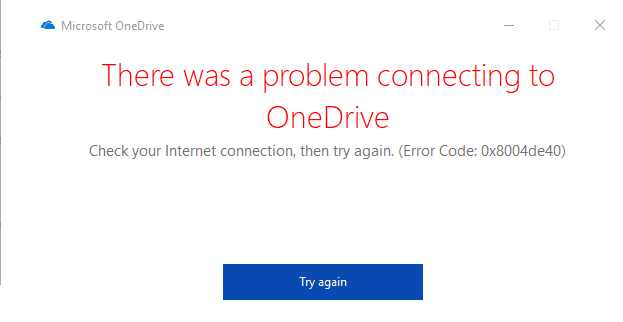
OneDrive error code 0x8004de40 indicates your sign-in was unsuccessful, probably because the app failed to connect to the cloud. As a quick workaround, you can restart the app and try to log in again. If the error persists, pursue the troubleshooting solutions below.
How Do I Fix OneDrive Error 0x8004de40?
Check Your Internet Connection
First things first, make sure your connection is stable. An unstable or low-bandwidth connection could explain why OneDrive failed to connect to the cloud.
- Unplug your router. Wait for two minutes to remove flea power. Then power up your network device and check the results.
- If you’re on Wi-Fi, switch to a cable connection. If that’s not possible, go to your router settings, and switch to a different wireless channel.
- Disconnect all the other devices using the connection.
- Additionally, switch to s different connection, such as a mobile hotspot, and check the results.
Check Your TLS Protocol Settings
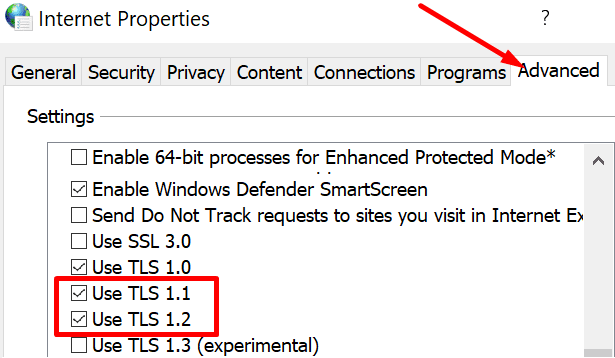
Ensure all of your TLS protocols are active, except TLS 1.3, an experimental protocol.
- Press the Windows and X keys and type inetcpl.cpl in the Windows Start search field.
- Double-click on the Control Panel item to open Internet Properties.
- Click on the Advanced tab.
- Locate and enable all three TLS protocols (TLS 1.0, TLS 1.1, and TLS 1.2).

- Save the changes, restart OneDrive, and check if the issue persists.
Run Microsoft’s Easy Fix Tool
You can also use the Easy Fix tool to automatically enable the SecureProtocols in your Registry Editor and add them to your Internet Settings. First, you need to exit OneDrive. Then, you can download Easy Fix from Microsoft. When the File Download box appears on the screen, click Run and follow the on-screen steps. Restart your computer and relaunch OneDrive.
Reset OneDrive
- Type regedit in the Windows Start Search field and double-click on the Registry Editor.
- Navigate to HKEY_CURRENT_USER\Software\Microsoft.
- Expand the folder and right-click on the OneDrive folder. Select Delete.

- Note: This action removes your current OneDrive configuration. You don’t lose any data.
- Launch Control Panel, and select Uninstall a program.
- Select OneDrive, and hit the Uninstall button.

- Restart your computer.
- Go to OneDrive’s official page and download the latest app version.


Conclusion
To fix OneDrive error code 0x8004de40, check your Internet connection, or switch to a different connection. If the issue persists, install Microsoft’s Easy Fix tool, and reset OneDrive. Additionally, go to Internet Settings, and enable the TLS 1.0, TLS 1.1, and TLS 1.2 protocol settings. Which of these solutions worked for you? Let us know in the comments below.


none of this method works,
non of those worked for me. I have win 7 SP1.
I have tried all fixes that I found online…. no success.
Let me try to download if it works I let u know.