Skip to content
LogoTechnipages
technipages logo
  • Topics
        • Android
        • Browsers
        • Gaming
        • Hardware
        • Internet
        • iPhone
        • Linux
        • macOS
        • Office
        • Reviews
        • Software
        • Windows
        • Definitions
  • Product Reviews
  • Downloads
  • About

Fix: Windows Needs Your Current Credentials

Madalina DinitaOctober 19, 2021 Comments (1)
windows-needs-your-current-credentials-locked-out

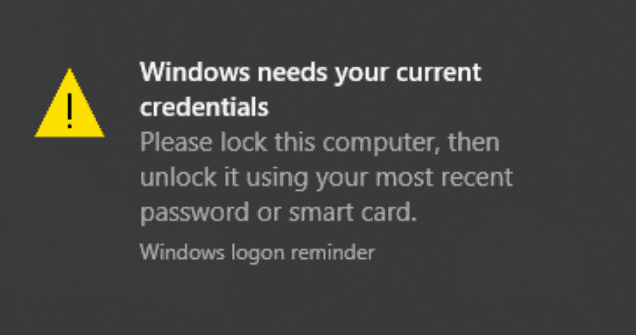
When you log in to Windows with your PIN, a message may sometimes pop up inviting you to enter your credentials. This annoying pop-up usually appears when you connect through Azure Active Directory. Let’s explore how you can get rid of it.

What to Do If Windows Says It Needs Your Current Credentials

Verify Your Account or Change Your PIN

Navigate to Settings, select Accounts, and check if any alerts ask you to verify your account. Do that and check if the error persists. Additionally, change your PIN. Go to Sign-in options, click on PIN, and then select the Change your PIN button.Change-your-PIN-Windows

Windows may have trouble updating and validating your credentials if you set up your PIN using an earlier password. Resetting your PIN should fix the problem.

Remove Windows Credentials

Try removing your Windows credentials and check if you notice any improvements.

  1. Click on the Search icon and type “credentials.”
  2. Then click on Credential Manager.
  3. Select Windows Credentials, and remove all the credentials.windows-credentials
  4. Restart your computer, and log in to your Microsoft account.
  5. Check if the OS still prompts you to confirm your credentials.

Check for Updates

Make sure you’re running the latest Windows version on your device. Go to Settings, select Windows Update and check for updates. Restart your computer after installing the latest OS version, and check if the issue persists.

Contact Your IT Admin

If the alert persists, contact your IT admin. Maybe some Azure AD settings are incorrect. Or perhaps Microsoft’s cloud-based identity and access management service are plagued by unexpected authentication issues. Your IT admin will run all the necessary checks to identify and fix the problem.

Conclusion

If Windows says, you need to enter your current credentials, verify your account and change your PIN. Then update your computer to the latest version. Additionally, clear all your Windows credentials and restart the device. If your computer is managed by an organization, contact your IT admin for further help.

Did you manage to fix the problem? Which of the methods above worked for you? Comment down below.

Categories: Windows

Author Madalina Dinita

You Might Also Like

  • Windows 10: Block Apps From Using Microphone

    Mel HawthorneWindows
  • Microsoft-Protection-Definition-Update-Failed

    Fix: Protection Definition Update Failed

    Madalina DinitaWindows
  • Windows-11-Not-Displaying-Weather-Widget

    Windows 11: Different Options to Clear the Caches

    Judy SanhzWindows
  • Fix-Windows-11-Remember-My-Apps-Greyed-Out

    Windows 11: How to Remove the Taskbar Search Button

    Judy SanhzWindows

Comments

  1. cheerla sushma says:
    May 30, 2022 at 10:04 am

    My system is current credentials is not generated..It is need to re image. Admin credentials my laptop. these is my issue…

Leave a Reply

Your email address will not be published. Required fields are marked *

This site uses Akismet to reduce spam. Learn how your comment data is processed.

300x600
Turning on Triple Touch Zoom on Android

Turning on Triple Touch Zoom on Android

How to Connect Outlook 2023 to Gmail

How to Connect Outlook 2023 to Gmail

Netflix: Change Password

Netflix: Change Password

Everything You Need to Know About WhatsApp Delete for Me

Step-by-Step Guide: How to Use WhatsApp on Your Computer

Android: Enable or Disable Background Data

Android: Enable or Disable Background Data

300x250
profile pic

The Experts Behind Technipages

My name is Mitch Bartlett. I've been working in technology for over 20 years in a wide range of tech jobs from Tech Support to Software Testing. I started this site as a technical guide for myself and it has grown into what I hope is a useful reference for all.

Learn More

300x250 2
technipages logo white
linkedin icon

Technipages is part of Guiding Tech Media, a leading digital media publisher focused on helping people figure out technology. Visit guidingtechmedia.com to learn more about our mission and team.

© 2026 Guiding Tech Media All Rights Reserved

  • About Us
  • Contact
  • Legal & Privacy

© 2026 Guiding Tech Media All Rights Reserved

Information from your device can be used to personalize your ad experience.
Do not sell my personal information.