ChatGPT has become a trendy tool. It can give all sorts of information, but users need to be careful since it does warn that it can give out wrong information. Also, it has limitations since it has limited knowledge of world events after 2021. But, despite its errors, it can still give you great information. But there are times when it can provide you with a network error for various reasons. Keep reading to see the tips you can try so you won’t get it again.
Helpful Tips to Fix ChatGPT Network Error
Let’s start with the basics. When you get the Network error for C7hatGPT, ensure you have an Internet connection. It may have worked a few minutes ago, but it can stop anytime. You can use a free online tool to see how strong your Internet connection is. For example, you can try, Googling to check Internet speed and try Google Internet Checker. You’ll see the upload and download speed and how fast Google detects your Internet.
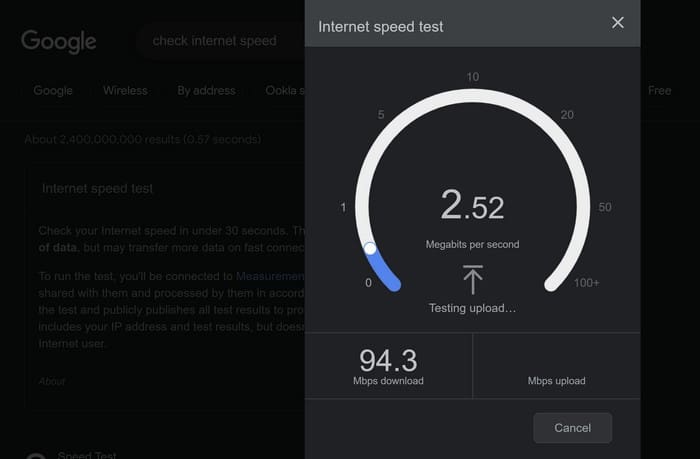
If you don’t feel like using Google’s Internet Speed checker, you can also use others on the results page, such as Speedtest by Ookla. You can also check if Open AI is down by going to Down Detector. If it is down, then the only thing you can do is wait it out.
Don’t Request Long Answers
Asking for too much information at once could be what’s causing the error. Try breaking up your request into different sections. The less information ChatGTP has to give, the less likely you’ll get the error. This doesn’t mean you can ask everything you want to know; it’s simply a good idea not to ask for all the information in one question.
Turn Off Your VPN
Turning off your VPN is another possible solution to fix ChatGPT error. VPNs are responsible for different issues; this network error is another possibility. This can quickly be done by opening your VPN and clicking on a designated button the app has to turn off or on.
Log Out and Back Into Your Account
Logging out and back into your account will refresh the session and could fix the issue. If you have ChatGPT open in a new tab, tap on the three dots at the bottom left and click on log out.
Try Using a Different Browser
Have you tried using ChatGPT on a different browser? If you only get the error on Chrome, you can try to see if you get the same error on Firefox. If you don’t get the error on another browser, you can do things such as clearing the cache on Chrome (if you’re using that browser) or even the data for a fresh start. You can also try turning off or removing Chrome extensions that could also be causing the problem.
Try Using ChatGPT Later
The solution could also be in waiting. ChatGPT is a very popular tool that many people want to use. You could try waiting until the peak hours pass and try a little later. Hopefully, you won’t have to wait too long. If you get a 429 error, that means that ChatGPT has put you on hold because you’re using it too much. ChatGPT won’t let you use it until you’ve taken a break from it.
Other Possible Causes
Another thing you can do is stop any downloads you have going at the moment. But if you think you’ve tried everything and you’re still getting the error message, you can also try going to the Open AI Help Center. You can review their available information or message them and tell them what’s happening.

You can send them a message by clicking the message icon at the bottom right. Click on the Ask a Question option and choose the topic of your question; if you don’t see it, you can select the Other option. Did you accidentally turn off the Wi-Fi on your computer or at home? Maybe you needed to rest it due to overheating and forgetting to turn it on.
Conclusion
ChatGPT can give you a network error at any time, but with the tips mentioned in the guide, you can try various methods. Since the cause is currently unknown, you have multiple tips to try.