

Chromebook laptops have excellent battery life. They can power you for eight to ten hours without any problems. Many users like to say Chromebooks don’t have a battery-saving option because they don’t need one. But sometimes, your battery may drain faster than expected. Let’s explore what you can do to make your Chromebook battery last longer.
Useful Tips to Extend Your Chromebook Battery Life
Turn off Wi-Fi and Bluetooth
Perhaps the best approach to extend your Chromebook’s battery life is this: “If you don’t use it, close it.” Your wireless and Bluetooth connections can significantly shorten the life of your battery. If you’re not actively using your Wi-Fi and Bluetooth connections, disable them.

Adjust Brightness
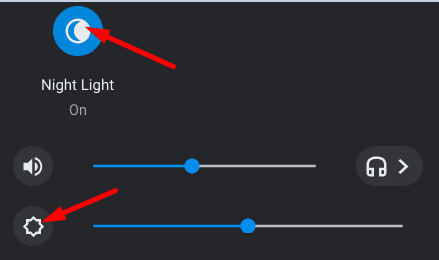
Your display eats up a lot of battery life. Setting your device to maximum brightness can reduce your battery life by a few hours. To make your Chromebook battery last longer, lower your brightness settings to a point you’re comfortable with. Don’t dim the screen too much to avoid straining your eyes.
Lock the Screen or Shut Down Your Laptop
If you’re going to take a short break, make sure to lock your screen. This will help you extend your battery life by a few minutes. On the other hand, if you’re away from your computer for more than 15 minutes, shut down your laptop. Your Chromebook starts up in less than ten seconds.
Unplug Your Peripherals
If you’re on battery power, all the peripherals connected to your machine will slowly but surely drain the battery over time. While the battery impact is not as significant as that of your display, it adds up. So, make sure to disconnect any unnecessary peripherals if you don’t really need them.
Close Unnecessary Tabs and Extensions
To prevent Google Chrome from draining your Chromebook battery, close unnecessary tabs and disable or uninstall the extensions you no longer need. This will also help you keep your browser clutter-free. Finding the information you’re interested in is not easy when you’ve got tens of tabs opened.
Exit Unnecessary Applications

If you no longer need an app, use the Task Manager to close it. Many Chromebook users noticed that Google Drive and Gmail often eat up a lot of battery juice. Don’t let unnecessary apps run pointlessly in the background. Close them when you’re not actively using them.
Replace Worn-Out Batteries
After a couple of years, your battery performance will drop. In other words, your Chromebook will have a hard time holding the charge. To check your battery health status, run the battery_test command in Crosh, and check the results.

If the battery health percentage falls below 80 percent, you need to get a new battery.
Enable Guest Sessions
Interestingly, many users suggested that guest sessions use less battery power than admin sessions. So, if you don’t need any admin rights, you may use your laptop in guest mode to save some battery power.
Conclusion
To sum up, if you want to extend your Chromebook’s battery life, disable all the unnecessary tabs and apps running on your laptop. Additionally, turn off your wireless connections, and lower your brightness settings. Check your battery health, and get a new one if the health percentage falls below 80 percent.
What tips and tricks do you use to extend your Chromebook’s battery life? Share your ideas in the comments below.


I just bought it 3 weeks ago, and it is plugged up. Why would I get a battery anything if it is plugged in??? I can’t get it to do anything! It turns on, shows the Chrome screen, then turns back off. What a piece of junk.