

Your Chromebook doesn’t have a built-in battery saver simply because it doesn’t need one. ChromeOS laptops sport excellent battery life and can power you throughout the day. But there are also exceptions to this rule. Your Chromebook’s battery may occasionally drain really fast for no apparent reason. Let’s explore what could be causing this issue and how you can fix it.
What Is Draining My Chromebook Battery?
If you want to fix your Chromebook battery, you must first identify what’s draining it so fast.
Peripherals
If you’re on battery power, your peripherals can reduce your Chromebook’s battery life by up to 30 minutes. For example, let’s say your laptop usually powers you for up to nine hours. With multiple peripherals plugged in, expect the battery life to drop to eight hours and thirty minutes. So, one way to extend your battery life is to disconnect your peripherals when you’re not using them.
Bluetooth and Wi-Fi
Disable all of your Bluetooth and Wi-Fi connections if you’re not actively using them. Wireless connections can eat up quite a lot of battery juice, so make sure to disable them if you don’t really need them.

As a quick reminder, there are plenty of Google apps that you can use in Offline mode as well. For example, you can use Google Docs, and Google Sheets in Offline mode. Then, when you go back online, your Google web apps will automatically update your cloud files with the latest changes that you made locally while offline.
Brightness Settings
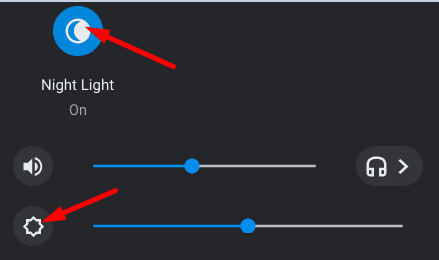
Depending on your current lighting conditions, it may not be possible to reduce your Chromebook brightness settings. However, when you’re working late, consider changing screen brightness. Not only is this good for your eyes, but it also extends your battery life. Click on the time icon and use the slider to manually adjust the brightness level. Or simply enable Night Light.
Running Unnecessary Apps and Processes
If you no longer need an app or program, simply close it. If you let it run in the background, it will continue to use your battery. For instance, let’s say you just finished an online class, and you’re going to take a 15-minute break. Press the Shift and Esc keys to launch the Task Manager and close all the unnecessary programs running in the background. Then enable Sleep mode.

Keeping multiple browser tabs open at the same time will drain your battery faster.
High-Intensity Tasks
Running too many high-intensity tasks on your Chromebook simultaneously can use a lot of CPU power. As a result, your battery may overheat and deplete faster than usual. If you know you’re going to run resource-demanding programs on your Chromebook, close all the other background programs and use a cooler. By the way, disable your VPN and check if you notice any improvements.
Keeping Your Laptop On All the Time
If you’re going to take a third-minute break from your computer, why not shut it down completely? Yes, you can always put your Chromebook into Sleep mode, but that will still use a small amount of battery power. If you shut down your laptop completely, nothing will be using the battery for the next thirty minutes.
A Faulty Battery
If your Chromebook’s battery is draining insanely fast, this may indicate you need a new one. After three years of use, you may notice the battery doesn’t hold a charge as long as it used to. Keep in mind that battery quality varies a lot depending on your Chromebook model. Of course, high-end Chromebooks will deliver excellent battery performance for longer.
To test if you need a new battery, open Crosh and run the battery_test command. If your battery health is below 80%, this indicates its performance significantly dropped and you need to replace it.

FAQ
What takes up the most battery on Chromebook?
Your display usually takes up the most battery power on your Chromebook. Adjust your brightness settings and enable Night Light when you’re working late to save battery power.
Why won’t my Chromebook hold a charge?
If your Chromebook cannot hold a charge, most likely the battery is faulty and you need to replace it. If your battery health drops below 80%, the battery won’t charge properly and will drain a lot faster than usual. Run the battery_test command in a Crosh terminal window to check battery health.
Conclusion
There are multiple factors that could cause your Chromebook battery to drain really fast. For example, keeping your Bluetooth and Wi-Fi on when you’re not actively using your wireless connections. Running high-intensity programs uses a lot of CPU power, which in turn, will drain your battery. Additionally, if your Chromebook’s battery is faulty, it won’t hold charges properly.
Did this guide answer all of your battery-related questions? Share your thoughts in the comments below.


Tried all of these things, while most work a little I also read you can use Nightlight mode to concerve battery but that seems to draain more battery on a Samsung Galaxy Chromebook with it’s OLED display, I major power hungry battery user.
Turning down brightness does indeed help alot, but I also let the laptop use it’s automatic brightness as well, so it’s dark and light during usage. Sometimes thatll drive anyone crazy, but you can turn it off adjusting brightness yourself.