When you add a specific theme to Microsoft Edge, you give it your own personal touch. If you’re not happy with the themes you currently have, you can always download more. Maybe you might even download themes that you may not use now but might sometime in the future.
You have the option of downloading themes from the app store for Edge, or you can install Chrome themes. So, if you’re not happy with one store, you can always visit the other one. Let’s see how you can install that theme.
How to Install New Themes on Microsoft Edge
To get those new themes on your browser, click on the dots at the top right and go to Settings.
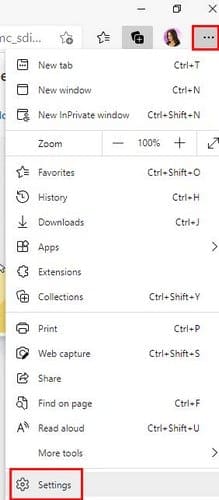
Once you’re in Settings, click on the three-lined menu option at the top left. When the new options appear, look for and click on Appearance.
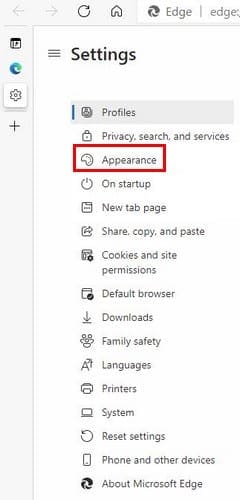
In appearance, you’ll find everything you need to give Microsoft Edge your own personal touch. If you click on where it says Microsoft Edge Add-On Store, you’ll be taken to the browser’s app store. But, if you click on the Other Stores option, you can install Chrome material. Click on this last option.

Here you can choose from all kinds of themes for the Edge browser. There’s an option for you to search for themes by artist or by Google at the top left. You can also search by top-rated themes if you want to add a popular theme to the browser. You’ll see a total of eight themes at a time. If you don’t see any you like, make sure to click on the See All button for more options.

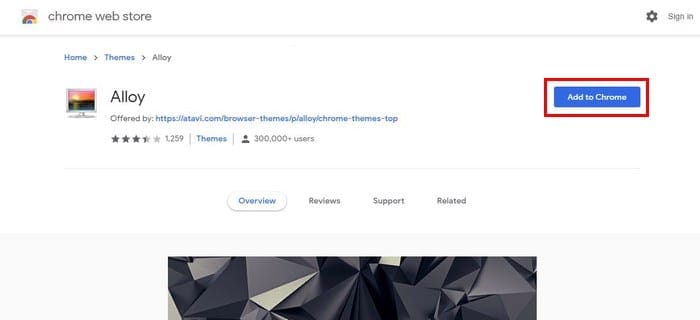
Once you’ve found the theme you’re looking for, click on it. If you don’t see an Add to Chrome button to the right, that means that you have to give Edge permission to add themes from the Chrome Store. At the top of your display, you’ll see the option to give Edge permission. Once you’re done with that, go to the theme you want to add, and the Add button should be there.
Microsoft Edge Themes
You just might like the Microsoft Themes better than the Chrome ones. It all depends on your likes and dislikes, but you can find themes such as Halo and more in the Edge Store.
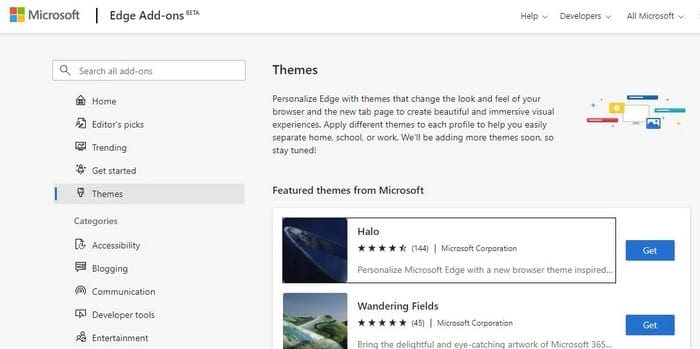
Microsoft will show you the feature themes first. There are quite a few to choose from. If you don’t see any you, you can always use the search option to the left and type the word that best describes the themes you’re looking for. When you find one, click on the Get button and confirm your download.

Conclusion
Giving the Edge browser your own personal touch is a must for some. Whenever you get bored of the current theme, you know various other themes are waiting to be installed. What kind of themes will you be starting with? Let me know what theme you install in the comments below, and don’t forget to share this post with others.