
Skip to content
LogoTechnipages
technipages logo
  • Topics
        • Android
        • Browsers
        • Gaming
        • Hardware
        • Internet
        • iPhone
        • Linux
        • macOS
        • Office
        • Reviews
        • Software
        • Windows
        • Definitions
  • Product Reviews
  • Downloads
  • About

How to Add a Co-Host in Zoom

Judy SanhzJune 2, 2020 Comments (2)

Adding a co-host to your Zoom meeting can really lighten up your load. When meetings reach a specific number of users, handling the meeting on your own can be challenging.

You may need to answer the door while at the same time need to share a file with everyone at the meeting. By assigning a co-host, you can keep the meeting going and take care of any unexpected business.

How to Enable the Co-Host Feature in Zoom

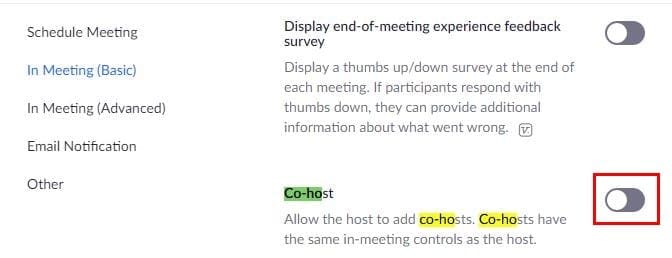
The Co-host feature is not on by default, so you’ll need to go to Zoom’s official page to turn it on. After signing into your account and click on the Settings option to the left.

You can scroll down until you find the Co-host option, but with so many options it can easily be overlooked. To open up the search option press the Ctrl + F keys if you’re using Windows and CMD + F for Mac users.

When the option appears, just toggle it on and you’re good to go.
How to Add a Co-Host in Zoom

Once you’ve started your Zoom meeting, click on the Manage Participants option at the bottom left. You’ll see a list of everyone that’s in your meeting.

Place the cursor over the person you want to name Co-host and the More option should appear. Click on it and from the menu choose Make Co-host.
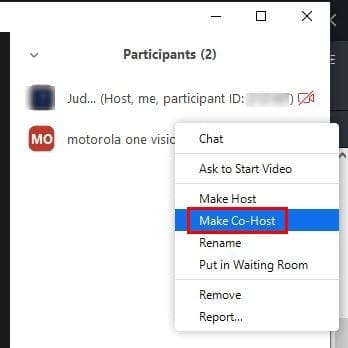
Zoom will show you a confirmation message about making that person a co-host. Click yes and then Co-host will appear to the side of the person’s name.

How to Remove Someone from Co-Host in Zoom

If you ever change your mind and want to remove someone from Co-host, just follow the steps you did to make them Co-host. Right below the Make Host option will be the option to remove them from it.

Conclusion

It would be nice if you didn’t have to go to Zoom’s official site to enable the feature, but at least it’s possible. Hopefully, in the near future Zoom will make it possible to turn on the feature right from the app.


Categories: Internet

Author Judy Sanhz

You Might Also Like

  • How to Benchmark Your Browser

    Mel HawthorneInternet
  • How to Add Websites to Burp Suite’s Target Scope

    Mel HawthorneInternet
  • Gmail: Where Are Archived Emails Stored

    Mel HawthorneInternet
  • fix this video file cannot be played firefox

    Fix Firefox: This Video File Cannot Be Played

    Madalina DinitaInternet

Comments

  1. Leslie says:
    June 27, 2023 at 11:25 am

    Thank you for the page Mitch… I have dyslexia.. Lots of things are tough in tech, and navigating support pages can be more confusing than the original issue… I’ve only seen two of your pages so far, but both were clear, easy language, and easy to follow steps. Thank you for putting this out for all of us that could use a hand…. Much obliged

  2. Evan Fan says:
    October 8, 2020 at 10:57 am

    Nope! I did that but it does not work. No co-host like that!

Leave a Reply

Your email address will not be published. Required fields are marked *

This site uses Akismet to reduce spam. Learn how your comment data is processed.

300x600
Turning on Triple Touch Zoom on Android

Turning on Triple Touch Zoom on Android

How to Connect Outlook 2023 to Gmail

How to Connect Outlook 2023 to Gmail

Netflix: Change Password

Netflix: Change Password

Everything You Need to Know About WhatsApp Delete for Me

Step-by-Step Guide: How to Use WhatsApp on Your Computer

Android: Enable or Disable Background Data

Android: Enable or Disable Background Data

300x250
profile pic

The Experts Behind Technipages

My name is Mitch Bartlett. I've been working in technology for over 20 years in a wide range of tech jobs from Tech Support to Software Testing. I started this site as a technical guide for myself and it has grown into what I hope is a useful reference for all.

Learn More

300x250 2
technipages logo white
linkedin icon

Technipages is part of Guiding Tech Media, a leading digital media publisher focused on helping people figure out technology. Visit guidingtechmedia.com to learn more about our mission and team.

© 2026 Guiding Tech Media All Rights Reserved

  • About Us
  • Contact
  • Legal & Privacy

© 2026 Guiding Tech Media All Rights Reserved

Information from your device can be used to personalize your ad experience.
Do not sell my personal information.