Skip to content
LogoTechnipages
technipages logo
  • Topics
        • Android
        • Browsers
        • Gaming
        • Hardware
        • Internet
        • iPhone
        • Linux
        • macOS
        • Office
        • Reviews
        • Software
        • Windows
        • Definitions
  • Product Reviews
  • Downloads
  • About

How to Disable the Mini Toolbar in Word

Mel HawthorneSeptember 11, 2020 Comments (2)

If your job requires you to use Microsoft Word regularly, or if you use it often in your free time, then you want to iron out any potential frustrations you may have with the software. There are many things that you can configure in Word. Obvious examples include the appearance and style of the text, however, it’s also possible to configure the interface as well. So, if there are some features that you don’t like, you may be able to get rid of them.

One potential example is the “mini toolbar” that appears whenever you highlight something or right-click. The mini toolbar contains a number of potentially useful tools that can help you quickly change the appearance of the selected text. Nevertheless, you may not like that the bar appears at all, perhaps you don’t find it useful or you don’t like that it can overlay potentially important content if it appears in the wrong place. Thankfully, if you don’t like the mini toolbar, you can disable it, via Word’s settings.

To disable the mini toolbar, you’ll first need to open Word’s settings. To do so, click on “File” in the top-left corner, then click “Options” in the bottom-left corner.
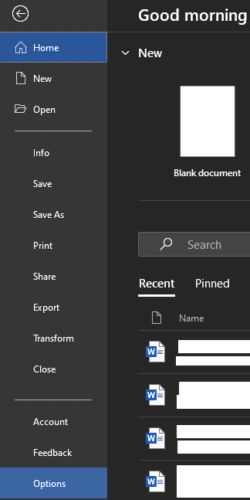
Click on “File” in the top-left corner, then click “Options” in the bottom-left corner to open Word’s settings.

In Word’s settings, untick the checkbox labelled “Show Mini Toolbar on selection”. It will be the first checkbox in the “User interface options” on the “General tab”. To save the change, click “OK”.

Untick the first checkbox in the “User interface options” on the “General” tab, labelled “Show Mini Toolbar on selection”, then click “OK”.

Disabling the mini toolbar will only prevent it from appearing automatically when you highlight text. The mini toolbar will still appear when you right-click. Unfortunately, for users that don’t like the mini toolbar, there is no way to disable that functionality.

Categories: Office

Author Mel Hawthorne

You Might Also Like

  • office 365 how to add guest users

    Office 365: How to Add Guest User

    Madalina DinitaOffice
  • PowerPoint Header

    How to Change the Transparency and Color of an Image in PowerPoint

    Judy SanhzOffice
  • microsoft word merge comments changes multiple documents

    Word: Merge Comments and Changes from Multiple Documents

    Madalina DinitaOffice
  • How to Fix Outlook Rules Are Not Supported for This Account

    How to Fix Outlook Rules Are Not Supported for This Account

    Susan SheffieldOffice

Comments

  1. Terry says:
    July 19, 2022 at 9:39 am

    Right-clicking on text in Word brings up both the shortcut (context) menu as well as the mini toolbar. I am able to modify the shortcut menu. I would also like to be able to modify (or even suppress) the mini toolbar as well. I am hoping that there is some way through VBA or macros to do so.

  2. bill beausay says:
    November 10, 2020 at 6:50 am

    no. it still comes on.

Leave a Reply

Your email address will not be published. Required fields are marked *

This site uses Akismet to reduce spam. Learn how your comment data is processed.

300x600
Turning on Triple Touch Zoom on Android

Turning on Triple Touch Zoom on Android

How to Connect Outlook 2023 to Gmail

How to Connect Outlook 2023 to Gmail

Netflix: Change Password

Netflix: Change Password

Everything You Need to Know About WhatsApp Delete for Me

Step-by-Step Guide: How to Use WhatsApp on Your Computer

Android: Enable or Disable Background Data

Android: Enable or Disable Background Data

300x250
profile pic

The Experts Behind Technipages

My name is Mitch Bartlett. I've been working in technology for over 20 years in a wide range of tech jobs from Tech Support to Software Testing. I started this site as a technical guide for myself and it has grown into what I hope is a useful reference for all.

Learn More

300x250 2
technipages logo white
linkedin icon

Technipages is part of Guiding Tech Media, a leading digital media publisher focused on helping people figure out technology. Visit guidingtechmedia.com to learn more about our mission and team.

© 2026 Guiding Tech Media All Rights Reserved

  • About Us
  • Contact
  • Legal & Privacy

© 2026 Guiding Tech Media All Rights Reserved

Information from your device can be used to personalize your ad experience.
Do not sell my personal information.