

The experts in online security are always telling us to have a secure password for our accounts. They also recommend that the password you use is not the same one for all your accounts. That’s where password managers come in, so you can have a strong password and not have to remember them all.
If you can’t remember the last time you updated your Facebook password, then it’s time to change it. The following tips will show you how you change your Facebook password regardless if you’re using your computer, iPad, or Android device.
How to Reset Facebook Password – Android
If you’re on your Android device, you can change your current password by going to:

- Three-lined menu-line
- Swipe all the way down to Settings
- Password and security
- Swipe down a little to Login
- Tap on Change Password
- Enter current and new Password
- Click on Update password
Facebook will now ask you if you want to sign out of all devices or if you want to stay logged in. Unless you feel like logging back in, it’s best to choose the stay logged in option.
How to Reset Your Facebook Password – Web
For those times when you remember you need to change your password, and you happen to be on your computer, you’ll need to do the following.
- Click on the arrow pointing down at the top right
- Click on Settings
- Security and Login

- Change password
- Type current and New password
- Click on Save changes button
How to Change Your Facebook Password When You Forgot It
You forgot to add your Facebook password to your password manager, and now you can’t log in. Not all is lost since there is a way to get into your Facebook account. Go to the Find Your Account page on Facebook. Enter the phone number or email linked to your account and click on Search.
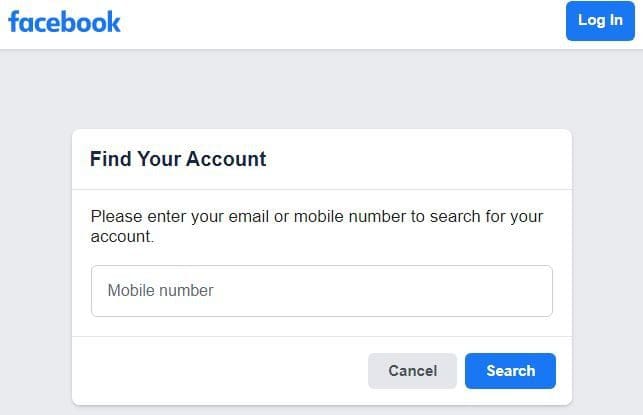
After that, you’ll only need to follow the on-screen instructions, and you’re good to go. Keep in mind that Facebook won’t let you use the same phone number for two-factor authentication if you need to reset your password. A different phone number is required. Even if this doesn’t apply to you know, it’s best to add another one just in case you ever find yourself in this situation; you never know.
iPad
To change your password on your Android device, you’ll need to:
- Tap on the arrow at the top right
- Go to Settings
- Password and security
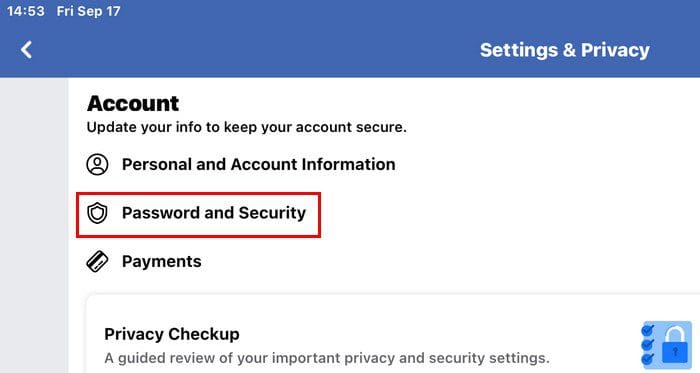
- Change password
- Type current and new password
Facebook One-Time Password
If you see yourself changing your password because you had to log into your Facebook account in a place where you didn’t feel safe, there’s a way around that. Facebook has One-Time Passwords, that as the name states, is only good for one login.
For US users, you’ll need to send a text message for 32665 with the letters otp (One-time password). If you’re not in the US, you can visit a site Facebook has for other countries. When Facebook has a phone number linked to your account, they’ll send a 6-character temporary password for you to use. If you haven’t added a phone number, then you’ll get an email with the instructions you’ll need to follow so you can add one, and then you’ll get the code.
Once you get your code, log in to Facebook as you would usually, but the password you’ll enter is the code.
Conclusion
How often do you update your passwords? Changing your password every once in a while will help keep your account safe. Especially if you know you’ve shared your password with anyone, even if they are friends. So if you’re on your computer, iPad, or your Android device, you know what steps to follow to change your password. Share your thoughts in the comments below, and don’t forget to share the article with others on social media.


