Skip to content
LogoTechnipages
technipages logo
  • Topics
        • Android
        • Browsers
        • Gaming
        • Hardware
        • Internet
        • iPhone
        • Linux
        • macOS
        • Office
        • Reviews
        • Software
        • Windows
        • Definitions
  • Product Reviews
  • Downloads
  • About

How to Change the Home Page in the Edge Browser on Android

Mel HawthorneAugust 17, 2020 Comments (3)
Edge Header

The homepage is a common feature in almost all web browsers. Typically, it is the first page that opens when the browser is launched. This behavior isn’t often followed in mobile browsers, however, as browsers on mobile devices are rarely closed completely. Furthermore, when mobile browsers are closed, they are generally configured to remember and re-launch the previously open tabs.

This means the home page on a mobile browser is a bit different. Realistically, it acts more like an independent shortcut allowing you to quickly open a specific site without having to open your bookmarks list and find the entry.

How to set a home page in Edge

The first step is to open the in-app settings. To be able to access the settings, tap the triple-dot icon in the center of the bottom bar.

Tap the triple-dot icon in the center of the bottom bar to be able to access the in-app settings.

In the popup pane, tap the “Settings” cogwheel in the top-right corner to open the in-app settings.
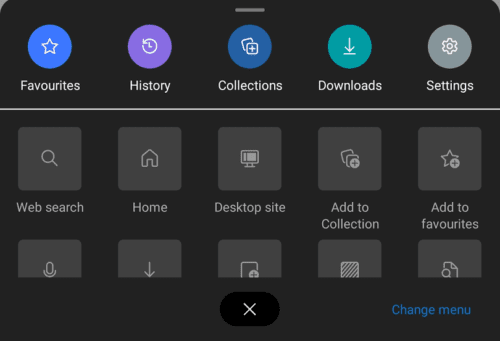
Tap the “Settings” cogwheel in the top-right corner of the popup pane to open the in-app settings.

To configure a home page, tap “Home page”, which will be the second option from the top.
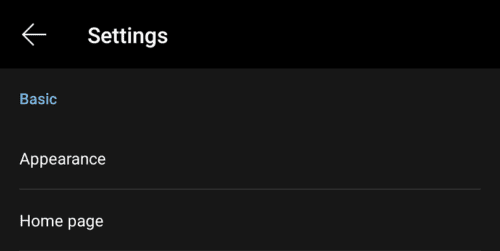
Tap “Home page” to manage the home page setting.

There are two options for the home page, the default is “New tab page”, where tapping the home button will open the new tab page in the current tab. The other option is to set “A specific page”. To configure a custom home page, tap on the setting, then enter the URL you want in the popup box that appears. Tap “Save” to apply your homepage setting.

Tap “A specific page” then enter the URL you want to be your home page and tap “Save”.

How to access your home page

To go to your home page, you need to tap the triple-dot icon in the center of the bottom bar like before, then you need to tap the “Home” icon. By default, the home button is the second entry in the top row of square icons, although you can choose to move it.

Tap the home icon in the popup pane after tapping the triple-dot icon in the centre of the bottom bar.

Categories: Android | Internet

Author Mel Hawthorne

You Might Also Like

  • LinkedIn: How to View Full Version Website On Android or iPhone

    Mitch BartlettAndroid
  • Brave

    Brave for Android: Enable Background Video Playback

    Mel HawthorneAndroid
  • ProtonMail Icon

    How to Create a ProtonMail Filter

    Judy SanhzAndroid
  • SMS Stock Feature Image

    Here’s Why You Should Stop Using SMS

    Aaron KimAndroid

Comments

  1. Rog says:
    May 28, 2022 at 8:29 am

    I want a photo and a search bar on my Android homepage. No news stories and no lifestyle, I got that down

  2. BRENDA WHATLEY says:
    July 11, 2021 at 2:13 pm

    This doesn’t work, it keeps taking me to the same new tab page and the home button is grayed out. I like The Edge on my pc and have been using it since it came out, but on my phone it sucks.

  3. Brenda Kuralt says:
    May 7, 2021 at 1:01 am

    I hate the be updated home page. Please bring back the missing options at the top line & the original layout. This is awful & much more complicated to get to the kindle store . Also it’s almost impossible to find prime options in individual categories . Please give us the old homepage back!!!

Leave a Reply

Your email address will not be published. Required fields are marked *

This site uses Akismet to reduce spam. Learn how your comment data is processed.

300x600
Turning on Triple Touch Zoom on Android

Turning on Triple Touch Zoom on Android

How to Connect Outlook 2023 to Gmail

How to Connect Outlook 2023 to Gmail

Netflix: Change Password

Netflix: Change Password

Everything You Need to Know About WhatsApp Delete for Me

Step-by-Step Guide: How to Use WhatsApp on Your Computer

Android: Enable or Disable Background Data

Android: Enable or Disable Background Data

300x250
profile pic

The Experts Behind Technipages

My name is Mitch Bartlett. I've been working in technology for over 20 years in a wide range of tech jobs from Tech Support to Software Testing. I started this site as a technical guide for myself and it has grown into what I hope is a useful reference for all.

Learn More

300x250 2
technipages logo white
linkedin icon

Technipages is part of Guiding Tech Media, a leading digital media publisher focused on helping people figure out technology. Visit guidingtechmedia.com to learn more about our mission and team.

© 2026 Guiding Tech Media All Rights Reserved

  • About Us
  • Contact
  • Legal & Privacy

© 2026 Guiding Tech Media All Rights Reserved

Information from your device can be used to personalize your ad experience.
Do not sell my personal information.