
Skip to content
LogoTechnipages
technipages logo
  • Topics
        • Android
        • Browsers
        • Gaming
        • Hardware
        • Internet
        • iPhone
        • Linux
        • macOS
        • Office
        • Reviews
        • Software
        • Windows
        • Definitions
  • Product Reviews
  • Downloads
  • About

Brave for Android: Enable Background Video Playback

Mel HawthorneAugust 3, 2020 Comments (5)
Brave

If you’ve ever found a video that you wanted to listen to but didn’t necessarily need to watch, you may have wanted to switch tabs or apps, or even wanted to lock your phone to do something else in the background. While on the desktop you can switch to a different window or tab and keep the video playing, this feature is generally unsupported on mobile platforms such as Android.

To enable background video playback in Brave, you need to open the in-app settings by tapping the triple-dot icon in the bottom-right corner, then selecting “Settings” from the menu.

Open the settings by tapping the triple-dot icon, then tapping “Settings”.

You’ll need to scroll down through the settings to find the options page for enabling background video playback. Background video playback is the top option in the controls section, simply tap it to view the options page.
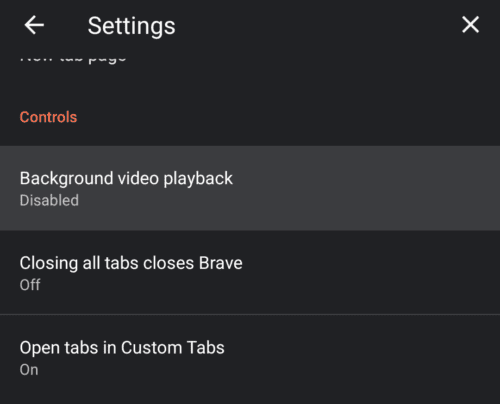
Scroll down through the settings list, then tap on “Background video playback”.

To enable background video playback, you need to tap the slider to the on position, you’ll then be notified that you’ll need to relaunch Brave for this change to apply. Tap “relaunch now” to restart Brave and apply the setting, or tap “later” if you want to apply the setting next time you restart the app.

Tip: Relaunching Brave won’t close your existing tabs.

Tap, the slider to enable the setting, then relaunch Brave as instructed to apply the change.

Note: The background video playback feature is relatively new and still experimental. It’s designed to allow you to play a video in one tab while using another or while the screen is off. If you run into any issues with the feature, it’s recommended that you try to enable the desktop view of the page through the triple dot icon menu. If the feature still doesn’t work you can ask for help or post a bug report on Brave’s community forums.

Categories: Android | Internet

Author Mel Hawthorne

You Might Also Like

  • Opera for Android: How to Configure Autofill

    Mel HawthorneAndroid
  • Samsung Android Browser: Enable the QR Code Scanner

    Mel HawthorneAndroid
  • Google Play header

    Quick Tip: How to View Your Google Play Purchase History

    Judy SanhzAndroid
  • Google Duo on Android: How To Add Automatic Captions To Video and Audio Messages

    Mel HawthorneAndroid

Comments

  1. Nathan says:
    August 30, 2023 at 3:46 am

    Legend, I needed this. Thank you!

  2. doss says:
    December 15, 2022 at 12:10 am

    thank you,

  3. P says:
    September 11, 2022 at 3:23 pm

    Great future, thank you!!!

  4. David says:
    May 10, 2022 at 1:22 pm

    Where is the video minimize button in brave?

  5. Chris says:
    May 12, 2021 at 6:30 pm

    Awesome, thank you!!!

Leave a Reply

Your email address will not be published. Required fields are marked *

This site uses Akismet to reduce spam. Learn how your comment data is processed.

300x600
Turning on Triple Touch Zoom on Android

Turning on Triple Touch Zoom on Android

How to Connect Outlook 2023 to Gmail

How to Connect Outlook 2023 to Gmail

Netflix: Change Password

Netflix: Change Password

Everything You Need to Know About WhatsApp Delete for Me

Step-by-Step Guide: How to Use WhatsApp on Your Computer

Android: Enable or Disable Background Data

Android: Enable or Disable Background Data

300x250
profile pic

The Experts Behind Technipages

My name is Mitch Bartlett. I've been working in technology for over 20 years in a wide range of tech jobs from Tech Support to Software Testing. I started this site as a technical guide for myself and it has grown into what I hope is a useful reference for all.

Learn More

300x250 2
technipages logo white
linkedin icon

Technipages is part of Guiding Tech Media, a leading digital media publisher focused on helping people figure out technology. Visit guidingtechmedia.com to learn more about our mission and team.

© 2026 Guiding Tech Media All Rights Reserved

  • About Us
  • Contact
  • Legal & Privacy

© 2026 Guiding Tech Media All Rights Reserved

Information from your device can be used to personalize your ad experience.
Do not sell my personal information.