

If you want to automatically Cc or Bcc yourself in Outlook, the quickest way to do that is to create a new Quick-Step. Alternatively, you can also create a new rule. However, keep in mind that Cc-ing yourself in every email you send can clutter your inbox. If you’re already getting hundreds of emails every day and you find it hard to find specific emails, maybe you should consider using a different option. For example, you can set up reminders or turn emails into tasks.
How Do I Automatically Cc or Bcc Myself in Outlook?
Use Quick Steps
- Launch Outlook and click on the Home tab.
- Then go to Quick Steps and select Create New.
- Name the new step.
- Then go to Choose an Action and select Reply.
- Click on Show Options.

- Click Add Cc or Add Bcc.
- Type your email address in the To field and hit Finish.

When you reply to an email, select the Quick Steps box and click on the new rule to automatically add yourself in the Cc or Bcc field.
Use the Rules Wizard to Create a New Rule
- Launch Outlook and click on the Home tab.
- Then click on Rules and select Manage Rules and Alerts.
- Click on New Rule to create a new rule.
- Select Apply rule on messages I send and hit Next.

- Choose if you want to apply the new rule to all of your emails or some of them.
- Select Cc the message to people or public group in the first pane.
- Then, click on the people or public group link in the second pane.

- Add your email address in the To field.
- Name the new rule, and turn it on to apply the changes.
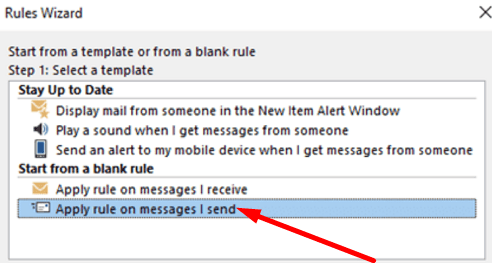

If you don’t want to Cc yourself in all the emails you send, you can manually add some exceptions or filters. For more information, go to Microsoft’s support page.
Conclusion
If you want to auto-add yourself in the Cc or Bcc field in Outlook, you can create a new Quick Step to get the job done. Alternatively, you can also create a new rule that will automatically add you to the Cc field when you hit the Reply button.
Did you manage to automatically Cc or Bcc yourself? How often do you use this Outlook functionality? Let us know in the comments below.



Some years ago I managed (I can’t remember how) so set up hotmail so that every message I sent was bcc’d automatically to myself. It does this both on my iPad and on my Windows PC. I no longer wish this feature, but after much searching I can find no way to turn it off. Please help!
This should be very simple to set your email to BCC (and/or CC) yourself; it is not. I’m very disappointed.
As I read the comments above, I realize the features and add on programs in the 90s absolutely make windows 10-11 and all the MS products look like junk. They intentionally make their office suite so complicated that not even a high tech individual can make this cr-ap work. I am glad I am old and done with this stuff….From DOS to Windows -10 I mastered..
Good luck future gens…..and if you think this is normal it is not….its by design
While this isn’t the perfect solution, it’s better than not having it all. Personally, I don’t understand how Microsoft has a rule where you can auto CC for sent messages but there’s no option to auto BCC. Thank you for giving me one of those “Awe Ha” moments. I needed this for an account for my client.
To John Koval – I was able to add a “home” tab to my ribbon – I googled “where is home in outlook” and found instructions for it to show.
I tried to create a rule, and the instructions worked until “#6 Select Cc the message to people or public group in the first pane.” This is not a listed condition in my Rules Wizard.
it worked but there are more menus to navigate thru then this descripiton, you may need to update the instructions using latest outlook
it doesn not work – option doesn’t show up
@John Koval – Microsoft always trying to simplify to copy Apple but then leaves you in the dark at times. Don’t know why the Outlook online can’t look more similar to the PC version.
Click on Gear Icon near top right. In the right side menu that opens, look at the bottom and click on “view all Outlook settings”. In the setting window that pops up you will find “Rules” under “Mail” settings.
no, I use outlook as a web app, and cannot find “:Home’