

Windows 10 has a built-in tool called File History that allows you to back up your files and folders automatically and restore your data if something goes wrong.
Unfortunately, many users complained they couldn’t really tell if File History is working or not. Indeed, the tool usually runs silently in the background, and it’s not that easy to tell when it’s actively backing up your data.
How to Tell If Windows 10 Backup Is Running
To check if File History is backing up your data, go to File Explorer, select This PC, and double-click on the target backup drive. Right-click on the File History folder and select Properties. If the backup process is active, there should be a progress bar visible on the screen and information on the file size. Wait two minutes, and return to File Explorer to see if the file size has changed.
Alternatively, go to Control Panel → System and Security → File History and check the backup status.
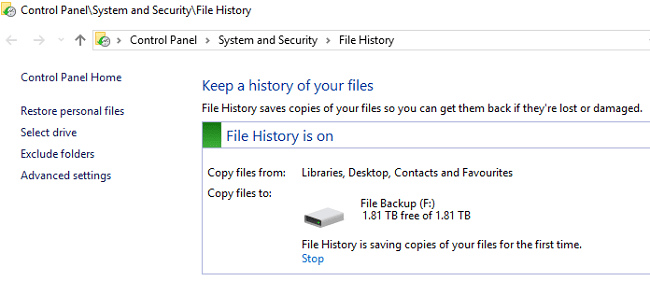
If you want to check your backup files, open the File History log. Navigate to %SystemRoot%\System32\Winevt\Logs\Microsoft-Windows-FileHistory-Core%4WHC.evtx. Check when was the backup file was last modified.
Alternatively, go to your File History folder and check the dates. Enter D:\FileHistory in the search bar and check the results. Don’t forget to replace D:\ with the actual drive letter for your current configuration.
Of course, the ultimate test is to actually restore your data. If the OS identifies a backup file, it can be used to restore your data; this indicates File History did its job.
Windows 10 May Fail to Back Up All Your Files
Windows 10 may sometimes fail to backup all your files and folders. This is because the OS assumes you’re storing your files in the default folder (C:\Documents, C:\Pictures, and so on). If you saved your files and folders to a different location, that might not work well simply because the OS may not always add that custom file path to its backup list.
Use Alternative Solutions
If using File History seems too complicated, you can use a third-party program to back up your data. Choose a program that’s easy to set up and shows its progress so that you can easily track the backup process.
File History is limited in its capabilities. It has a rather counter-intuitive user interface. Keep in mind that File History was initially designed to back up individual files, not multiple files simultaneously. Third-party backup tools can help you back up all your files at once.
Conclusion
File History is a handy file-and-folder backup solution. However, the counter-intuitive UI makes it difficult for users to check when the tool is actively backing up their files. To check if File History is running on your computer, go to Control Panel, select System and Security, click on File History and check the backup status. What tools do you use to back up your files? Let us know in the comments below.

I have a Seagate external drive. Thought I’ve been backing up my Files all along. Apparently not. The “Date Modified” last is 2021! Now I don’t know WHY my Files aren’t being backed up!
Thank you, this WAS helpful.
Wish you might have mentioned some backup programs you like, given that you clearly know what you are doing! Thank You.
For the first time I was able to see if files were being backed up and date and time of last backup. Thank you very much.