

If you don’t want all your Facebook friends to learn that you’re interested in an event, you can hide your response. For example, maybe you don’t want everybody to know you’re attending a particular event. Whatever the reasons, you can stop Facebook from sharing that event in your feed.
In this guide, we’ll show you how you can hide your event confirmations from showing in the newsfeed.
Steps to Hide Event Responses on Facebook
- Go to the event’s page.
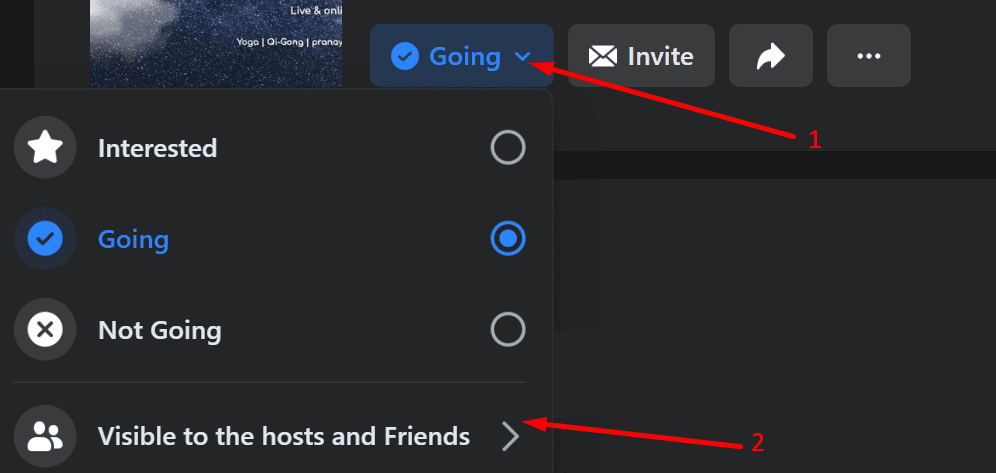
- Then locate the Interested or Going button (depending on your choice).
- Click on the down arrow and select Visible to the host and friends.

- Then select the privacy level for your response:
- Friends. All your Facebook friends will see your response.
- Friends except… You can manually select the persons you want to hide your response from.
- Only me. Your response will be visible only to the host and yourself.

- If you select Only me, you’ll get a message confirming your response is visible only to the host(s) and yourself.



Public vs Private Events
There are two types of events available on Facebook: public events and private events.
For example, if you marked you’re interested in a public event, the host and your friends can see you’re interested in that event.
In addition, your answer will be visible on the event’s page and in your feed. The host and your friends may even get a notification that you’re interested in that particular event.
The good news is that you can hide your response by following the steps listed above. In other words, your response will no longer be visible.
On the other hand, if you’re interested in a private event, you can’t control who can see you’re going. The host, as well as all the persons invited, will see you’re also going.
Those who aren’t invited won’t be able to see you’re attending that event. But you can always ask the host to hide the guest list. In this manner, invitees won’t see who else has been invited to that event.




I am hosting a private event and don’t want invitees to see who is going, have not found any option for this yet.
I too accidentally clicked ‘going’ when I haven’t booked accomodation. I simply want to unclick my response NOT change it to Maybe or Not Going – which are the only options. Why doesn’t Facebook provide this option?. Bloody infuriating. Visibility did not appear and in any case I don’t want the host to see a response at this stage.
I too accidentally clicked ‘going’ when I haven’t booked accomodation. I simply want to unclick my response NOT change it to Maybe or Not Going – which are the only options. Why doesn’t Facebook doesn’t provide this option?. Bloody infuriating. Visibility did not appear and in any case I don’t want the host to see any response at this stage.
You should be able to remove a response to a private event. I accidentally clicked a response, now I’m forced to choose “Going” “Maybe” or “Not Going.” This is asinine. There should be a way to un-select any response.
But anyone who has loaded their newsfeed in the time you selected attending and changed the privacy settings will have your attendance on their feed.
No – this did not help.
The visibility option was not there.