
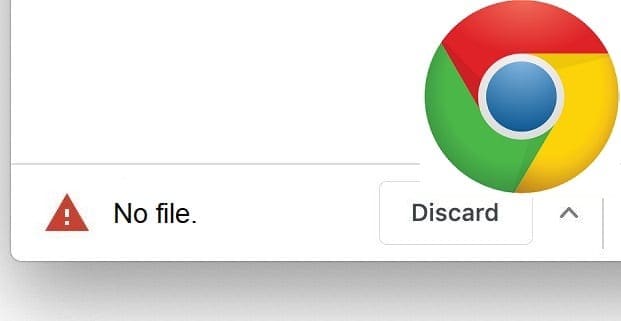
Sometimes, Google Chrome may display the “File missing” or “No File” error when you’re trying to download files or software on your machine. In 99 percent of cases, this error message is triggered by various website issues.
The File Was Removed or the Server’s Down
The error usually indicates the file or program you’re trying to download no longer exists on the webpage you’re on. The website owner may have completely removed it. Or they moved it to a different section of the website.
The same error may pop up if there’s a server issue with the website you’re visiting. Maybe the file you’re trying to download is there, but the server blocks the download or does not initiate it. Wait 10 minutes and try again.
If the issue persists with another browser, you should contact the website owner to let them know something’s wrong with the file or program you’re trying to download. Send them an email and provide them with as many details about the problem as possible.
Things to Check on Your End
There are some things that you can do to make sure Chrome is working as intended on your computer.
Clear the Browsing Cache
- Click on the browser menu and select History twice.
- Then click on Clear browsing data.
- Select the time range and tick the Browsing history and Cache boxes.

- Hit the Clear data button.

Disable Your Extensions
Certain programs or websites might have installed various extensions without you even noticing that. Go ahead and disable all your browser extensions and check if you can download the problematic file now.
Remove any suspicious extensions that you don’t remember installing.
Update the Browser
Check if there’s a new Chrome version available. Install it on your device and refresh Chrome. Click on the menu, select Help → About Google Chrome.

Use the Clean Up Tool
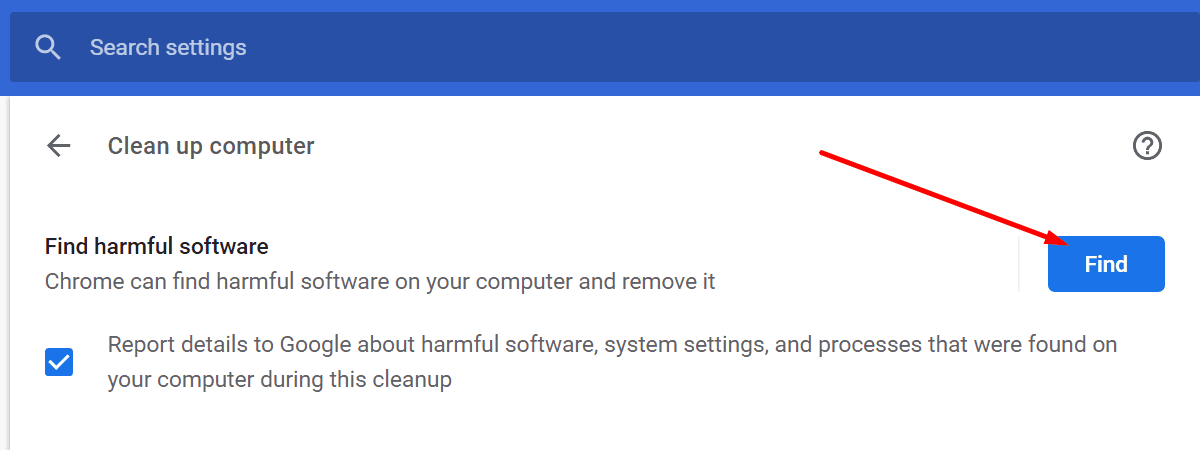
Chrome comes with a built-in tool that automatically removes malware and reverts browser settings. The tool also disables any programs or extensions that might interfere with the browser.
- Click on the browser menu and go to Settings.
- Scroll all the way down to Advanced.
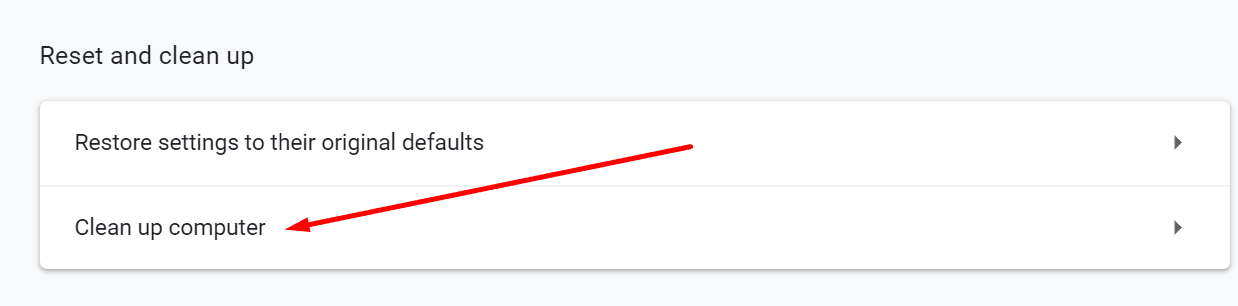
- Scroll down again to Reset and clean up.
- Then click on Clean up computer.

- Hit the Find button.
Conclusion
If Chrome says the file you’re trying to download is missing, this indicates the file has been moved or no longer exists on that webpage. You can contact the website owner to inform them about this issue.
Additionally, you can clear the cache, disable the extensions, update Chrome, and run the Clean Up tool to ensure your browser is working properly.




My name is shukri jillo i’ve regestered in applepay card and i dont know my card no. Why dont you not sent my phone even if i dont know how to find it!!!