Skip to content
LogoTechnipages
technipages logo
  • Topics
        • Android
        • Browsers
        • Gaming
        • Hardware
        • Internet
        • iPhone
        • Linux
        • macOS
        • Office
        • Reviews
        • Software
        • Windows
        • Definitions
  • Product Reviews
  • Downloads
  • About

How to Get Free iCloud Email

Kat ArmstrongSeptember 6, 2019 Comments (2)

If you have an Apple device, you have already set up an iCloud account. If you are not taking advantage of all the service has to offer, you are definitely missing out. iCloud keeps all of your videos, docs, music, pictures, apps and – well – everything securely stored for you. It updates and syncs them across all of your devices seamlessly without your having to mess with anything. You can use your iCloud account to show off the pictures of your vacation, share your calendar with others so they know what you are up to and so much more. Heck, if you happen to lose your iPhone or iPad (or MacBook!) iCloud will help you locate it.

When you set up your Apple device, you had to create an Apple ID and an iCloud account. However, you may not have used (or created) a free iCloud email address to associate it with. This is something I definitely recommend doing.

How to Create a Free iCloud Email Address

Grab your iOS device or Mac. On the iPhone or iPad, tap “Settings,” then choose your name. Tap “iCloud,” and then choose “Turn on Mail.” Next, follow the on-screen instructions.

On a Mac, click the “Apple Menu,” then choose “iCloud.” From here, select “Mail’ and follow the instructions on your screen.

How to Create a Free iCloud Email on Older Versions of Windows

For versions of Windows prior to 10, head over to the iCloud for Windows website.
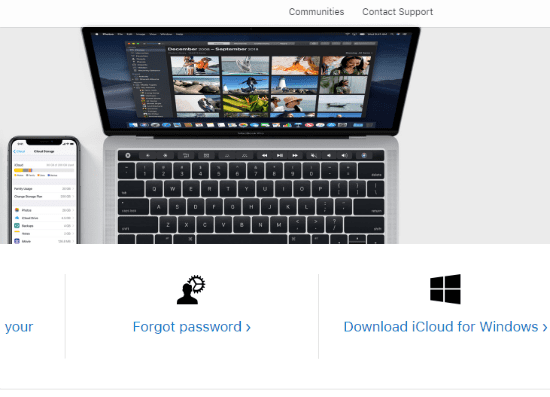
On the right-hand side, click ”Download for Windows.” Once the file has downloaded, double-click it to open and begin Setup. Click to accept those Terms and Conditions, and then click ”Install.”

Once it has installed, click the ”Finish” button and restart your computer. Once the machine has rebooted, open up iCloud for Windows and sign up for a new free iCloud email account!

How to Get Free iCloud Email on Windows 10

Navigate to the Microsoft Store to download the iCloud for Windows app. Click the blue ”Get” button and then click it again in the little box that pops up.

Once the app has installed on Windows 10, simply sign up for a new iCloud email account and you’re off!

What other things can I help you with today?

Happy Emailing!

Categories: Internet

Author Kat Armstrong

You Might Also Like

  • 7 Chrome Extensions to Make Gmail More Productive

    Judy SanhzInternet
  • Google Docs Header

    Link to a Specific Section of Google Doc

    Mel HawthorneInternet
  • 6 Free Online Sites to Remove the Background of an Image

    Judy SanhzInternet
  • Facebook-Tell-if-Someone-Is-Stalking-You

    Facebook: How to Know if Someone Is Stalking You

    Madalina DinitaInternet

Comments

  1. jenkins George says:
    August 8, 2021 at 2:49 am

    Hi ???? I need a free icloud account on my iPad

  2. Kathy Ames says:
    October 23, 2019 at 11:41 am

    I cannot remember how to create a new folder in my email

Leave a Reply

Your email address will not be published. Required fields are marked *

This site uses Akismet to reduce spam. Learn how your comment data is processed.

300x600
Turning on Triple Touch Zoom on Android

Turning on Triple Touch Zoom on Android

How to Connect Outlook 2023 to Gmail

How to Connect Outlook 2023 to Gmail

Netflix: Change Password

Netflix: Change Password

Everything You Need to Know About WhatsApp Delete for Me

Step-by-Step Guide: How to Use WhatsApp on Your Computer

Android: Enable or Disable Background Data

Android: Enable or Disable Background Data

300x250
profile pic

The Experts Behind Technipages

My name is Mitch Bartlett. I've been working in technology for over 20 years in a wide range of tech jobs from Tech Support to Software Testing. I started this site as a technical guide for myself and it has grown into what I hope is a useful reference for all.

Learn More

300x250 2
technipages logo white
linkedin icon

Technipages is part of Guiding Tech Media, a leading digital media publisher focused on helping people figure out technology. Visit guidingtechmedia.com to learn more about our mission and team.

© 2026 Guiding Tech Media All Rights Reserved

  • About Us
  • Contact
  • Legal & Privacy

© 2026 Guiding Tech Media All Rights Reserved

Information from your device can be used to personalize your ad experience.
Do not sell my personal information.