

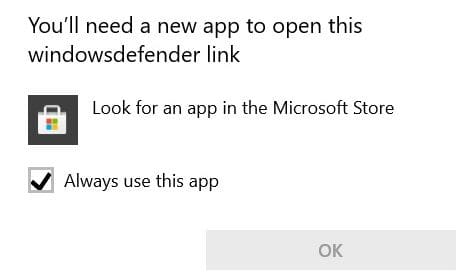
When you try to launch Windows Security, you may sometimes get a strange alert that says you need a new app to open the Windows Defender link. This issue can affect both Windows 10 and Windows 11 users. Try restarting your computer and check if that changes anything. If the alert persists, follow the troubleshooting steps below.
My PC Says I Need a New App to Open Windows Defender Link
Reset Windows Security
Try resetting the Windows Security app and check if this quick solution solves the problem.
Launch Powershell with administrator rights and run the following command:
Get-AppxPackage Microsoft.SecHealthUI -AllUsers | Reset-AppxPackage
Then, restart your machine, go to Windows Security, and check if you’re still getting the same alert.
Register All AppX Packages
Use PowerShell to register all AppX packages. The commands to use may vary depending on your Windows version.
If you’re running Windows 11, launch PowerShell as an admin and run the commands below one by one:
Set-ExecutionPolicy UnrestrictedGet-AppXPackage -AllUsers | Foreach {Add-AppxPackage -DisableDevelopmentMode -Register "$($_.InstallLocation)\AppXManifest.xml"}Set-ExecutionPolicy restricted
If you’re running Windows 10, you need to run the following commands:
Add-AppxPackage -Register -DisableDevelopmentMode "C:\Windows\SystemApps\Microsoft.Windows.SecHealthUI_cw5n1h2txyewy\AppXManifest.xml"Get-AppxPackage Microsoft.SecHealthUI -AllUsers | Reset-AppxPackage
Relaunch Windows Security and check the results. If you’re still getting the same prompt, restart your computer and try again.
Disable or Uninstall Third-Party Antivirus Tools
Running two antivirus programs on your machine will lead to software conflicts. Uninstall all third-party security tools. Make sure Windows Security is the only antivirus running on your machine.
Go to Control Panel, click on Uninstall a Program and remove third-party security programs. Restart your computer, and check if you can launch Windows Security.
Check for Updates

Make sure to update Windows Security and your OS to the latest version. Go to Settings, click on Windows Update, and click on Check for updates. Wait until your computer installs the latest updates, and then restart it.
Conclusion
If Windows says, you need a new app to open the WindowsDefender link, launch PowerShell and reset the Windows Security app. Make sure to install all the AppX packages as well. Additionally, remove third-party security programs and install the latest updates.
Did you manage to solve the problem and launch Windows Security? Let us know in the comments below.



so i found this
add-appxpackage -disabledevelopmentmode -register ((Get-AppxPackage Microsoft.SecHealthUI -allusers).InstallLocation + ‘\AppxManifest.xml’)
you need to run powershell as an administrator and enter it
BUT, it gave me some error that said something along the lines of Microsoft.UI.Xaml.2.4 framework wasn’t found or something SOOO i went to this page: https://apps.microsoft.com/store/detail/microsoftuixaml24/9PB1PFTHHM15?hl=en-us&gl=us
downloaded it from the microsoft store and THEN re-ran that command up there
add-appxpackage -disabledevelopmentmode -register ((Get-AppxPackage Microsoft.SecHealthUI -allusers).InstallLocation + ‘\AppxManifest.xml’)
and it worked! :) i can now access windows defender, hope this helps somebody!
Reset Windows Security option worked.
Great help thank you
THANK YOU SO MUCH!!
Get-AppxPackage Microsoft.SecHealthUI -AllUsers | Reset-AppxPackage
Worked great, many thanks for the fix.
Thank you, after a quick reastalling windows uptades in powershell it worked after a month of trying, good job!
Try removing the space between microsoft. and SecHealth
Get-AppxPackage Microsoft.SecHealthUI -AllUsers | Reset-AppxPackage
Yes, well done this fixed the issue I was having.
Many thanks
i have triying and its working
thank you
Just gonna wipe my pc nothings working
I’ve tried everything and still nothing