

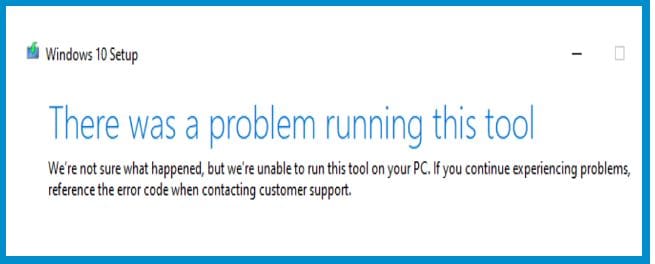
After plugging a bootable USB flash drive into your computer, a strange alert may sometimes pop up saying that “There was a problem running this tool“. This issue usually occurs after selecting your drive. Unplug the USB drive, and try again. If the issue persists, follow the troubleshooting steps below.
Windows Media Creation: There Was a Problem Running This Tool
Unblock the Media Creation Tool
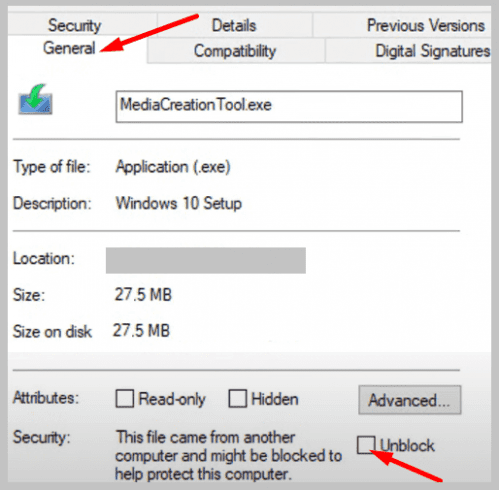
Make sure the Media Creation tool can run on your machine. Most likely, the tool doesn’t have permission to run on your computer. For security reasons, your device may sometimes block the Media Creation Tool executable file after detecting that it comes from another machine.
To solve the problem, right-click on the Media Creation Tool executable file, and select Properties. Then, click on General and hit the Unblock button located at the bottom of the window. Save the changes and try again.
Format Your USB Flash Drive
If the issue persists, format your USB thumb drive. Go to This PC, right-click on your USB flash drive, and select Format. Select the NTFS file system format, and hit the Start button.
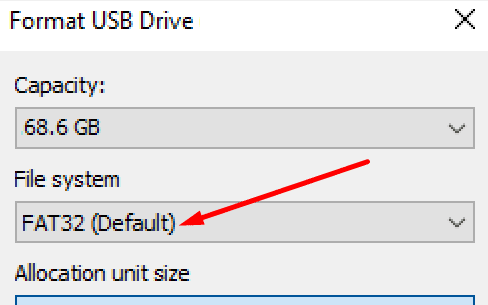
Keep in mind that formatting your USB drive will erase everything on it. Make sure to back up important files. Then, create a new bootable USB drive, and try again.
Enable the Update Services
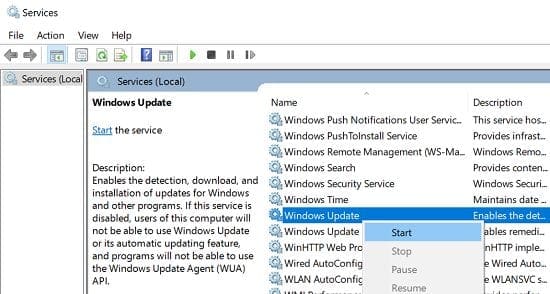
Make sure that the services Windows needs to create or run the bootable drive are up and running. If they’re not, you need to restart them manually.
- Click on the Windows Search icon and type services.
- Double-click on the Services App to launch the tool.
- Scroll down to the Windows Update service.
- Check the service status and make sure it’s running.

- If the Windows Update service has stopped working, right-click on it and restart it.
- Additionally, set the startup type to Automatic.
- Do the same for the Background Intelligence Transfer Service.
Conclusion
If your computer says there was a problem running the Windows Media Creation tool, unblock the Media Creation Tool executable file. Then, format your USB flash drive using the NTFS file system format. Additionally, make sure that the Windows Update and Background Intelligence Transfer services are running in the background.
Did you manage to solve the problem? Let us know in the comments below.



I don’t have the unlock option in Windows 7
NO… didn’t work. The strange thing is, I did run the tool some time ago and was ready to install from the flash drive, but my son borrowed it to ‘flash’ his bios which meant removing the Win 10 files, and now the media creation tool won’t run on the same computer… and no, there have been no major additions or changes. tool just doesn’t work now.
I’ve tried the original tool and a freshly downloaded one to no avail… so if anybody has solved this, please let us know.
none worked for me too…. anyone who can are welcome
Same error as the above comment, but cheers for trying to help – any other suggestions will just keep googling I suppose…
None of this worked. Every time I carried out one of the solutions, I still kept receiving the notification: We’re not sure what happened, but we’re unable to run this tool on your PC. If you continue to experience problems, reference the error code when contacting customer support. Error code: 0x80072F8F – 0x200000 .