Skip to content
LogoTechnipages
technipages logo
  • Topics
        • Android
        • Browsers
        • Gaming
        • Hardware
        • Internet
        • iPhone
        • Linux
        • macOS
        • Office
        • Reviews
        • Software
        • Windows
        • Definitions
  • Product Reviews
  • Downloads
  • About

How to Create Windows 10 Bootable USB

Mel HawthorneFebruary 5, 2020 Comments (0)

Installing Windows 10 generally requires a removable device to be configured to be a bootable media. The best device to use for this is a USB memory stick.

Tip: This process requires a USB memory stick with at least 8GB of space.

The best software to use to create a bootable Windows USB is the official Microsoft Media Creation Tool. This tool can run without any installation, you just need to accept the standard licensing agreements.

The first real option is selecting which process you want to complete. The Media Creation Tool can be used to upgrade existing installations of Windows or to make bootable removable devices. You want to select “Create installation media”, before clicking next.

Select Create installation media

Next, you need to select what language pack, edition, and architecture of Windows you want to install. The “recommended options for this PC” will match the version of Windows that you have installed. The architecture should be set to 64-bit unless you know you specifically need a 32-bit version of Windows.

Select Windows language pack, edition and architecture options.

Next, you’ll be asked if you want to download an ISO file (a disk image format) to install later, or if you want to install windows to the USB device now. Select USB flash drive and click next.
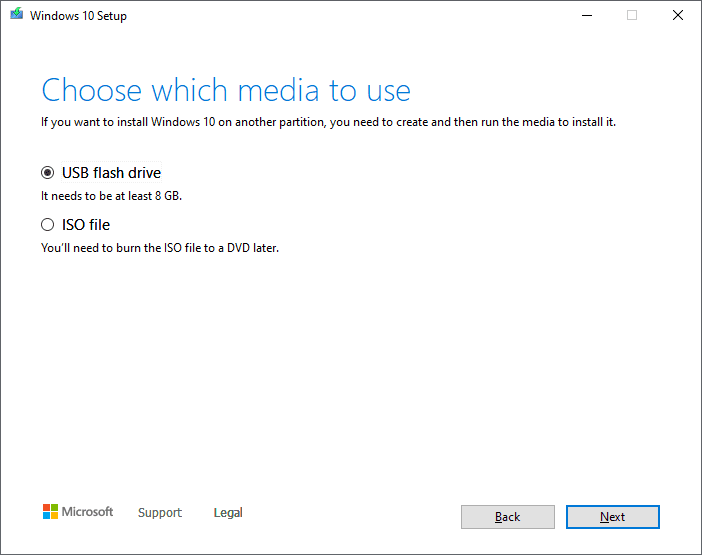
Select Windows language pack, edition and architecture options.

The next stage is to select which USB drive to use. If the device you select does not have the required 8GB of space, a warning will popup.

Tip: This process can wipe the contents of the USB stick, make sure to back up any documents before starting the installation.

Select which USB device to install Windows to.

Once you’ve chosen which device to install Windows to, the Media Creation Tool will download and install everything automatically. Once the process is complete, you’ll get a screen saying, “Your USB flash drive is ready”.

The process is complete.

Once you click “Finish” the Media Creation Tool will perform a few cleanup tasks before closing. Your Windows bootable USB installation media is now ready to go.

Tip: Be sure to remove the USB device before booting your computer next time, or your computer may try to reinstall Windows.

Categories: Windows

Author Mel Hawthorne

You Might Also Like

  • Inclusion list for high risk file types policy

    Windows: Disable “Publisher Could Not Be Verified” Messages

    Mitch BartlettWindows
  • meet now windows 10

    What is Meet Now in Windows 10? Can I Remove It?

    Madalina DinitaWindows
  • windows 10 disable volume overlay

    Windows 10: How to Give the Taskbar a Name

    Judy SanhzWindows
  • general protection fault error

    What is a General Protection Fault Error?

    Madalina DinitaWindows

Leave a Reply

Your email address will not be published. Required fields are marked *

This site uses Akismet to reduce spam. Learn how your comment data is processed.

300x600
Turning on Triple Touch Zoom on Android

Turning on Triple Touch Zoom on Android

How to Connect Outlook 2023 to Gmail

How to Connect Outlook 2023 to Gmail

Netflix: Change Password

Netflix: Change Password

Everything You Need to Know About WhatsApp Delete for Me

Step-by-Step Guide: How to Use WhatsApp on Your Computer

Android: Enable or Disable Background Data

Android: Enable or Disable Background Data

300x250
profile pic

The Experts Behind Technipages

My name is Mitch Bartlett. I've been working in technology for over 20 years in a wide range of tech jobs from Tech Support to Software Testing. I started this site as a technical guide for myself and it has grown into what I hope is a useful reference for all.

Learn More

300x250 2
technipages logo white
linkedin icon

Technipages is part of Guiding Tech Media, a leading digital media publisher focused on helping people figure out technology. Visit guidingtechmedia.com to learn more about our mission and team.

© 2026 Guiding Tech Media All Rights Reserved

  • About Us
  • Contact
  • Legal & Privacy

© 2026 Guiding Tech Media All Rights Reserved

Information from your device can be used to personalize your ad experience.
Do not sell my personal information.