
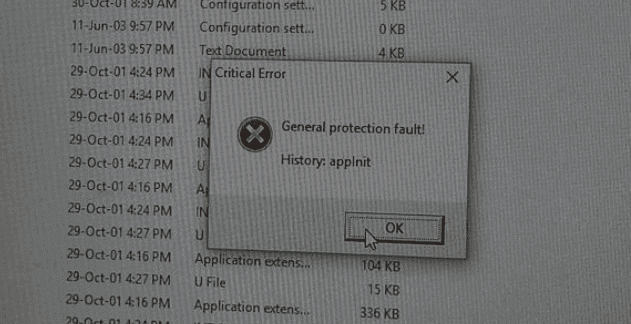
General Protection Fault errors are specific to Windows computers. They usually occur when a program is trying to access and use a memory portion that’s being used by another process or program. In other words, the error indicates that a specific portion of memory is not available.
GPF errors may also indicate that a program is trying to access memory that is not authorized to access. Simply put, you’re dealing with a memory violation problem.
Unfortunately, these errors often freeze the entire system. As a result, users are left with no option but to restart their computers. It seems that GPF errors often occur when gaming. Apparently, some titles such as the Harry Potter game series tend to trigger GPF errors more frequently than other games.
How Do I Fix General Protection Fault Errors?
Delete Temporary Files
Temporary files stored on your machine may cause GPF errors by forcing programs to access other memory portions. Delete temporary files and check if the error persists. The quickest method to do that is to run Disk Cleanup.
- Type ‘disk cleanup‘ in the Windows search bar. Launch Disk Cleanup.
- Select your main drive and scan it.
- Then clear the following files:
- Temporary Internet Files
- Temporary Files
- Windows Update Files
- And any other files you no longer need.
- Restart your computer.


Delete Files Your No Longer Need
Another method to free up some space on your machine is to manually remove unnecessary files and programs. Start with video files because they eat up a lot of storage space. And then delete all the other files you no longer need.
Run SFC and DISM
Corrupted system files may trigger GPF errors from time to time.
- Launch Command Prompt as admin.
- Run the following commands and press Enter after each one:
- sfc /scannow
- DISM /Online /Cleanup-Image /CheckHealth
- DISM /Online /Cleanup-Image /ScanHealth
- DISM /Online /Cleanup-Image /RestoreHealth
- Restart your machine and check if the error persists.
Run the Program in Compatibility Mode
Run the program that triggered this error in compatibility mode. Many users who encountered GPF errors while playing video games managed to fix the problem by running the problematic game in compatibility mode.
To do this, right-click on the program that’s causing the error, and click on Properties. Then, click on the Compatibility tab and check the option that says Run this program in compatibility mode. Select Windows 7 from the drop-down menu.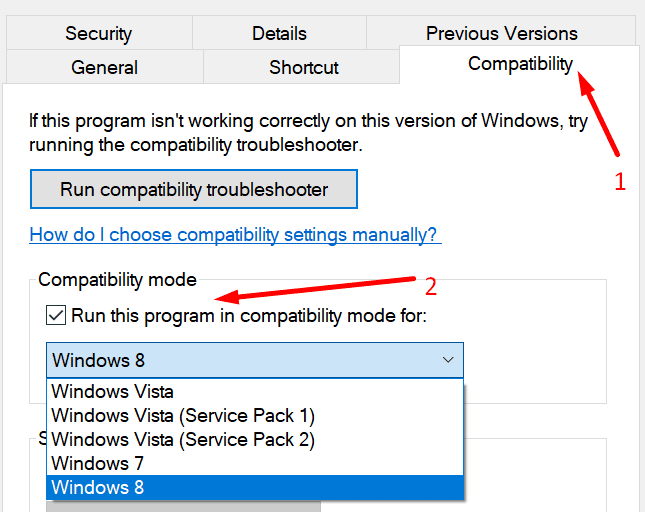
And don’t forget to update your drivers. Download the latest driver versions from your device manufacturer’s website.



Not only related to windows but also for linux systems. Please inform yourself before writing such stuff
I had that fault and had to reset my laptop. That means going right back to the basics again. It clears all files and it worked. I saved my important files to a external drive.