Microsoft Teams error ‘You can’t get there from here‘ indicates the login process failed. This error message is specific for Teams accounts that are managed by an organization. You won’t get this error if you use a free personal Teams account.
However, if you join your personal account or device to your organization’s network, you may experience this error from time to time.
What to Do if Teams Says You Can’t Get There from Here
Contact Your IT Admin
This error indicates your IT admin enabled conditional access in Teams. In other words, if your device is not managed by the organization, you won’t be able to log in. To clarify, the access settings prevent users from using third-party devices to log in to Teams accounts.
This is only a standard error that pops up if you use a device that’s non-compliant with organization policies.
If you’re a tech-savvy user, there are some things that you can do to solve this problem. Or at least try to solve it on your end. IT admins have a lot of support demands they need to take care of daily. They may not be able to solve your issue right away.
Join Your Device to Your Organization Network
If your current device does not appear to be joined to your organization’s network, Teams will tell you that “you can’t get there from here.”
How to check if your device is joined to your network:
- Log in to Windows with your work or school account.
- Launch the VPN to connect to your organization’s network. Or use DirectAccess.
- Press the Windows logo key and the L key at the same time. This will lock your device.
- Unlock your device. Try to connect to Teams again.
- If the error persists, contact your admin.
Block the Workplace Joined Device
Microsoft Teams does not support both AAD-joined machines and workplace-joined devices smoothly. As a result, you may get an error message from time to time. The solution is to either block the workplace-joined computer or disconnect the workplace account.
- Close Microsoft Teams completely.
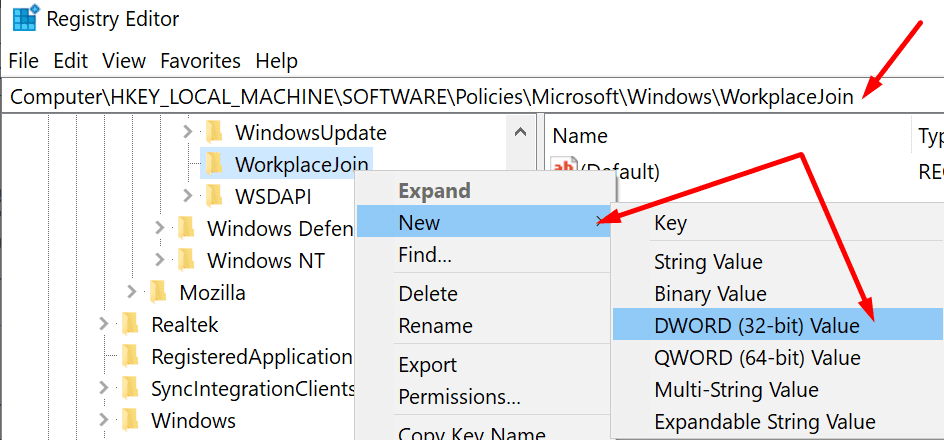
- Then open the Registry Editor and go to this path:
- Computer\HKEY_LOCAL_MACHINE\SOFTWARE\Policies\Microsoft\Windows\WorkplaceJoin

- Computer\HKEY_LOCAL_MACHINE\SOFTWARE\Policies\Microsoft\Windows\WorkplaceJoin
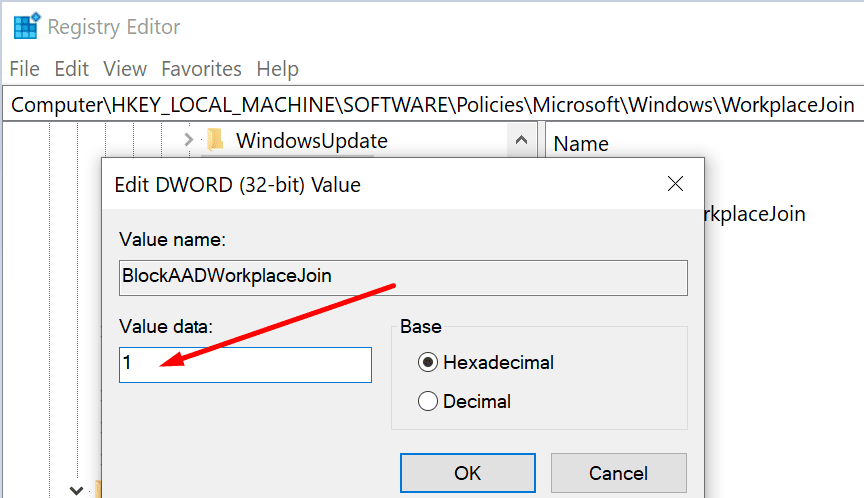
- Now, you need to create a new DWORD. Right-click on WorkplaceJoin and select New DWORD (32-bit). Name it BlockAADWorkplaceJoin.
- Double-click on it and set its value to 1.

- Launch File Explorer and type %appdata%.
- Then navigate to AppData\Roaming\Microsoft\Teams.

- Delete all the items from this folder. Check if the error is gone.

Use a Supported Browser
If you get the ‘You can’t get there from here‘ message, make sure you’re trying to access your organization’s resources using a supported browser. Azure Active Directory supports the following browsers: Microsoft Edge, Internet Explorer, Google Chrome, and Safari. Update your browser if you’re running an outdated version.