Skip to content
LogoTechnipages
technipages logo
  • Topics
        • Android
        • Browsers
        • Gaming
        • Hardware
        • Internet
        • iPhone
        • Linux
        • macOS
        • Office
        • Reviews
        • Software
        • Windows
        • Definitions
  • Product Reviews
  • Downloads
  • About

How to Use Face Unlock on Android

Judy SanhzMarch 31, 2020 Comments (0)

Someone can guess your password to get into your device, but thanks to face recognition, only you can unlock your device. You also make sure that you’re the only one that can unlock your device.

It only takes a few minutes to add your face for easy access. After that, you’ll have easy access to your device even if your hands are full.

How to Set Up Face Unlock in Android Pie

Depending on the device, you may or may not see the following steps. But, to set up face recognition, go to:

  1. Settings
  2. Security
  3. Face Unlock
  4. Enter pin
  5. Follow on-screen instructions

If you ever want to undo this, follow the same steps. You’ll see options to disable face recognition to unlock your phone and to delete face data. If you don’t want to delete your face data, there’s an option to temporarily toggle it off.
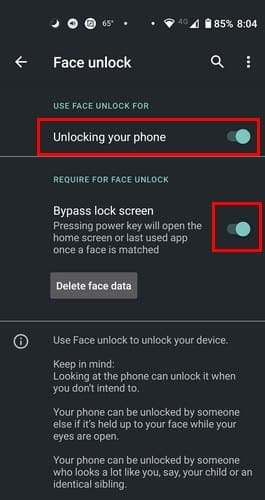
If you can’t find the option with the previously mentioned steps, try:

  1. Settings
  2. Biometrics & Security
  3. Face Recognition
  4. Confirm your pattern or password
  5. Register face

To remove face data, follow these exact same steps and choose the delete face data option.

How to Add Face Recognition to Any Android App

If you want to protect certain apps from intruders, there’s an app called AppLock Face/Voice Recognition. After reading its terms and conditions, you’ll need to choose your unlock phrase. You can choose from some the app offers, or you can create your own.

You’ll be asked to create a password or a pattern, and once you’re done with the setup process, it’s time to choose which apps will be locked. There are three options to choose from: No security, Convenience Mode, and TrulySecure Mode.

With Convenience Mode, the app only asks for a face or voice authentication. With TrulySecure Mode, you get an extra level of security since the app will scan your face, and you’ll have to say the phrase you chose when you first set up the app.

The second option takes longer, but it’s a great way to keep your files safe from intruders.

Conclusion

Face-unlock is a handy feature since it gives you faster access to your device. But, there are others that may feel uncomfortable with their faces being scanned, what do you think? How comfortable do you feel using the technology? Share your thoughts in the comments below.

Categories: Android

Author Judy Sanhz

You Might Also Like

  • Android: Setup RoadRunner Email

    Mitch BartlettAndroid
  • Amazon Fire Tablet Header

    Amazon Fire: How to Add and Remove Email Accounts

    Mitch BartlettAndroid
  • fix-android-error-code-192

    How to Fix Android Error Code 192

    Madalina DinitaAndroid
  • samsung-phone-says-something-went-wrong

    Fix: Samsung Phone Says Something Went Wrong

    Madalina DinitaAndroid

Leave a Reply

Your email address will not be published. Required fields are marked *

This site uses Akismet to reduce spam. Learn how your comment data is processed.

300x600
Turning on Triple Touch Zoom on Android

Turning on Triple Touch Zoom on Android

How to Connect Outlook 2023 to Gmail

How to Connect Outlook 2023 to Gmail

Netflix: Change Password

Netflix: Change Password

Everything You Need to Know About WhatsApp Delete for Me

Step-by-Step Guide: How to Use WhatsApp on Your Computer

Android: Enable or Disable Background Data

Android: Enable or Disable Background Data

300x250
profile pic

The Experts Behind Technipages

My name is Mitch Bartlett. I've been working in technology for over 20 years in a wide range of tech jobs from Tech Support to Software Testing. I started this site as a technical guide for myself and it has grown into what I hope is a useful reference for all.

Learn More

300x250 2
technipages logo white
linkedin icon

Technipages is part of Guiding Tech Media, a leading digital media publisher focused on helping people figure out technology. Visit guidingtechmedia.com to learn more about our mission and team.

© 2026 Guiding Tech Media All Rights Reserved

  • About Us
  • Contact
  • Legal & Privacy

© 2026 Guiding Tech Media All Rights Reserved

Information from your device can be used to personalize your ad experience.
Do not sell my personal information.