
Signing into your Microsoft Teams account shouldn’t take more than a few seconds. But the app may sometimes get stuck in the “Checking Your Credentials” loop. For unknown reasons, your Teams client fails to connect to Microsoft’s servers and validate your credentials. Not being able to log in to your Teams account is a major issue, so let’s see how you can troubleshoot it.
How to Fix Microsoft Teams Stuck on Checking Your Credentials
⇒ Quick Fix: Check if you can log in to your account using Teams for Mobile or Teams for Web. Open a new private browser tab, go to https://teams.microsoft.com/go and check the results. Maybe the issue is specific to one device or app version.
Check Your Date and Time Settings
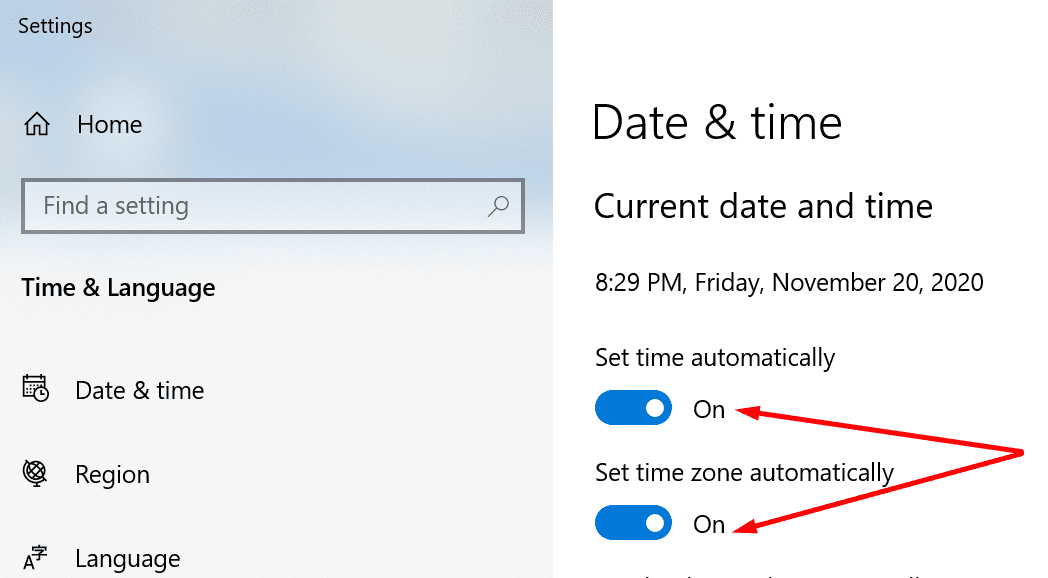
Check your date and time settings and ensure they’re correct. If your computer’s date and time settings are incorrect, your Teams desktop client won’t be able to connect to Microsoft’s servers. Incorrect Windows date and time settings trigger security alerts on the server’s end, preventing your connection.
- Go to Settings and select Time & Language.
- Then allow Windows 10 to automatically set time and time zone settings.

- Save the changes, restart Teams and check if you can log in to your account.
Delete Teams Credentials
Try deleting your Teams credentials and check if this method works. If you encounter the annoying “Checking your credentials” loop shortly after you reset your password, this method should solve the problem. Most likely, Teams couldn’t replace your old password with the new one, and that’s why it failed to log you in.
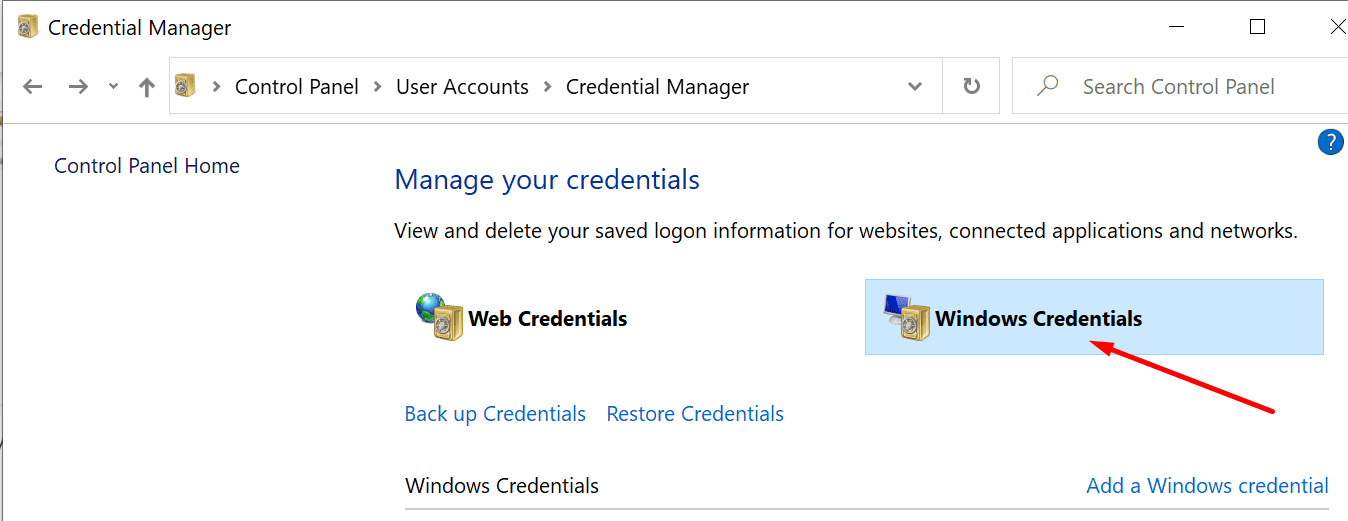
- Type ‘Credential Manager‘ in the Windows search box and double-click on the first result.
- Then select Windows Credentials.

- Scroll down, locate and remove the msteams_adalsso/adal_context credentials. Delete any other Teams credentials you may find.
Clear the Cache
If Teams fails to clear temporary files from previous sessions, it won’t run properly.
- Exit Microsoft Teams by right-clicking the Teams icon in the taskbar. Select Quit.
- Then type %appdata%\Microsoft\teams in the Windows Search bar.
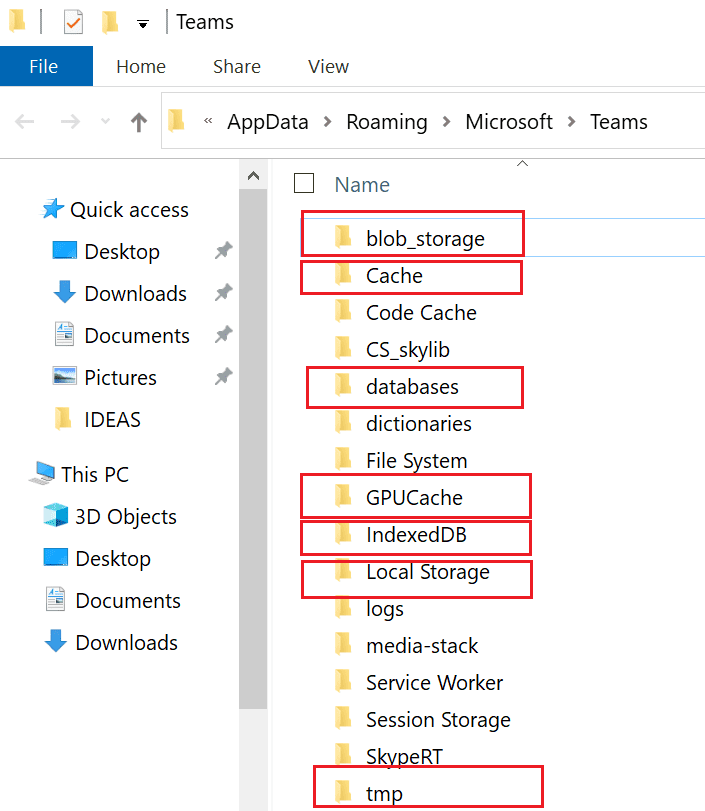
- Press Enter to open the directory and delete any of the files from the following folders:
- %appdata%\Microsoft\teams\application cache\cache
- %appdata%\Microsoft\teams\blob_storage
- %appdata%\Microsoft\teams\Cache
- %appdata%\Microsoft\teams\databases
- %appdata%\Microsoft\teams\Local Storage
- %appdata%\Microsoft\teams\tmp
- %appdata%\Microsoft\teams\GPUcache
- Delete the .db file from %appdata%\Microsoft\teams\IndexedDB.

- Restart Teams and check if you can log in now.
Conclusion
To sum up, if Teams gets stuck in the “Checking Your Credentials” loop, most likely, this is because your date and time settings are incorrect. Let Windows 10 set your time zone automatically. Let us know if this method worked for you.


teams not working properly
This helped 100%. Date and Time and removing the credentials, those were great tips.
help plz i cant change date and time i try evry solution but non of them work
problem is solved.It’s giving an error because my date and time settings are wrong.
This method definitely helped! I searched high and low for a resolution to resolve the dreaded loop and every part of this process resolved my issue instantaneously.