Skip to content
LogoTechnipages
technipages logo
  • Topics
        • Android
        • Browsers
        • Gaming
        • Hardware
        • Internet
        • iPhone
        • Linux
        • macOS
        • Office
        • Reviews
        • Software
        • Windows
        • Definitions
  • Product Reviews
  • Downloads
  • About

Fix: Microsoft Store Not Recognizing External Hard Drive

Madalina DinitaMay 26, 2021 Comments (0)
fix-microsoft-store-not-recognizing-external-hard-drive

If you want to find the coolest collection of apps and games for Windows 10, go to the Microsoft Store. Many users prefer to download their apps on an external hard drive to save up storage space. Unfortunately, the Store may sometimes fail to detect your external drive prompting you to select a different drive to download your apps.

How Do I Fix Microsoft Store Not Detecting External Hard Drive?

Change Where New Content Is Saved

Tweak your system settings and instruct your computer to save new content on your external hard drive. Navigate to Settings → System → Storage → Change where new content is saved and select your external drive. Check if this method solved the problem.
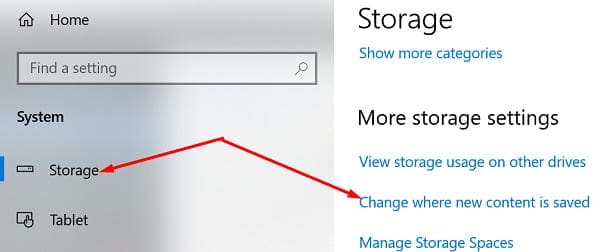
windows-10-change-where-new-content-is-saved

Re-Register the Store App

Launch PowerShell with admin rights and run the following command to register the Store app again: Get-AppXPackage *WindowsStore* -AllUsers | Foreach {Add-AppxPackage -DisableDevelopmentMode -Register "$($_.InstallLocation)\AppXManifest.xml"}

Move Your Apps to the Right Drive

Even if the Store app didn’t initially save your new apps to your external drive, you can manually move them to the right drive later on. Navigate to Settings → Apps → Apps & features. Select the app you want to move and click on Move.

move-windows-store-apps-to-external-drive

Reset the Store App

Press the Windows and R keys, and type wsreset.exe in the new Run window. Hit Enter to reset the app. Launch it again and check if the issue persists.

Then navigate to Settings, select Update & Security, click on Windows Update and install any pending updates. Microsoft may have already fixed this glitch in the latest Windows 10 OS version.

Scan Your Disk for Errors

Launch Command Prompt with admin rights and run the commands below to scan and repair your drive. Press Enter after each command:

  • DISM.exe /Online /Cleanup-image /Scanhealth
  • DISM.exe /Online /Cleanup-image /Restorehealth
  • DISM.exe /online /cleanup-image /startcomponentcleanup
  • sfc /scannow.

Conclusion

If the Store app won’t detect your external drive, go to Settings and make sure new content is saved on the right drive. Then reset the Store app and check your drive for errors. Did these solutions help you fix the problem? Hit the comments below and let us know which method worked for you.

Categories: Windows

Author Madalina Dinita

You Might Also Like

  • Win7 User Account Control settings

    Enable or Disable User Account Control (UAC) in Windows

    Mitch BartlettWindows
  • Windows 11 Disable Are you sure you want to move this file to the Recycle Bin Dialog

    Windows 11: Disable “Are you sure you want to move this file to the Recycle Bin?” Dialog

    Mitch BartlettWindows
  • Windows 10 Header

    Windows 10: Fix Error 0x81000203

    Mitch BartlettWindows
  • remove-windows-10-bloatware-with-powershell

    How to Remove Windows 10 Bloatware With PowerShell

    Madalina DinitaWindows

Leave a Reply

Your email address will not be published. Required fields are marked *

This site uses Akismet to reduce spam. Learn how your comment data is processed.

300x600
Turning on Triple Touch Zoom on Android

Turning on Triple Touch Zoom on Android

How to Connect Outlook 2023 to Gmail

How to Connect Outlook 2023 to Gmail

Netflix: Change Password

Netflix: Change Password

Everything You Need to Know About WhatsApp Delete for Me

Step-by-Step Guide: How to Use WhatsApp on Your Computer

Android: Enable or Disable Background Data

Android: Enable or Disable Background Data

300x250
profile pic

The Experts Behind Technipages

My name is Mitch Bartlett. I've been working in technology for over 20 years in a wide range of tech jobs from Tech Support to Software Testing. I started this site as a technical guide for myself and it has grown into what I hope is a useful reference for all.

Learn More

300x250 2
technipages logo white
linkedin icon

Technipages is part of Guiding Tech Media, a leading digital media publisher focused on helping people figure out technology. Visit guidingtechmedia.com to learn more about our mission and team.

© 2026 Guiding Tech Media All Rights Reserved

  • About Us
  • Contact
  • Legal & Privacy

© 2026 Guiding Tech Media All Rights Reserved

Information from your device can be used to personalize your ad experience.
Do not sell my personal information.