

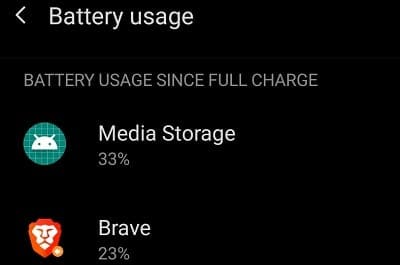
The Media Storage app may sometimes cause significant battery drain on your Android device. Many users reported that Media Storage sometimes uses around 30 to 40 percent of their battery. Unfortunately, users notice this unusual behavior only when their battery has already reached a critically low level. It seems that OnePlus and Samsung devices are particularly affected by this Media Storage battery drain issue. Let’s explore how you can fix this problem.
How Do I Stop Media Storage From Draining My Battery on Android?
Disable Background Data Usage
Prevent your apps from using cellular data while running in the background and check if the battery drain issue is gone.
- Navigate to Settings, select Data usage, and go to Cellular data usage.
- Note: On some Android devices, you may need to select Mobile network, and then Data usage.
- Select the apps that could be accessing your media files (images, videos, audio files, and other media files).
- Under Network access, toggle off Background data.


For more information, check out the guides below:
- Android: Enable or Disable Background Data
- How to Turn Background Data On or Off on the Samsung Galaxy S10
Update Your Apps and Android Version
Outdated apps and old Android versions may sometimes glitch and use more battery power than necessary.
- Go to Settings, tap System updates, and check for updates.
- Then, launch the Google Play Store app, and tap your profile icon.
- Select Manage apps and devices.
- Hit the Update all button to install all pending updates.


If this battery problem is caused by an Android code bug, Google may have already patched the issue in the latest Android version.
Take Your SD Card Out
A faulty or bad SD card can also drain your battery incredibly fast. Take out your SD card and check if the battery drain issue from the Media Storage app is gone. Use a different SD card and check if the problem persists. If you don’t have an SD card, go to the next solution.
Enable Battery Optimization
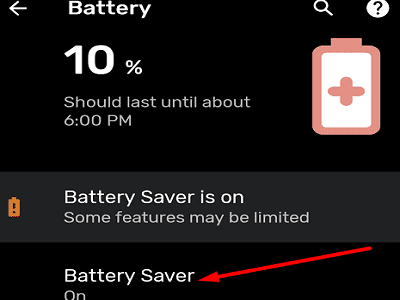
Enable your device’s battery-saving feature and check if you notice any improvements. Some Android models support Adaptive Battery, while others feature more general battery-saving options. But the common denominator is that all of these settings help your device predict and prioritize battery usage.
Additionally, make sure to close your media gallery when you’re done using it. Close all the apps that you’re not actively using and check if the issue persists.
Force-Quit Your Apps and Clear the Cache
Force-close all the apps that might be using your media gallery, such as Instagram, Facebook, TikTok, WhatsApp, and so on. Go to Settings, select Apps, and go to All Apps. Select the apps you want to close and hit the Force Stop button.
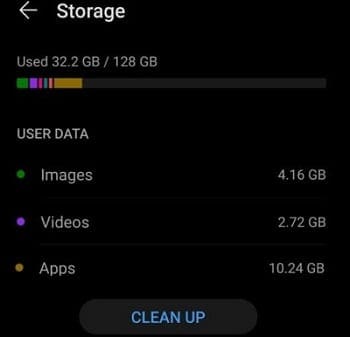
Then, go back to Settings, and tap Storage. Hit the Clean junk button to remove all junk files.
Then go to Settings, select Apps, and tap the Gallery app. Go to Storage and hit the Clear cache button. Restart your Android device and check the results.

Uninstall Problematic Apps
Go to Settings, tap Apps, and go through your list of apps. Uninstall all the apps that you no longer need or use. App incompatibility issues or third-party apps interacting with one another could also cause the battery issues you’re experiencing. Uninstall the apps that you suspect might be accessing Media Storage around the clock.

Conclusion
To sum up, if your Media Storage app is draining your Android battery, disable background data, take your SD card out and enable battery optimization. Additionally, force-stop your apps, clear the cache and uninstall all the apps that you no longer need. Did these solutions help you troubleshoot the problem? Let us know in the comments below.



Eli – How do I “find out which app is using media storage”, and then restrict it?
I just had this exact same issue with BitDefender Mobile. Huge spike in heat generated. Battery dying quickly. Unable to charge without switching the phone off. Media Storage taking up over 50% battery usage. BitDefender was a close second at ~15%. After trying to unsuccessfully disable/reset/kill Media Storage I decided to uninstall BitDefender. And all is well with the world again.
I have a S10+ with 1Tb storage with over 60% space consumed. BitDefender I guess is very very poorly optimized for Android or something just broke. I will keep it BitDefender off my phone for a few days and see what it does for battery life….
The trick is figuring out what app is using Media Storage and restricting it, because Media Storage is not an app that you can directly use or manage. In my case, my battery was being drained so fast it wouldn’t take a charge even in low power mode, it needed to be turned off to charge at all, though it did drain more slowly when plugged in. A new battery did not help, though the old one was certainly also failing from the constant stress.
The culprit was Bitdefender Armor, which was endlessly reading or scanning my microsd expansion card after I moved most of my photos there. Armor didn’t show up among the top apps draining my battery, only Media Storage, but as one of few that is always in the background, it was high on my list to disable and see if it made a difference. Now I have a working ohone again.