Managing tens of passwords daily is not an easy task. If you want to make your life easier, install a password manager and entrust it with the important task of managing all your passwords. The best part is that password managers can even generate new passwords for you when you’re running out of ideas.
Well, as with everything tech, unexpected glitches and issues do occur. If LastPass fails to generate new secure passwords, use the solutions below to fix the problem.
How to Fix LastPass Not Generating Passwords
Clear the Cache and Update Your Browser
Your browser cache may interfere with or even block the Generate Secure Password feature. Clear your cache and cookies and check if the issue is gone.
The steps to follow are pretty similar irrespective of the browser you’re using. Click on your browser menu, select History, and then select the option that lets you clear the browsing data.

Restart your browser and check for updates. If there’s a newer browser version available, install it on your machine. Then check if LastPass can generate new passwords.
Disable Other Extensions
Additionally, your extensions may also interfere with LastPass. If you use an adblocker or other security and privacy-focused extensions, disable them and check the results.

If your password manager can still generate new secure passwords, disable all your extensions and try again.
Use Different Password Options
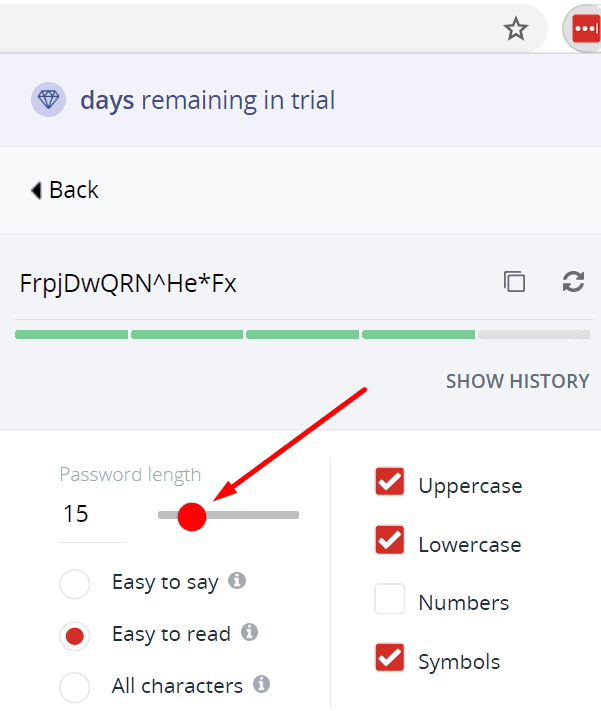
You can use various password options when generating new passwords. For example, your password can be anywhere between two and 99 characters long. You can include numbers and symbols to create really complex and hard-to-crack passwords. Play a bit with all these settings. Check if LastPass can successfully generate passwords that are more than 10 or 15 characters long. Exclude numbers and symbols and check if you notice any improvements.
Reinstall LastPass
If nothing worked, maybe LastPass got corrupted, and you need to reinstall the tool. So, go ahead and uninstall LastPass, restart your machine, and then reinstall the extension.

Some users confirmed the password generator worked after several uninstalls and restarts. If the first attempt doesn’t yield positive results, repeat the process a few times.
Conclusion
If LastPass fails to generate new secure passwords, clear your browser cache, disable your extensions and try again. Additionally, tweak your password complexity settings and reinstall LastPass. Did these solutions help you troubleshoot the problem? Share your feedback in the comments below.