
When you try to preview your Google Drive files, you may sometimes get the following message: “Couldn’t Preview File. You may be offline or have limited connectivity.” Try refreshing your browser tab, and check if you notice any changes. If you’re still getting the same message, follow the steps below.
Why Can’t I Preview My Files in Google Drive?
Check Your Internet Connection
Make sure your Internet connection is working properly. Unplug your router for two minutes, plug it back into the wall outlet, and check if the issue persists. Alternatively, you can also use a different connection, such as a mobile hotspot, and check if you notice any improvements.
Check Your Browser
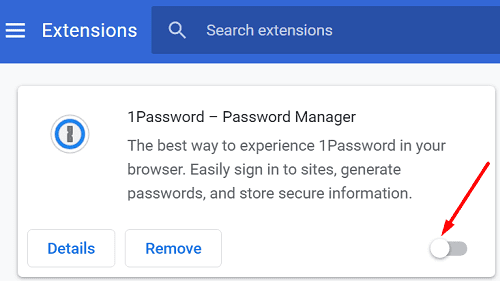
If this problem is caused by unexpected browser glitches, switching to a different browser should resolve it. Ideally, use Google Drive with Chrome. Make sure to enable Javascript. Enable Incognito Mode, and check if the issue persists. Don’t forget to check for updates, and install the latest browser version on your machine. If you’re using third-party extensions, disable them, and try again.
Clear Cached Images and Files
You can fix many file preview issues by clearing your browser’s cache. Here’s how you can do that on Chromium-based browsers.
- Navigate to Settings.
- Scroll down to Advanced options.
- Then, click on Security and Privacy.
- Select Clear Browsing Data
- Select Cached images and files.

- Hit the Clear Data button.
- Go to Google Drive and refresh the page.

If the issue persists, repeat the steps above and clear cookies and other site data.
Disable VPN
If you’re using a VPN, temporarily disable the tool, and refresh the Google Drive page. Many users confirmed that disabling their VPN software solved the problem for them. Check if this solution works for you as well.
Conclusion
If Google Drive can’t preview your files, make sure your Internet connection is working properly. Then, go to your browser’s settings, and clear cached images and files. Additionally, update your browser, disable your extensions, and enable Incognito Mode. If you’re using a VPN tool, disable it and check if you can preview your files.
Did you manage to solve the problem? Let us know in the comments below.



I need to disable video previews altogether of my video files when i share them to clients. I pay for google drive and would pay double simply to have this single feature of not allowing others to be able to preview the videos. for lack of better words my clients are kind of dumb and they are mostly iPhone users. they don’t understand that the preview is only preview and they need to download the original file to enjoy the full quality. If google drive cant do it, please tell me a service that does.