

Event Viewer may sometimes display a strange alert that says, “This explorer.exe version stopped interacting with Windows and was closed.” In other words, File Explorer stopped communicating with the OS. As a result, Windows automatically closed the explorer.exe process. Let’s see what’s causing these alerts and how you can get rid of them.
What to Do When Explorer.exe Stops Interacting With Windows
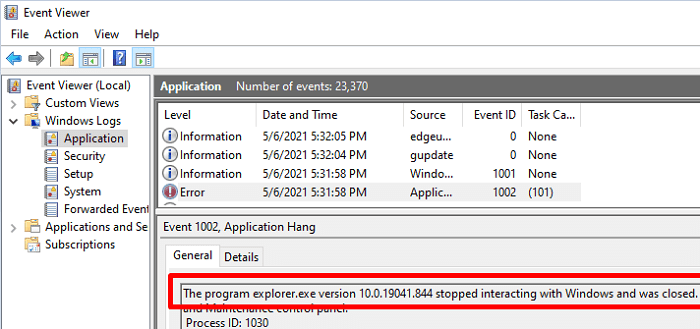
Restart Explorer
Try restarting File Explorer using Task Manager and check if this quick method solves the problem.
- Launch the Task Manager and click on the File menu.
- Select Run new task.
- Enter explorer.exe in the search field and press Enter.

- Don’t forget to create the task with admin rights.
- Check if Event Viewer detects the same error.

Run SFC, DISM, and Disk Cleanup
If certain hard drive sectors got corrupted, you might experience all kinds of glitches, including File Explorer issues. Repair your drive and delete temporary files to fix the problem.
- Press the Windows and X keys and click on Command Prompt (Admin).
- Allow the app to make changes to your computer.
- Then run the following commands one by one:
sfc /scannowDISM /Online /Cleanup-Image /CheckHealthDISM /Online /Cleanup-Image /ScanHealthDISM /Online /Cleanup-Image /RestoreHealth
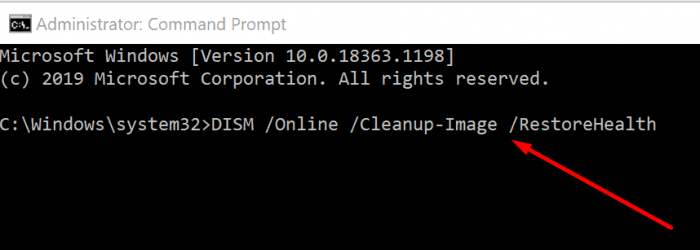
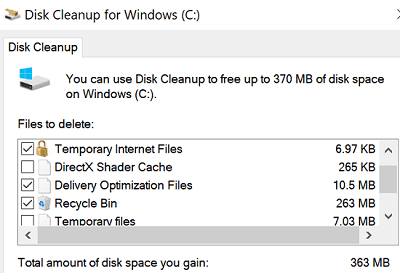
After that, run Disk Cleanup to remove unnecessary files.
- Go to This PC and right-click on the OS drive.
- Select Properties, and go to the General tab.
- Hit the Disk Cleanup button to delete temporary files and other junk files.
Unplug Your Peripherals
Disconnect all the external devices connected to your computer and check if the problem persists. Restart your computer and then plug in your peripherals.
Interestingly enough, many Windows users noticed that Razer keyboards and mice often trigger this issue. Launch the Device Manager and update your keyboard and mouse drivers to the latest version. If you have a spare keyboard or mouse (non-Razer), use it and check if the issue persists.
Disable the Details Pane
Many users confirmed that disabling the Details pane did the trick for them.
- Launch File Explorer and maximize the window.
- Then click on the View menu.
- Simply click on the Details pane to disable the option.

Alternatively, you can also press the Alt, Shift, and P keys at the same time. If the issue persists, disable the Preview pane as well.
Delete Recent Files
Other users solved the problem by clearing recent files.
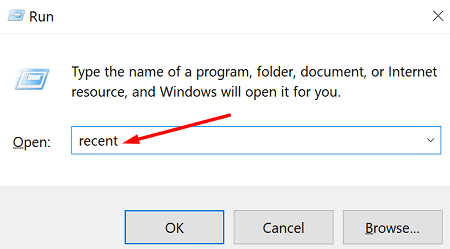
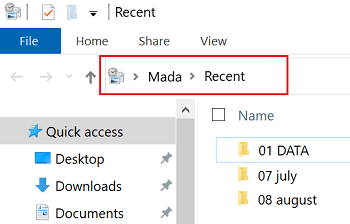
- Press the Windows and R keys and open a new Run window.
- Enter recent in the search field and press Enter.

- You should now see the list of your recently viewed files.

- Delete the files you no longer need or have access to.
- Restart File Explorer and check if the issue persists.
Conclusion
To sum up, if explorer.exe stops interacting with Windows, restart File Explorer using Task Manager. Additionally, repair your hard drive by running SFC, DISM, and Disk Cleanup. Try unplugging your peripherals and check if you notice any improvements. If the issue persists, disable the Details pane, and delete recent files. Did these tips help you solve the problem? Let us know in the comments below.


I’ve spent 3 days on this issue, the “Disable the Details Pane” fixed it in seconds. Wish I’d found your solution 3 days ago! Many thanks.