

By adjusting the privacy settings for specific Facebook posts, you can prevent those who always criticize those types of posts from seeing what you post. All you need to do is follow these instructions.
How to Make Specific Facebook Posts More Private than Others
If the posts whose privacy settings you want to change are new, click where it says, ¨What’s on your mind, (your name)?¨.
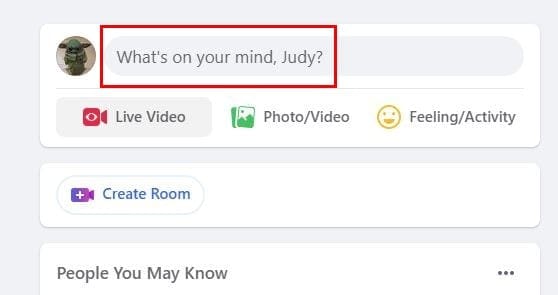
Under your name, the privacy settings will be set to friends by default. Click on the drop-down menu to access more options. You can choose from options such as:
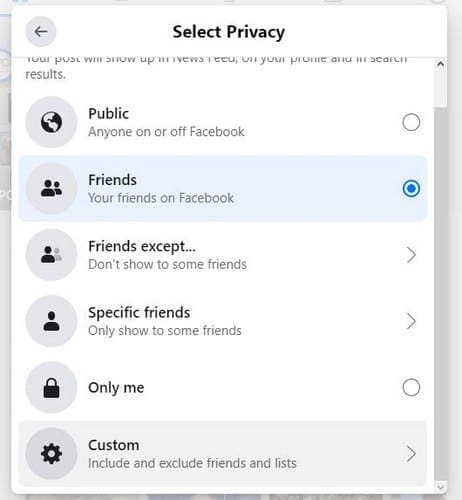
- Public
- Friends
- Friends except
- Specific friends
- Only Me
- Custom
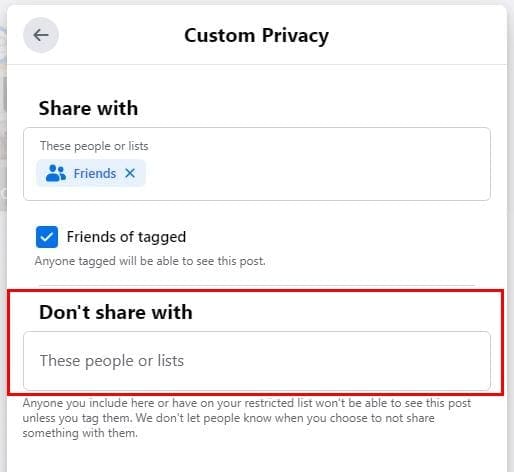
Choose the custom option if you want to share your posts with friends, but want to keep specific friends out. Add the person you don’t want to share that post with in the Don’t share with box, and you’re good to go. Facebook won’t notify that friend that you didn’t want to share that post with them.
Tip: If you don’t want a specific friend to see this post, it’s best to clarify in your posts that you don’t want anyone to tag anyone else in the post. By not doing this, the contact you didn’t want to see this post could be tagged by someone and see the post anyway.
Already Published Posts
Don’t worry if the posts have already been published since it’s still possible to change the privacy settings and other things. Find the posts you want to make changes to; if you want to change who can see the post, click on the people icon right below your name.

When you click this option, you’ll get the same privacy settings you saw earlier. The only people who can see your post are Friends, Friends except, Specific friends, Only Me, or Custom are the options listed.
By clicking on the dots to the right of the post, you can choose to:

- Edit post
- Edit audience
- Turn off notifications for this post
- Edit date
- Move to archive
- Move to trash
These changes will only apply to that specific post. So, if there any other posts you want these changes to apply, you’ll need to repeat the process on those posts as well.
Edit Privacy Settings for a Specific Facebook Post on Android
To change the privacy setting for a specific post on your Android device, open Facebook, and locate the post. Tap on your profile picture that’s on the posts you want to make changes to. Tap on the dots to the right and go to Manage Posts.

Select Activity Log and tap on the dots of the posts whose privacy settings you want to change. When the window pops up from below, choose the Edit Privacy option.
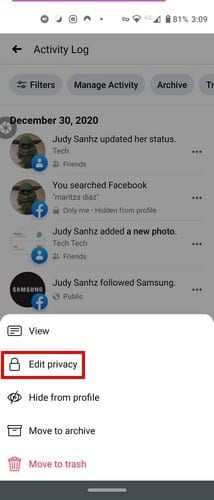
Once you’re in Edit Privacy, you can choose from the Privacy options previously mentioned.
Final Thoughts
It’s a comforting thought to know that you have these privacy options when posting on Facebook. Maybe a post caused you some trouble, and you want to limit it to those who won’t misunderstand it. Whether it’s on your computer or your Android device, Facebook’s got you covered.



Trying to do this on my artist page. I see no option for “edit audience.”
Does not work for a post from 2010. The audience selector button is not ‘live’ and the setting I chose then cannot be changed now. This sucks! There are people I want to exclude.
I am a member of a Private group and I posted a photo on the Group page . Some of my friends came back and commented on the photo which I posted to Private Group.
I really want help Please on how to Post either a comment or Photo without outside friends viewing same and making comments? I don’t have the Custom Icon on my android phone.