

Maybe that virus joke you posted on Facebook a year doesn’t seem so funny now, and you want to erase it. No one’s perfect, so there’s come a time when you might post something that’ll make you ask yourself,¨What in the works was I thinking?¨. The best way to remove those posts and save time is to remove them in bulk; let’s see how you can do that.
How to Remove Facebook Posts in Bulk
You have better things to do than spend who knows how much time erasing posts you wish you never posted. The fastest way to erase Facebook posts is to do it in bulk. But, keep in mind that Facebook is only going to allow you to erase as many as 50 at a time.
To start erasing, go to the Facebook account that has the posts you want to erase. Click on your profile picture and go to Manage Posts.

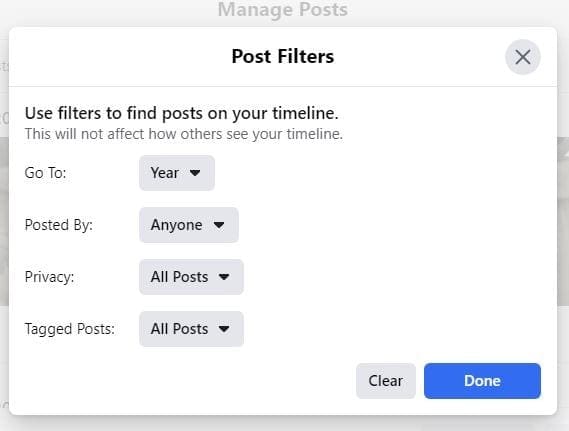
Once you see your posts, you can click on the Choose All option and start erasing in bulk. There’s also a Filters option.

You can filter your posts by:
- Year
- Posted By
- Privacy
- Tagged Posts
If you need to take a closer look at a post before erasing it try choosing the thumbnail since it’ll show you the complete post. By taking a look at the post before erasing it, you avoid losing the posts you want to keep.
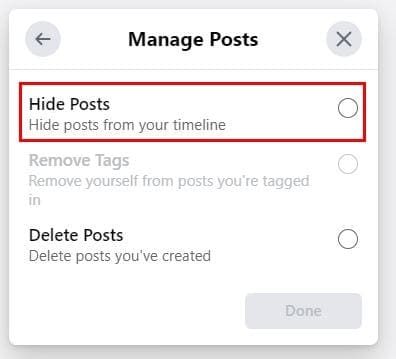
When you’re sure of the posts you want to erase, and they’re all selected, click on the Next button. Now, you only have to choose Delete Posts, followed by done, and you’re good to go. If you’re unsure if you want to erase a post, you can always choose to hide it instead. After choosing the posts, you want to erase and click on next and choose the Hide Posts option. It’s going to be the first one on the list.
How to Bulk Erase Facebook Posts on Mobile App
It would help if you bulked erase posts for those times, but you’re not on your computer; here how you can erase posts on Facebook using the app. Tap on your profile icon, followed by the dots to the right of the Add to store option. Tap on the Activity Log option and the non the Manage Activity option at the top.

When a small window pops up from below, choose Your Posts. To only choose a few posts, tap on the empty box to the side of the post. To mass delete, choose the all option. Just like in the desktop version, you’ll see the Filters option. You can choose from filters such as:

- Categories – You can choose from All, Text Updates, Check-ins, Notes, and More. Photos and Videos, Posts from Other Apps.
- Filter by date – Set the Start and End date.
- Filter by person – Use the search tool to find the person.
Final Thoughts
Thanks to the filter options, deleting the posts you want is a lot easier. Regardless if you’re using Facebook on your computer or your device, the steps are rather similar. Did you have to erase a lot of posts? Share your thoughts in the comments below.




I don’t want so many posts of my friends and posts of some ads
Let me to on Facebook