Skip to content
LogoTechnipages
technipages logo
  • Topics
        • Android
        • Browsers
        • Gaming
        • Hardware
        • Internet
        • iPhone
        • Linux
        • macOS
        • Office
        • Reviews
        • Software
        • Windows
        • Definitions
  • Product Reviews
  • Downloads
  • About

Change the Download Location in Google Chrome

Kat ArmstrongAugust 15, 2019 Comments (2)
Chrome Header 2

Have you ever downloaded something from the Interwebs only to have trouble figuring out where it went? Most of the time, browsers will save to a location of their choosing by default without asking for your input. How rude! I cannot tell you how many times over the years I have forgotten to toggle this setting to force whichever browser I’m using at the time to ASK me where to save things.

Thankfully, there IS a simple way to fix this. A couple of clicks, a few seconds of your time and you will be able to always choose where to save each of your photos, files and videos.

Changing the Download Location in Chrome

Considering Chrome is my preferred browser, this was one of the first things I did when I was first given this laptop. While setting the machine up to my liking, I immediately downloaded Chrome and then toggled this little gem to the “on” position.

Click the three dots at the top-right of Chrome and then click on ”Settings.” In the left-side menu, scroll down and click the down-arrow next to ”Advanced.” From here, click ”Downloads.”
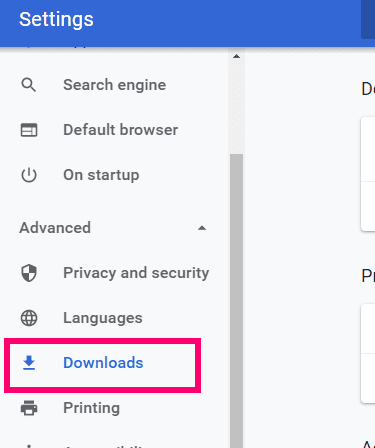
As you can see, the location is automatically set to save to C:\Users\YourName\Downloads. Also note that the switch to ask you where to save things is set to the off position by default.

You now have two choices. You can click ”Change” next to that default folder, navigate to a folder you wish to always save everything to and then click ”Save.” Or, you can toggle that switch to the ”On” position located to the right of ”Ask Where to Save Each File Before Downloading.”
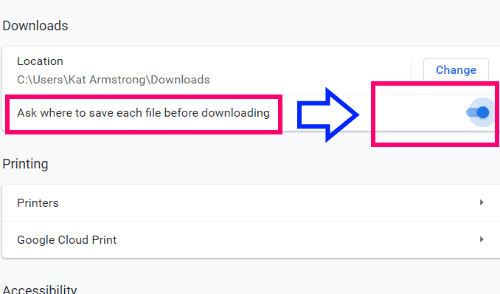
Personally, I want my browsers to ask me where to save things. I do not want everything I download going to one place. I am highly organized! I have specific folders designated to download photos to, for videos, for application/program installers and so forth. It just makes things easier and cleaner for me to manage. The option is up to you, obviously, and whatever you are happiest with.

What other little tips and tricks can I give you to make your life using Chrome a little easier?

Happy surfing!
Categories: Software

Author Kat Armstrong

You Might Also Like

  • Fix Microsoft Teams Keeps Restarting

    Madalina DinitaSoftware
  • fix caa70007 microsoft teams

    Troubleshooting Microsoft Teams Error caa70007

    Madalina DinitaSoftware
  • MS Teams Header

    Microsoft Teams: How to Disable Animations

    Madalina DinitaSoftware
  • microsoft teams Enable Logging For Meeting Diagnostics

    Teams: Enable Logging for Meeting Diagnostics

    Madalina DinitaSoftware

Comments

  1. isa says:
    October 21, 2022 at 8:59 pm

    Information support update and support management team I need shere any.website services available provide and products.programme think

  2. isa says:
    October 21, 2022 at 8:48 pm

    I am.i need support management all teams provide and products.programme email or mail available always start following all services networks always available think to help me from my email

Leave a Reply

Your email address will not be published. Required fields are marked *

This site uses Akismet to reduce spam. Learn how your comment data is processed.

300x600
Turning on Triple Touch Zoom on Android

Turning on Triple Touch Zoom on Android

How to Connect Outlook 2023 to Gmail

How to Connect Outlook 2023 to Gmail

Netflix: Change Password

Netflix: Change Password

Everything You Need to Know About WhatsApp Delete for Me

Step-by-Step Guide: How to Use WhatsApp on Your Computer

Android: Enable or Disable Background Data

Android: Enable or Disable Background Data

300x250
profile pic

The Experts Behind Technipages

My name is Mitch Bartlett. I've been working in technology for over 20 years in a wide range of tech jobs from Tech Support to Software Testing. I started this site as a technical guide for myself and it has grown into what I hope is a useful reference for all.

Learn More

300x250 2
technipages logo white
linkedin icon

Technipages is part of Guiding Tech Media, a leading digital media publisher focused on helping people figure out technology. Visit guidingtechmedia.com to learn more about our mission and team.

© 2026 Guiding Tech Media All Rights Reserved

  • About Us
  • Contact
  • Legal & Privacy

© 2026 Guiding Tech Media All Rights Reserved

Information from your device can be used to personalize your ad experience.
Do not sell my personal information.