The last thing you need when you’re in the middle of a video conference is for Microsoft Teams to restart by itself. If the program keeps on restarting on its own or prompts you to restart it, here’s what it means and what you can do to end this annoying behavior.
What to do if Microsoft Teams Keeps Saying Restart
Clear the cache
All those temporary files that remained in your cache folder might interfere with your current Microsoft Teams session.
- Press the Windows and R keys to open a new Run window.
- Enter %AppData%\Microsoft and hit Enter.
- Go to the Microsoft directory, and open the Teams folder.

- Select the following folders and delete them:
- application cache\cache
- blob_storage
- databases
- cache
- gpucache
- indexeddb
- local
- storage
- tmp
- Log out of your Teams account, and restart your computer.
- Log back in and check if the first solution solved the problem.

Update and Repair Office 365
- Open a new Excel pr Word file.
- Click on the File menu.
- Go to the Account or Office Account tab.
- Locate the Update Options drop-down menu.
- Select Update Now.


If updating Office did not work, try repairing the package.
- Open the Control Panel
- Go to Programs
- Select Programs and Features
- Select Office 365 or Microsoft 365 (depending on your version)
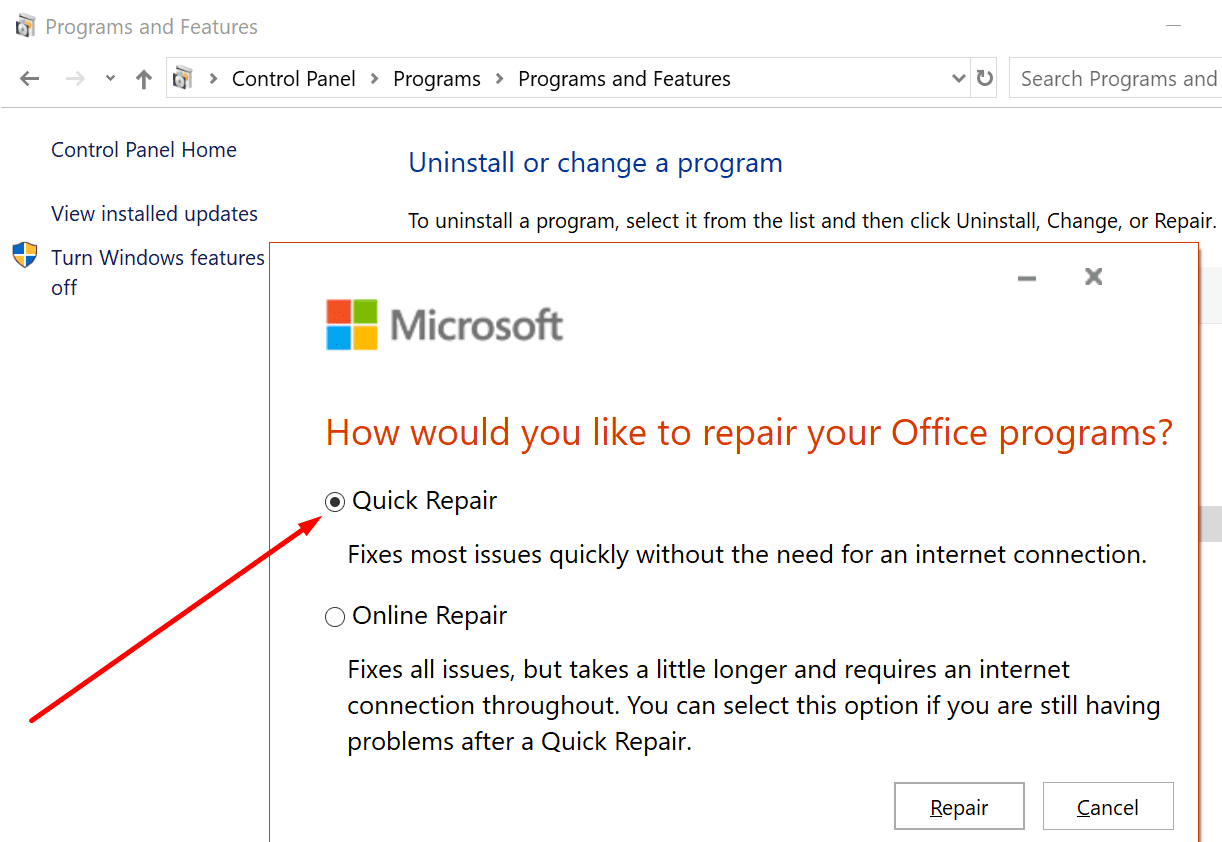
- Click on the Change/ Repair button
- You’ll be asked how you want to repair Office: select Quick Repair first, and if that didn’t help, repeat the same steps, and select Online Repair.

Reinstall Office 365
If Microsoft Teams still restarts on its own, try reinstalling Office 365.
- Open the Control Panel, go to Programs, Programs and Features.
- Select Office 365 or Microsoft 365 and click on the Uninstall button.

- Then follow the on-screen instructions to complete the uninstall process.
- Restart your computer
- Go to Office.com, log into your account, and download the Office package again on your device.

Run the MS Office Uninstall Support Tool
Some users suggested that running the Office Uninstall Support Tool fixed the problem. Run the tool, reboot your computer and this should remove all traces of Office 365.
Create a new user account
If Office was not the problem, maybe your current user profile is. Create a new user account and check if the issue persists.
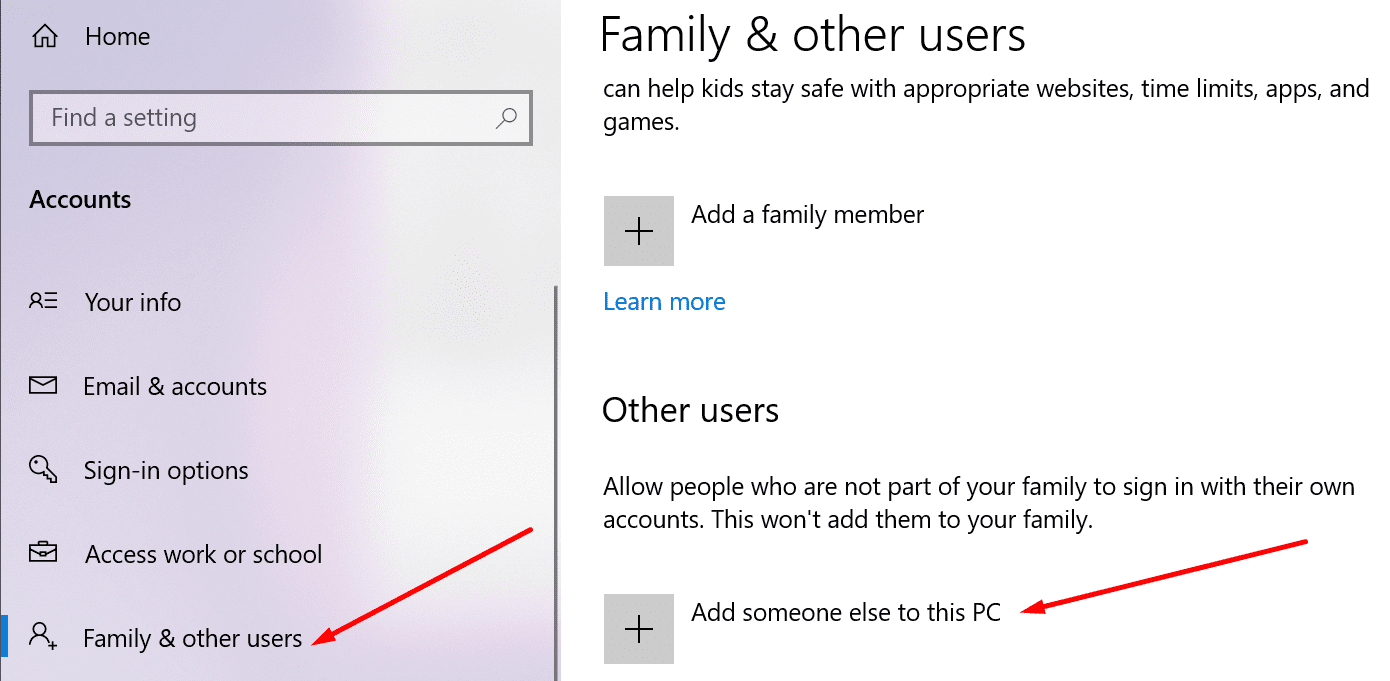
- Navigate to Settings → Accounts → Other Users.
- Select Add someone else to this PC.

- Follow the on-screen instructions and set up the new user account
- Download and install Office on the new account
- Log in and test if the restart issue is gone.
Let us know if you managed to fix the issue.