Skip to content
LogoTechnipages
technipages logo
  • Topics
        • Android
        • Browsers
        • Gaming
        • Hardware
        • Internet
        • iPhone
        • Linux
        • macOS
        • Office
        • Reviews
        • Software
        • Windows
        • Definitions
  • Product Reviews
  • Downloads
  • About

How to Check Screen Time on Android

Judy SanhzJuly 30, 2020 Comments (0)

Practically everything you have to do nowadays involves a display. You check your email, call someone, Send a message, etc. You try to cut back, but there’s always something that makes you unlock your phone.

All that screen time can have its drawbacks, but by setting up Digital Wellbeing on your Android 10 device, you can keep screen time under control.

How to Access/Enable Digital Wellbeing in Android 10

To turn on Digital Wellbeing go to:
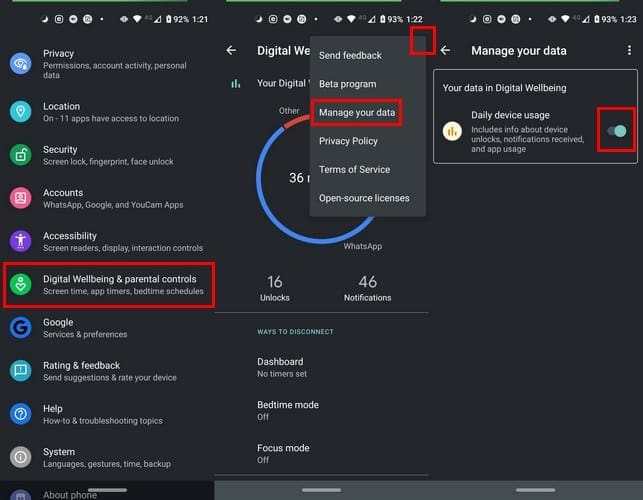
  1. Settings
  2. Digital Wellbeing and parental controls
  3. Show your data
  4. Three dots (upper right-hand corner)
  5. Manage your data
  6. Daily device usage

If you want a faster way to access Digital Wellbeing, once your in the apps main page, toggle on the option that says Show icon in the app list.

Once Digital Wellbeing has had enough time to collect data, it will show you the total amount of time you’ve spent on your phone. The circle that’ll show you your data will be divided into different colors, so it’s easier to read the info.

Tap anywhere on the circle to go to the Dashboard. The screentime option should already be selected, but if it’s not, tap on the dropdown menu and choose Screen time.

You should see how much time you’ve spent on each app and total screen time. You’ll also see how many times you’ve unlocked your phone and how many notifications you’ve received as well.

By tapping on the sand clock icon to the right of the app, you can also set limits to how much time you spend using an app.

If you want to see how much time you’ve spent on a specific app, tap on the color that represents that particular app. Don’t worry if you don’t get it on the first tap, it may take a tap or two.

Conclusion

Maybe just seeing how much time you’re spending on an app will be enough to practice some self-control. You’d be surprised how much time you can waste by needlessly unlocking your phone and checking things that can wait for later.

Categories: Android

Author Judy Sanhz

You Might Also Like

  • Connect Nexus 5X to Computer

    Mitch BartlettAndroid
  • Chrome header

    Chrome: How to Delete Stored Passwords

    Mitch BartlettAndroid
  • Galaxy Note8 & S8: Set Text Message Ringtone

    Mitch BartlettAndroid
  • samsung-phone-says-something-went-wrong

    Fix: Samsung Phone Says Something Went Wrong

    Madalina DinitaAndroid

Leave a Reply

Your email address will not be published. Required fields are marked *

This site uses Akismet to reduce spam. Learn how your comment data is processed.

300x600
Turning on Triple Touch Zoom on Android

Turning on Triple Touch Zoom on Android

How to Connect Outlook 2023 to Gmail

How to Connect Outlook 2023 to Gmail

Netflix: Change Password

Netflix: Change Password

Everything You Need to Know About WhatsApp Delete for Me

Step-by-Step Guide: How to Use WhatsApp on Your Computer

Android: Enable or Disable Background Data

Android: Enable or Disable Background Data

300x250
profile pic

The Experts Behind Technipages

My name is Mitch Bartlett. I've been working in technology for over 20 years in a wide range of tech jobs from Tech Support to Software Testing. I started this site as a technical guide for myself and it has grown into what I hope is a useful reference for all.

Learn More

300x250 2
technipages logo white
linkedin icon

Technipages is part of Guiding Tech Media, a leading digital media publisher focused on helping people figure out technology. Visit guidingtechmedia.com to learn more about our mission and team.

© 2026 Guiding Tech Media All Rights Reserved

  • About Us
  • Contact
  • Legal & Privacy

© 2026 Guiding Tech Media All Rights Reserved

Information from your device can be used to personalize your ad experience.
Do not sell my personal information.