As a password manager, Bitwarden’s primary purpose is to securely store the passwords you use. It doesn’t matter how good your password manger’s security settings are if you use weak passwords. Unfortunately, statistics from data breaches show that many people use known weak passwords and that most people use passwords that can be easily guessed with the right tools.
You could use a random password generator to make stronger passwords, however, this has a couple of downsides and risks normally. If you’re using a trustworthy password manager, such as Bitwarden, however, all of these risks and downsides are mitigated. You don’t need to worry about forgetting random passwords because your password manager will save it for you. You don’t even need to worry about if the password generator is trustworthy because Bitwarden has one built-in.
How to generate a password with the Bitwarden browser extension
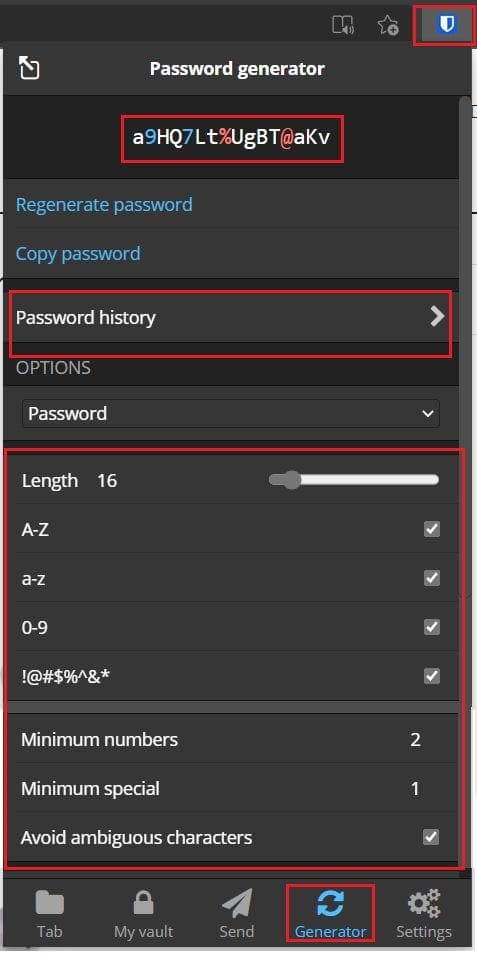
You can generate a new random password in the browser extension. To do so, open the extension panel, by clicking on the Bitwarden icon, then switch to the “Generator” tab. Here you can see a generated password at the top, then under “Options” you can choose what length the generated password will be along with the characters that can or need to be in it.
Tip: The “Avoid ambiguous characters” option avoids using characters that look the same such as “O” and “0” to make it easier to type.
If you use a generated password and forget to save it, you can look it up with the “Password history” option too. Each time you change a setting, a new password will be generated.
How to generate a password with the Bitwarden website
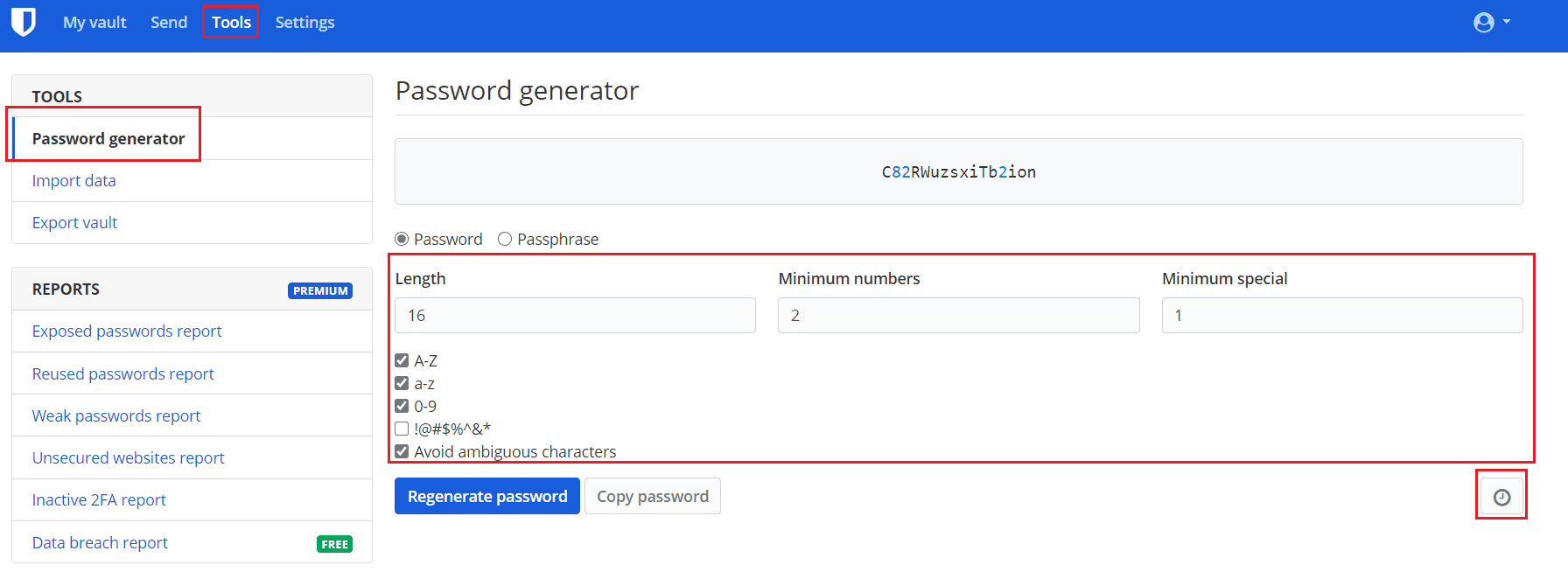
In the Bitwarden website, you need to browse to the “Tools” tab and then the default “Password generator” tool. Here you have the same options for password generation.
Tip: Your previously configured password generation options are saved but are unique to each platform. You’ll need to configure them in both the extension and website.
To view your password history, click the clock icon in the bottom right labelled “Password history”.
Tip: If you’re adding a new entry or editing an existing one, you can click the circling arrow icon, labelled “Generate password” to open the password generator. In the browser extension this can be found at the right-end of the “Password” field. In the Bitwarden website, it can be found just above the right-end of the “Password” field.

By following the steps in this guide, you can generate random passwords with Bitwarden.