If you are an avid Android user, chances are you have a bunch of apps installed on your smartphone. As a result, not having enough storage space is something often inevitable, especially for a small memory phone.
You might have that one or two apps that you use regularly. Sometimes, those apps show advertisements for other apps that might tickle your fancy. At first, these new apps catch your interest, you download and install them right away. So, what happens to these apps? Would you also use them frequently?
It’s not even surprising if you use those new apps just once before deciding to ignore it or worse, you didn’t use it at all. You might have tens of these kinds of apps. So what can you do about this? Uninstall these apps one by one?
Luckily, you don’t necessarily need to do something that tedious. Some wonderful apps from Play Store let you uninstall multiple apps at once, some would call it Batch Uninstalling. Here is a list of some easy-to-use apps that let you do just that. All the apps listed below are free to use.
1. Easy Uninstaller App Uninstall
Easy Uninstaller is probably one of the simplest to use. You don’t need to do anything complicated such as rooting your phone to use this app. Once you install and launch the app, it will automatically show all the apps in alphabetical order. You can choose to sort the apps by name, size, or date of installation in an ascending or descending manner.
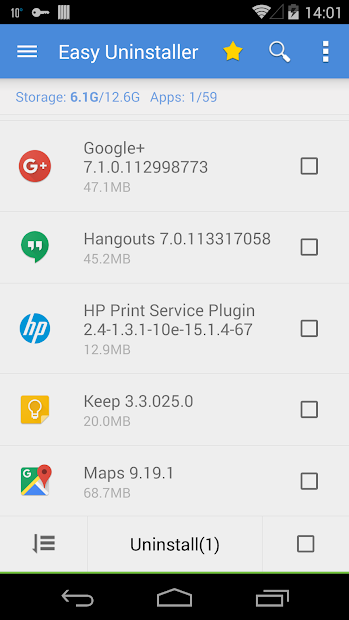

From there, just mark all the apps that you want to delete then click the Uninstall button. Tap Ok every time a window popup.
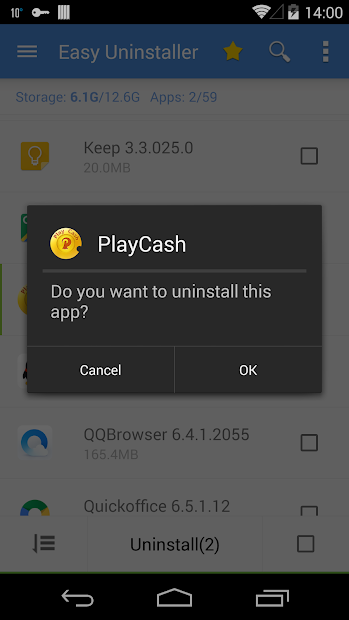
Easy Uninstaller also offers more thorough cleaning by removing any additional files that an app usually leaves behind. Since these leftover files are usually low in size, it’s up to you whether to remove them or not.
2. Multi App Uninstaller
Multi App Uninstaller is similar to Easy Uninstaller in terms of easiness. You can sort apps either by installation date or name. It also has a search feature if you want to quickly find the app(s) you wish to uninstall.
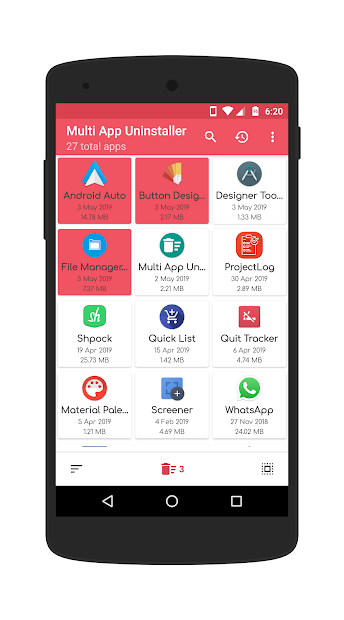

The notable difference between Easy Uninstaller and Multi App Uninstaller is the UI. Multi App Uninstaller display all listed installed apps in a grid. You can see all the apps you had installed quickly without scrolling too far down in case you have too many apps. Some people may prefer this kind of display rather than having only one app listed per row.
3. Batch Uninstaller
Batch Uninstaller has quite a few similarities with Easy Uninstaller in terms of UI. Granted, it doesn’t offer as many features as Easy Uninstaller such as search bar and the option to delete residual files. You can still sort apps for easier marking down for deletion.
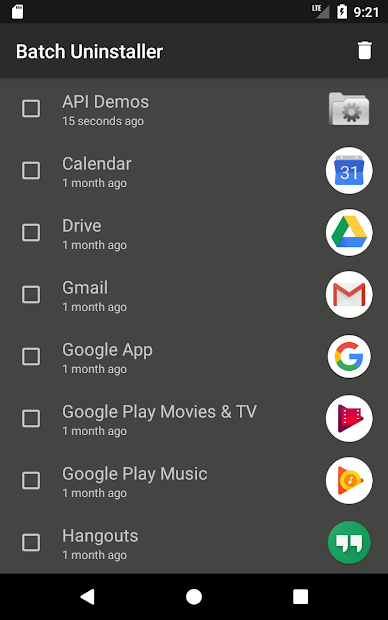
The main strength of this app is its lightness. To install this app, you don’t need much space—the app only needs about 1MB of available storage. Batch Uninstaller is a good alternative if you want to further mitigate your already cramped smartphone.