Skip to content
LogoTechnipages
technipages logo
  • Topics
        • Android
        • Browsers
        • Gaming
        • Hardware
        • Internet
        • iPhone
        • Linux
        • macOS
        • Office
        • Reviews
        • Software
        • Windows
        • Definitions
  • Product Reviews
  • Downloads
  • About

Android: How to Use Voice Dial

Mel HawthorneMarch 16, 2020 Comments (1)

Using your smartphone hands-free is one of the safest way to operate it in some situations – for example, while driving. Of course, it would be better not to use your phone at all while driving (and it can be illegal, depending on your area), but if you have to, you can use Android’s voice dial to make calls easily.

To use this function, all you need to do is to press and hold the home button while your phone is unlocked. The Google Assistant will open at the bottom of your screen and listen for your voice command.
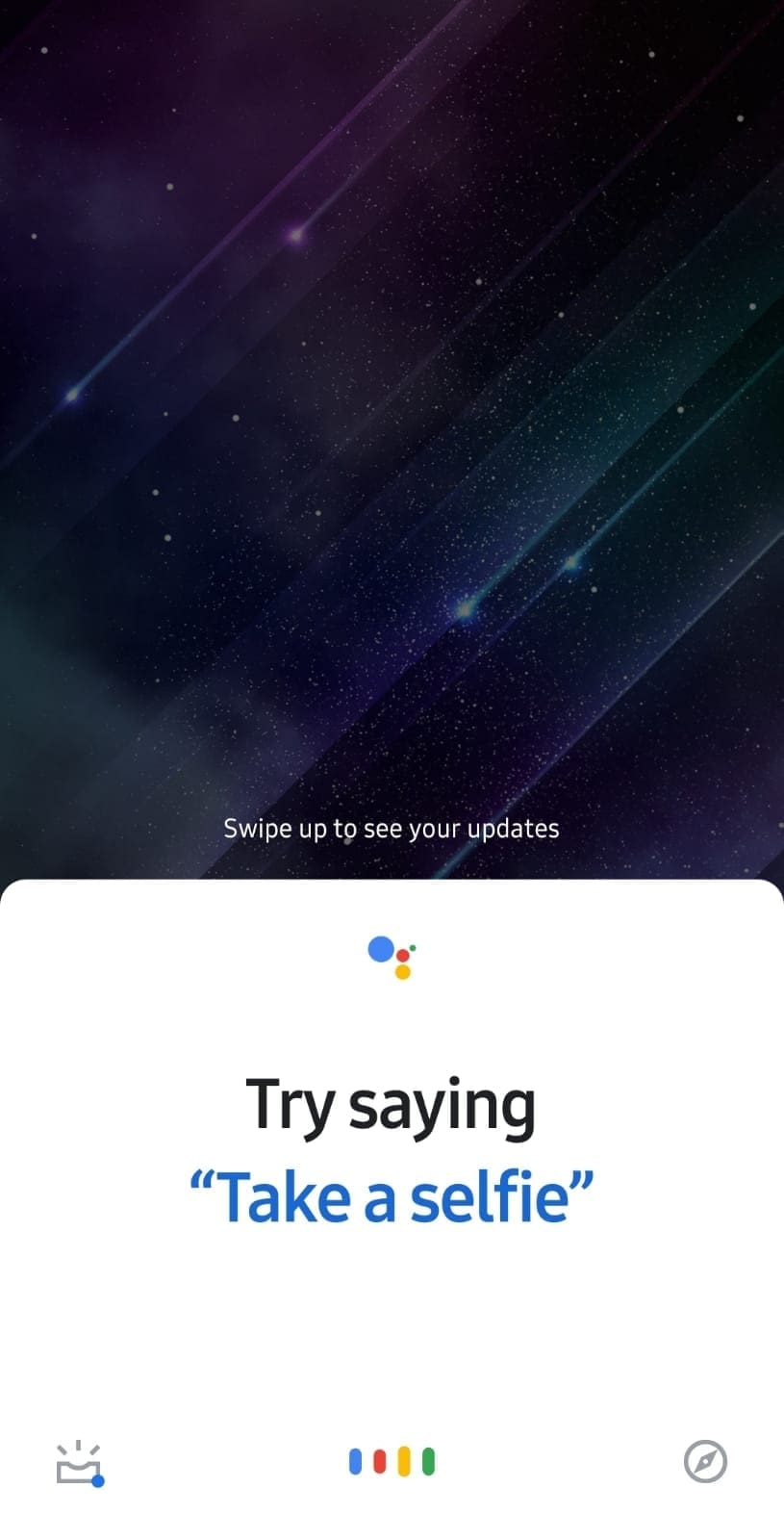
The Google Assistant in action.

Tip: If you don’t want to interact with your phone at all, you can use a Bluetooth device – many headsets and earpieces have a button that, when pressed, will activate Google Assistant so you don’t have to hold the home button!

In order to call someone, you need to say ‘Call’ followed by either the name of a person or their number if you know it by heart. For example, if you have a phone contact labelled Fred, for example, you could say ‘Call Fred’.

Tip: If it’s your first time using this function, Google Assistant will need permission to use your contacts – otherwise it won’t know what number to associate with ‘Fred’, ‘Mum’ and the like.

The voice dial also knows commands like ‘Call police’ by default, for example. In addition to saved numbers, your phone will also recognise any number that is registered to a business on Google. To make this type of call, simply say ‘Call company name’, like you would for a contact on your phone.

Google assistant will automatically try to dial the number for you, and connect you if the other side picks up. Should the assistant not understand you, or not be sure that it understood you correctly, it will double-check by saying ‘Did you say ‘Call Mum’?’ for example.

If so, you need to confirm by saying ‘Yes’ or restart the process by saying ‘No’, followed by a repeat of your original command.
Categories: Android

Author Mel Hawthorne

You Might Also Like

  • Android: Use Voice to Send Text Message

    Mel HawthorneAndroid
  • Android 10: How to Turn on Split Screen Multitasking

    Judy SanhzAndroid
  • Facebook-see-who-viewed-video

    How to Create a Facebook Story

    Judy SanhzAndroid
  • Cant-Forward-Media-From-Whatsapp-Fix

    How to Hide Your Online Status on WhatsApp

    Judy SanhzAndroid

Comments

  1. Toni says:
    June 14, 2022 at 3:36 pm

    My voice recognition does not complete the call. I’ll say “hey google…call mom”. Google then says “home or cell” and I say “cell”. Google then says “calling mom” and then nothing. Why?

Leave a Reply

Your email address will not be published. Required fields are marked *

This site uses Akismet to reduce spam. Learn how your comment data is processed.

300x600
Turning on Triple Touch Zoom on Android

Turning on Triple Touch Zoom on Android

How to Connect Outlook 2023 to Gmail

How to Connect Outlook 2023 to Gmail

Netflix: Change Password

Netflix: Change Password

Everything You Need to Know About WhatsApp Delete for Me

Step-by-Step Guide: How to Use WhatsApp on Your Computer

Android: Enable or Disable Background Data

Android: Enable or Disable Background Data

300x250
profile pic

The Experts Behind Technipages

My name is Mitch Bartlett. I've been working in technology for over 20 years in a wide range of tech jobs from Tech Support to Software Testing. I started this site as a technical guide for myself and it has grown into what I hope is a useful reference for all.

Learn More

300x250 2
technipages logo white
linkedin icon

Technipages is part of Guiding Tech Media, a leading digital media publisher focused on helping people figure out technology. Visit guidingtechmedia.com to learn more about our mission and team.

© 2026 Guiding Tech Media All Rights Reserved

  • About Us
  • Contact
  • Legal & Privacy

© 2026 Guiding Tech Media All Rights Reserved

Information from your device can be used to personalize your ad experience.
Do not sell my personal information.