
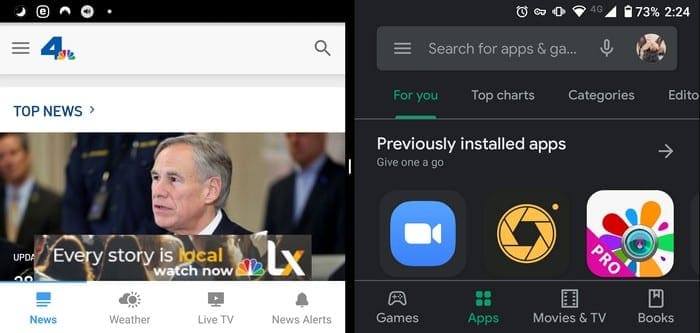
When working from home, there’s a good chance that you use a second screen to get things done. You just need to have so many sources open that you can’t work comfortably without a second display, the same thing can happen when you’re on your Android device.
By turning on Split Screen Multitasking, you can do things such as compare the specs of two phones. That way, you can decide which of the Samsung phones will finally be yours without having to switch between tabs.
How To Enable Split Screen Multitasking in Android 10
To use the feature, make sure all apps are closed, that way, the apps you want to use in split-screen mode are easier to find.
Once all the apps are closed, open the first app you want to include and close it. Repeat what you just did with the second app. Go ahead and open recent apps and long-press on the app’s icon.

After pressing for a few seconds, it should show you the split-screen option. Select the option, and the app will automatically be placed to the side. Just tap on the icon of the other app you want to include, and the two apps will each take-up half of the display.

If you need to see more of one app, tap and move up or down the center divider. By letting go, the divider will go back to the middle, it won’t stay put where you let go.
To close split-screen multitasking, touch the center divider and swipe all the way up or down to have one app take up the whole screen.
Depending on the device you have, you can see more of an app without having to keep pressing the center divider. The worst thing that can happen is that the center divider will bounce back to the center.
Conclusion
Being able to see two apps at the same time is a time-saver. The feature should work whether you’re using it in portrait mode.
Do you find the split-screen multitasking feature useful? Don’t forget to share your thoughts in the comments below.


Tried every each way, did not work on my small Nokia 1 screen.
The lastest security patch took either took away both the pip option and the multi window Option. I have developers option set to force all apps to be resizable, but I no longer see the options for anything other than the app info and to pin the screen . If the options were simply moved, please help us find them. Or if they are gone, then GOOGLE, PLEASE GIVE US THOSE OPTIONS BACK.
what’s the point in letting us have them, and letting us get used to them for so long, only to take them away???? I’ve been an avid Android fan since the beginning, I’m tempted to switch over to either Iphone or windows.