
There are so many great apps on Google Play that you can’t help but subscribe. After a while, that list grows, and you’ll need to manage your Google Play subscriptions on Android or your computer and may even have to remove some apps. There may be some apps you’ll want to cancel the subscription since you may not use those apps as often as you thought. The good news is that canceling your subscription is quick and easy. If you ever change your mind, you can always resubscribe. Keep reading to see what steps to follow to cancel your subscriptions using your Android device and computer.
How to Manage Your Google Play Subscription on Android: Canceling
You subscribed to the app because it offered good features, but after a while, it’s not what you need anymore. The good news is that Google Play makes canceling your subscriptions quick and easy. You can cancel on your Android device by opening Google Play and tapping on your profile picture. Select Payments and Subscriptions, followed by Subscriptions.
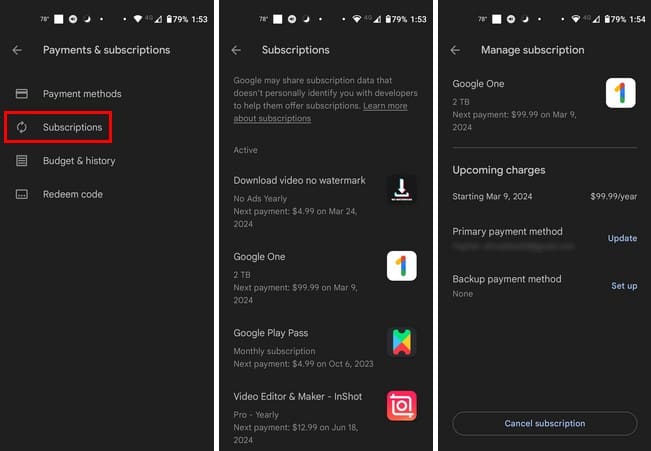
You’ll see a list of all your current subscriptions under the Active section. If you swipe past this section, you’ll see the expired subscriptions. To cancel a subscription, tap on the app, and the Cancel button will be at the bottom. Google will show you a list of reasons as to why your canceling, choose one and continue. Confirm your cancellation, and you’re done. If you still have some time left on your subscription, you can enjoy the app’s premium feature until the renewal date.
How to Manage Your Google Play Subscriptions From Your Computer
You can also manage your Google Play subscriptions from your computer if it’s more comfortable. You’ll need to go to the Google Play site and sign into the account that has the subscriptions you want to cancel to look at.
Click on your profile picture and choose the Subscriptions tab. All subscriptions will be divided into two sections; Active and Expired. Click on the Manage option for more information, such as when you’ll be charged again, your primary method, your backup payment method, and the option to cancel.

To cancel, click on the Cancel subscription option and choose why you’re canceling. Confirm your cancelation and your subscription is gone. So, if you can’t remember your subscription renewal, you can follow the same steps to know.
Further Reading
Speaking of subscriptions, if you want to know how to configure who can purchase paid subscriptions for your workspace on Slack, here are the steps to follow. Or, if you’re looking for a specific topic, remember that you can also use the search bar at the top.
Conclusion
There will always be an app you’ll want to subscribe to because it has helpful features you need. But, by keeping those subscriptions under control, you’re not wasting your money on subscriptions you don’t need anymore and forget to cancel. The steps in this guide are helpful to know how to cancel those unwanted subscriptions, update your payment information and know when the next renewal date is. That way, you can add the date to your calendar and a reminder to cancel before your charge.


streaming does not work all the time on siriusxm