Skip to content
LogoTechnipages
technipages logo
  • Topics
        • Android
        • Browsers
        • Gaming
        • Hardware
        • Internet
        • iPhone
        • Linux
        • macOS
        • Office
        • Reviews
        • Software
        • Windows
        • Definitions
  • Product Reviews
  • Downloads
  • About

Zoom: How to Mirror Your Webcam

Mel HawthorneJanuary 4, 2021 Comments (0)

When you’re testing your webcam to prepare for a video call on Zoom, you want your webcam feed to look as good as possible. The best way for your video to look as good as possible is for you to achieve as natural a look as possible. Part of the natural look is framing and lighting, but another key part is to get the appearance to look as it would if the other people were in the room with you.

One of the things that some webcams do is mirror the video feed. This is intended to make the video look more natural to you, as you primarily see yourself in a mirror and are used to seeing yourself in that way. No one else is used to seeing you that way around though, and so it will look unnatural to everyone else.

One of the webcam options that Zoom offers, is to mirror your webcam input. This option is intended to be used to correct an already mirrored webcam input, but can also be used to simply mirror the input temporarily or permanently if you want it to look that way and it isn’t already.

To enable the webcam mirroring, either to correct an already mirrored webcam or to mirror it in the first place, you need to go into Zoom’s settings. You can do so by clicking on your user icon in the top-right corner, then clicking “Settings”.

To access Zoom’s settings, click on your user icon, then on “Settings” in the dropdown menu.

Once in the settings, switch to the “Video” tab. The option to mirror your webcam input is labelled “Mirror my video” and can be found at the top of the “My Video” section of the “Video” settings. When you toggle this option on or off, the webcam preview at the top of the page will be instantly updated to reflect the change.
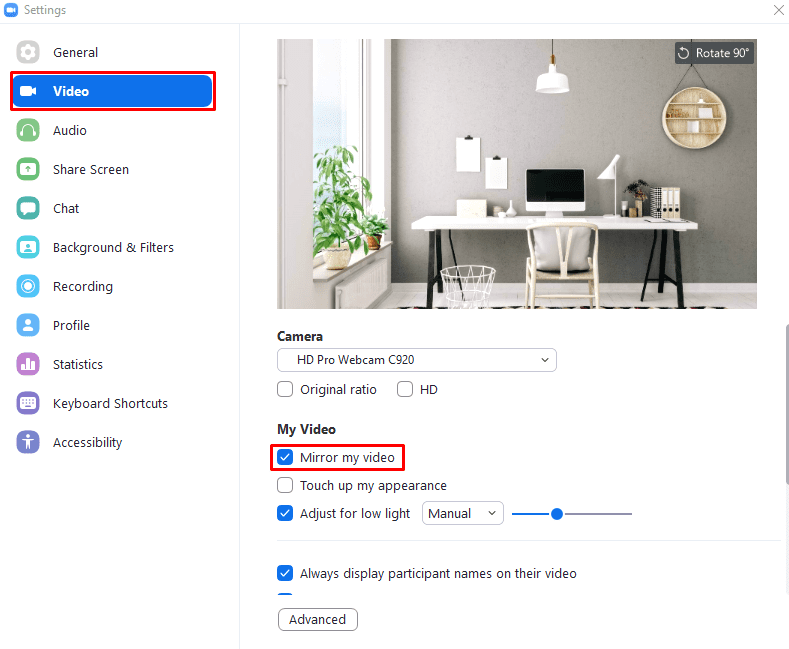

Toggle the “Mirror my video” setting on or off to configure your webcam video to be the correct way around.

Categories: Internet | Software

Author Mel Hawthorne

You Might Also Like

  • How to Use Burp Suite Repeater

    Mel HawthorneInternet
  • Slack: How To Configure Automatic Slackbot Responses for Your Workspace

    Mel HawthorneInternet
  • Slack: How To Disable Public File Sharing

    Mel HawthorneInternet
  • Bitwarden: How to View Your API Key

    Mel HawthorneInternet

Leave a Reply

Your email address will not be published. Required fields are marked *

This site uses Akismet to reduce spam. Learn how your comment data is processed.

300x600
Turning on Triple Touch Zoom on Android

Turning on Triple Touch Zoom on Android

How to Connect Outlook 2023 to Gmail

How to Connect Outlook 2023 to Gmail

Netflix: Change Password

Netflix: Change Password

Everything You Need to Know About WhatsApp Delete for Me

Step-by-Step Guide: How to Use WhatsApp on Your Computer

Android: Enable or Disable Background Data

Android: Enable or Disable Background Data

300x250
profile pic

The Experts Behind Technipages

My name is Mitch Bartlett. I've been working in technology for over 20 years in a wide range of tech jobs from Tech Support to Software Testing. I started this site as a technical guide for myself and it has grown into what I hope is a useful reference for all.

Learn More

300x250 2
technipages logo white
linkedin icon

Technipages is part of Guiding Tech Media, a leading digital media publisher focused on helping people figure out technology. Visit guidingtechmedia.com to learn more about our mission and team.

© 2026 Guiding Tech Media All Rights Reserved

  • About Us
  • Contact
  • Legal & Privacy

© 2026 Guiding Tech Media All Rights Reserved

Information from your device can be used to personalize your ad experience.
Do not sell my personal information.