Skip to content
LogoTechnipages
technipages logo
  • Topics
        • Android
        • Browsers
        • Gaming
        • Hardware
        • Internet
        • iPhone
        • Linux
        • macOS
        • Office
        • Reviews
        • Software
        • Windows
        • Definitions
  • Product Reviews
  • Downloads
  • About

Zoom: How to Boost the Brightness of Your Webcam

Mel HawthorneDecember 31, 2020 Comments (5)

If you’re using your webcam to communicate with people over Zoom, you really want people to actually be able to see you well. There are many factors that have a hand in a good webcam feed, including having a decent webcam and internet connection. Another important factor is having good lighting, without this you can either end up with your webcam feed looking washed out, overshadowed, or too dark to see.

Most webcams have some level of automatic light level adjustments that help them handle natural light level adjustments throughout the day. In some cases, however, this automatic adjustment either doesn’t work reliably or doesn’t go far enough and can leave your webcam video looking too dark. By default, Zoom doesn’t apply any extra light-level adjustments on top of what your webcam performs automatically.

To be able to configure Zoom’s low-light adjustment setting, you need to go into Zoom’s settings. To do so, click on your user icon in the top-right corner, then click on “Settings”.
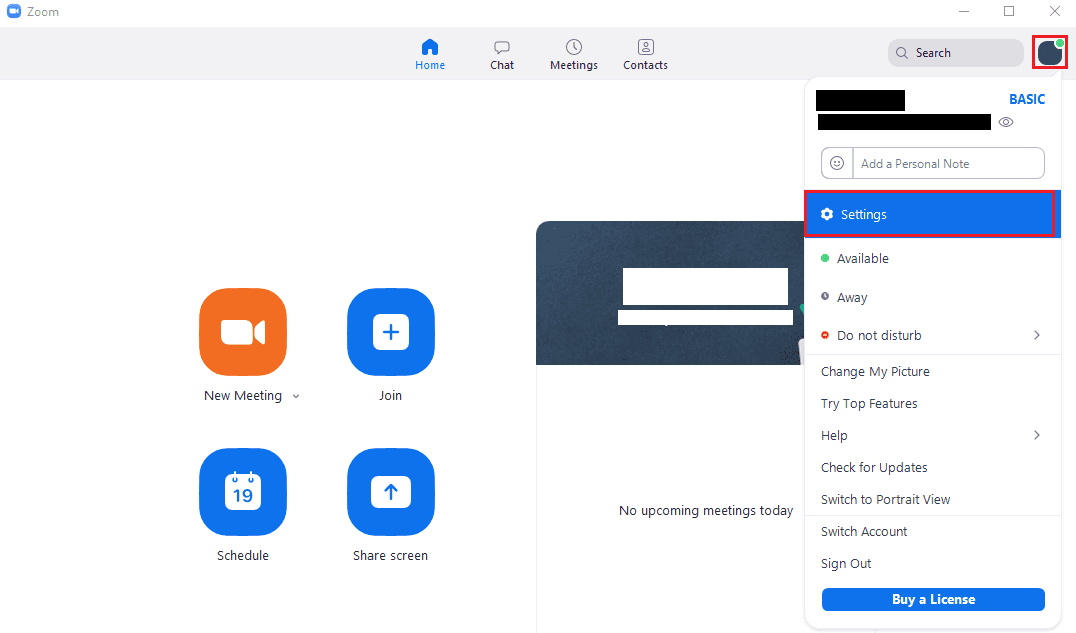
To access Zoom’s settings, click on your user icon, then on “Settings” in the dropdown menu.

Once in the settings, switch to the “Video” tab. Next, you need to find the “Adjust for low light” setting and tick the checkbox. Once you’ve enabled the low-light adjustment, Zoom defaults to using an automatic adjustment, but you can choose to override it if the automatic setting isn’t getting you the results you wanted, by selecting “Manual” in the dropdown box.

If you’ve chosen to make manual light level adjustments, adjust the slider left and right to decrease and increase the low-light-level adjustment respectively. In the box at the top of the video settings page, you can see a preview of your webcam’s video output with the low-light-level adjustments applied in real-time.
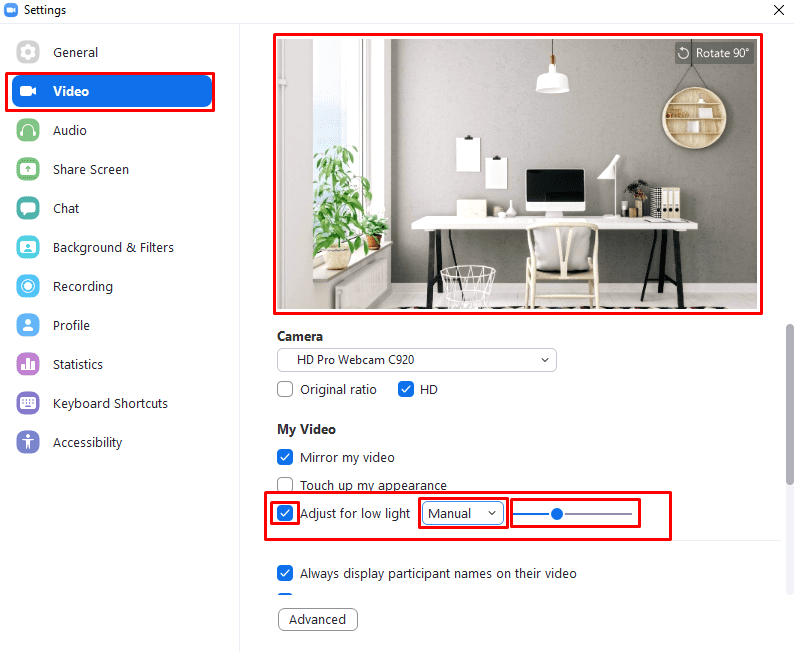

In the “Video” settings tab, tick the “Adjust for low light” checkbox, then choose between “Auto” and “Manual” adjustments.

Categories: Internet | Software

Author Mel Hawthorne

You Might Also Like

  • How to Automatically Replace Data in a Web Response With Burp Suite

    Mel HawthorneInternet
  • Slack: How To Configure Who Can See the Email Addresses of Workspace Members

    Mel HawthorneInternet
  • Slack: How To Find a Member’s ID

    Mel HawthorneInternet
  • Bitwarden: How to Lock the Browser Extension

    Mel HawthorneInternet

Comments

  1. Cleo Flowers says:
    June 1, 2022 at 9:50 am

    I am trying to lighten my webcam on Zoom. Can I lighten it while on a Zoom call? And if so, how do I start the process? Thank you.

  2. robert says:
    February 16, 2022 at 9:50 am

    simple and perfect instructions thank you

  3. dawn says:
    February 15, 2022 at 2:23 pm

    do i have to be on a zoom call before i can adjust the light settings? or is there a way i can set the lighting up before the call please? i’m in darkness in all my yoga lessons!

  4. wilbert boles says:
    July 9, 2021 at 11:15 am

    Little dark for me i am black.

  5. adelaide says:
    May 23, 2021 at 12:47 pm

    How about the opposite , if the sunlight is Too bright how to I darken the camera so Im not so bright

Leave a Reply

Your email address will not be published. Required fields are marked *

This site uses Akismet to reduce spam. Learn how your comment data is processed.

300x600
Turning on Triple Touch Zoom on Android

Turning on Triple Touch Zoom on Android

How to Connect Outlook 2023 to Gmail

How to Connect Outlook 2023 to Gmail

Netflix: Change Password

Netflix: Change Password

Everything You Need to Know About WhatsApp Delete for Me

Step-by-Step Guide: How to Use WhatsApp on Your Computer

Android: Enable or Disable Background Data

Android: Enable or Disable Background Data

300x250
profile pic

The Experts Behind Technipages

My name is Mitch Bartlett. I've been working in technology for over 20 years in a wide range of tech jobs from Tech Support to Software Testing. I started this site as a technical guide for myself and it has grown into what I hope is a useful reference for all.

Learn More

300x250 2
technipages logo white
linkedin icon

Technipages is part of Guiding Tech Media, a leading digital media publisher focused on helping people figure out technology. Visit guidingtechmedia.com to learn more about our mission and team.

© 2026 Guiding Tech Media All Rights Reserved

  • About Us
  • Contact
  • Legal & Privacy

© 2026 Guiding Tech Media All Rights Reserved

Information from your device can be used to personalize your ad experience.
Do not sell my personal information.