Skip to content
LogoTechnipages
technipages logo
  • Topics
        • Android
        • Browsers
        • Gaming
        • Hardware
        • Internet
        • iPhone
        • Linux
        • macOS
        • Office
        • Reviews
        • Software
        • Windows
        • Definitions
  • Product Reviews
  • Downloads
  • About

Your Organization’s Policy Requires This Link to Expire

Madalina DinitaNovember 25, 2021 Comments (0)
Your-Organization-Policy-Requires-This-Link-to-Expire

One of the fastest ways to share information with colleagues and external collaborators is to send links to specific web pages or files. All they need to do is click on those links and access the resources you shared with them. If you often share files with unauthenticated users, you can set the links to expire after a specific period. In this manner, you can prevent unauthorized access.

How to Set Links to Expire Automatically

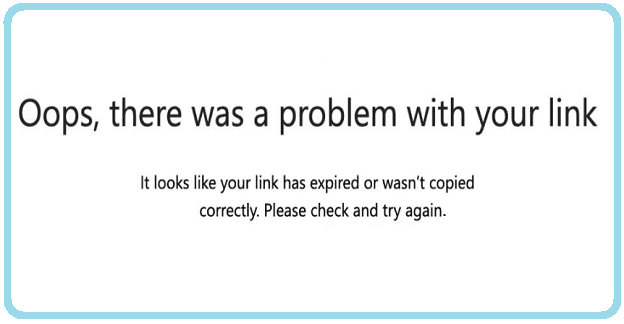
IT admins can set up specific rules that require Office and OneDrive users to enter a particular expiration time for the links they share with external users. If you forget to do that, an alert will pop up on the screen that reads, “Your organization’s policy requires this link to expire.”

Admins can also set up a specific mandatory time-out value, after which all links become unavailable for external users. If you’re an IT admin and want to set OneDrive and SharePoint links to expire after a given period, follow the steps below.

How to Set Links to Expire for External Users

  1. Go to the OneDrive Admin Center.
  2. Navigate to Advanced settings for shareable links.
  3. Then locate the section that says Link must expire within this number of days.
  4. Enter the date when you want that link to expire.

Advanced-settings-for-shareable-links

Once the mandatory time-out value has been reached, links will no longer be available to external users.

Alternatively, you can also use the SharePoint Admin Center to get the job done.

  1. Log into SharePoint Admin Center.
  2. Go to Policies.
  3. Select File and Folder Links.
  4. Then go to Choose permissions and expiration options for Anyone links.
  5. Go to These Links must Expire within these many days.set-SharePoint-links-to-expire
  6. Enter the mandatory time-out value.

For more information, see Best practices for sharing files and folders with unauthenticated users.

Conclusion

To prevent unauthenticated link sharing and access, you can edit your Sharing settings in OneDrive and SharePoint and set links to expire after a certain number of days. Use this option when sharing links with external users.

How often do you set links to expire? Are there any other tips and tricks that you use to prevent unauthorized link sharing? Share your ideas in the comments below.

Categories: Office

Author Madalina Dinita

You Might Also Like

  • Outlook Logo Header

    Fix Message Stuck in Outlook 365 Outbox

    Mitch BartlettOffice
  • office 365 how to add guest users

    Office 365: How to Add Guest User

    Madalina DinitaOffice
  • PowerPoint Header

    How to Change the Transparency and Color of an Image in PowerPoint

    Judy SanhzOffice
  • How to Fix Outlook Rules Are Not Supported for This Account

    How to Fix Outlook Rules Are Not Supported for This Account

    Susan SheffieldOffice

Leave a Reply

Your email address will not be published. Required fields are marked *

This site uses Akismet to reduce spam. Learn how your comment data is processed.

300x600
Turning on Triple Touch Zoom on Android

Turning on Triple Touch Zoom on Android

How to Connect Outlook 2023 to Gmail

How to Connect Outlook 2023 to Gmail

Netflix: Change Password

Netflix: Change Password

Everything You Need to Know About WhatsApp Delete for Me

Step-by-Step Guide: How to Use WhatsApp on Your Computer

Android: Enable or Disable Background Data

Android: Enable or Disable Background Data

300x250
profile pic

The Experts Behind Technipages

My name is Mitch Bartlett. I've been working in technology for over 20 years in a wide range of tech jobs from Tech Support to Software Testing. I started this site as a technical guide for myself and it has grown into what I hope is a useful reference for all.

Learn More

300x250 2
technipages logo white
linkedin icon

Technipages is part of Guiding Tech Media, a leading digital media publisher focused on helping people figure out technology. Visit guidingtechmedia.com to learn more about our mission and team.

© 2026 Guiding Tech Media All Rights Reserved

  • About Us
  • Contact
  • Legal & Privacy

© 2026 Guiding Tech Media All Rights Reserved

Information from your device can be used to personalize your ad experience.
Do not sell my personal information.