
By default, Microsoft Excel and Word 365 doesn’t have the useful “Email” option (Formerly named “Send to mail recipient”) available by default anymore. The option enables users to quickly access their email client to send documents.
Just to be clear, you can use the “Share” button at the upper-right part of the screen to send your Excel file, but it takes 3 steps to email the file using this method.

The Email button is just better!
Follow these steps to add the quick Email option back to Excel or Word:
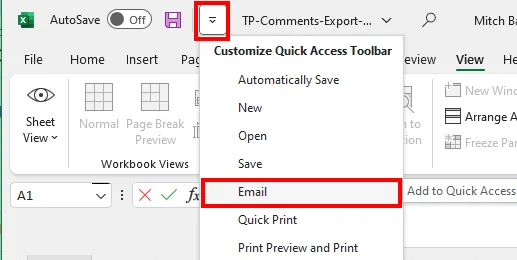
- If the Quick Access Toolbar isn’t visible, right-click anywhere on the menu ribbon, then select “Show Quick Access Toolbar“.


- Now you should have an arrow you can click at the upper-left corner of the screen you can select, then quickly choose “Email“.

If you want the envelope icon for even quicker access, follow these steps to enable the Mail envelope:
-
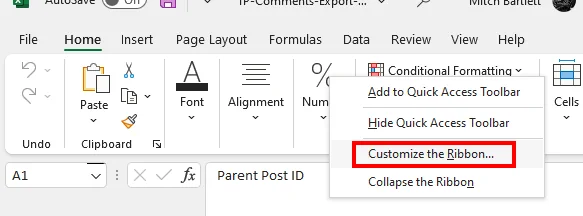
- Right-click anywhere on the menu ribbon, then select “Customize the ribbon…”

- Select “Quick Access Toolbar” in the left pane.
- Find “Email” in the list of items on the left. Select it, then choose “Add“.

- Now the small “EMail” icon will be available on the toolbar located at the upper-left corner of the window.

- Right-click anywhere on the menu ribbon, then select “Customize the ribbon…”


FAQ
I performed these steps, but when I select the “Email” button, nothing happens. Why?
You might need to select a default email client in Windows. You can usually do this by going to Start > “Settings” > “Apps” > “Default Apps” and setting “Email” to “Outlook” or whatever email client you use.



I followed the instructions for adding ‘send to mail recipient’ to the Quick Access Toolbar, but it’s grayed out.
Now what do I do?
If you’re using Mac and the Word quick access icon doesn’t work, check Apple Mail and see if it is set as the default email reader.
Hello. I want to ask something.
In one new computer Windows 10 x 64 and Office 64 Pro , i have installed a third mail client program.
I just config everything as default mail handler (default, Protocols, Files…). The problem is that even we tried everything, when we are trying to send email from Excel or Word… it start one program, Outlook 2016 which i don’t have it.
How in 2 machines works ok and in an other no. Is something hidden in the registry or it bug of the new installation of Office 2019?
If anyone has same problem please let me know.
On the ‘Send to Mail Recipient’ option, is there a way to delete the ‘Introduction’ field?
Also is there a way to automatically add an address in the BCC field?
But what if you want to send as a hyperlink, Office 365 has removed this option from the share functionality. WAY TO GO MICROSOFT.
Apps that we like and should have, i.e. – “Send email to recipient”, are next to impossible to add without a degree in computer technology.. There’s no justification for that..
Hi! I used this constantly on my MacBook Air. Now I’m on a Windows 10 PC with Office 2019. It keeps wanting to start Outlook instead of “Mail” which is what I’ve got set for my default email application in Windows. How do I change the default email application that Excel should use *instead of outlook*?
Looking for help. I have a document that I’m sending via this feature in Word, but when it arrives the format is on table and right justified. Anyone have this same error?
THANK YOU!!!
One of the most useful features for communicating and Microsoft hides it
Thank you
This was the best support on this topic anywhere I could find on the web. I tried Microsoft sites to no avail and spent the better part of a day trying to solve the problem. Your web site gave the most accurate and easy to understand explanation. Problem solved…finally!
When adding “send email to recipient” icon to quick access toolbar; why is it grayed out in excel 2013 ?