Your parents may have resisted technology for as long as possible, but there will come a time they will have to jump on the tech bandwagon. There are certain things that are not done the old fashion way, and if the elderly need to get those specific things done, they might need a computer. They might think that a computer is too much and that it’s going to have more features than they can handle.
It doesn’t have to be too much for them since Windows 10 can be set up in a much simpler way. All the things your parents may see you do on your computer are not a must for a computer to run smoothly, so it’s something you can remove. By limiting certain thing on a computer, it might even run faster since it doesn’t have as many programs as your Windows 10 computer.
Change the Screen Resolution
By changing the screen resolution, everything on the screen will be easier to read. To change the screen resolution right screen on the Windows Start button and click on Settings.
In the screen resolution drop-down menu, choose the option that says 1024 x 768 or 800 x 600. If the screen looks a little fuzzy, you can make things look better by increasing the DPI. Try not to have anything you haven’t saved open since you will need to reboot your computer.
Change the Font Size
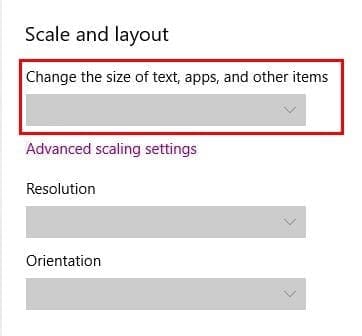
When you get older, your sight is not what it used to be. That’s why when setting up a computer for a senior citizen, the bigger the font is, the easier its for them to see. Go into Settings System, and under scale and layout, you’ll see the drop-down menu. Select how big you want the font to be.
Modify the Contrast
If your parents are not happy with the contrast, Windows 10 has a built-in tool that allows you to change the contrast. Use Cortana’s search bar and type calibrate display color. The new window that will appear might take up your entire display, but to minimize it click on the top part of the window.

Keep clicking next until you get to the part that shows you how to change the contrast. It will tell you that you’ll need to use the contrast control on your display to adjust the contrast just the way, mom and dad like it.
Change the App Icons on your Desktop
To make the icon size as big as possible, right-click on an empty space on your desktop and select View. Select large icons and your icons will look as big as the image below.

Conclusion
The way you set up your computer for a senior citizen will depend on various things. For example, some may want the icons normal while others may want them as big as possible. These are just a few ideas of what you can change to make the computer experience a little better. What changes are you thinking of making?