

Adding a hibernate option to your Windows 10 shutdown options can be very helpful since it is the option that consumes the least amount of power. By default, the options your computer has are sleep, shutdown, and restart. But, there is a way to add another one: the hibernate option.
You’ll need to dig into your computer’s settings, but the good news is that you don’t have to be a computer genius to add the hibernate option. One shutdown option is similar to another, but depending on what you want to do will determine which one is best for you.
What is Hibernate?
The hibernate option you’re about to add is akin to the sleep option, but not identical. While the sleep option saves your information to your computer’s RAM, the hibernate option will keep your data to the hard drive.
The reason your computer saves your information to the hard drive is to be able to turn itself off completely. With the hibernate option your laptop will take a bit longer to start, but you will be ready to start where you left off instantly.
By turning itself off with hibernate, your computer saves power, unlike the sleep option, like the name of the option states it goes to sleep but stays on.
The hibernate option might not be the best choice if you have an older computer. Why? Because of the temporary files, memory, and other components have to be refreshed over time. But, if you have a modern computer, you should have any issues.
Adding Hibernate Option on Windows 10
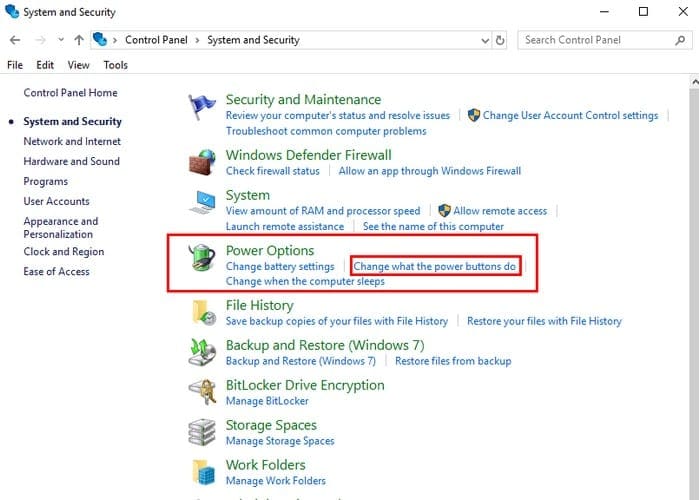
To add the hibernate option, type control panel in the search option. When the control panel comes up, click on System and Security, followed by Power Options. Within the Power Options, you will find additional options such as Change what the power buttons do, click on this last option.
To the side of a blue and yellow shield is the Change settings that are currently unavailable option in blue.

Click on this option, and at the bottom of the window, you will see the hibernate option along with the other three. The hibernate option will be unchecked, so if you want it to appear in the shutdown options, check the box to the side of it and click save.
Once you’ve completed these steps, the hibernate option will appear alongside the other shutdown option without you having to restart your computer.
Conclusion
The hibernate option can be useful when you want to call it a day with work, but have unfinished work on your computer. If not, the best thing you can do is to shut down your computer like you normally would. Unlike many might think, the hibernate option does not extend battery life, but it’s still an excellent option to have, just in case. How often do you use it?



yes it helped. i remember doing it in the past but forgot how. thanks for the refresher.