
There are so many great software to try out, but before you do, you might want to know if your computer has the necessary specs. The good news is that finding your computer’s specs is easy. There are different options you can try to find out. For example, you can use Settings or the System Information app (among other options). Here are the steps to follow.
How to View Your Computer’s Specs in Settings
If you’re looking for general information on your computer’s specs, you can access them in Settings. Click on the Windows Start menu and go to Settings.

Go to the System tab and choose the About option.
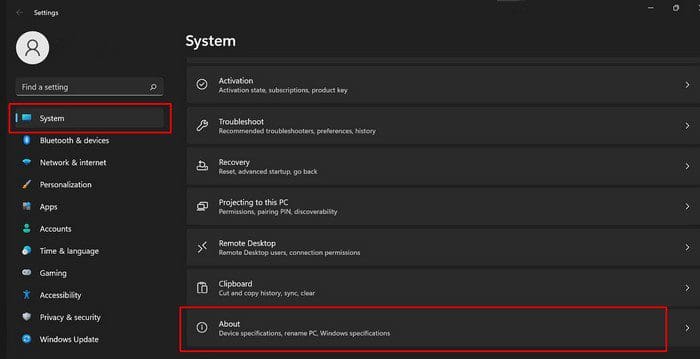
If you need to share that information, you’ll also see a copy option to paste elsewhere later.
In that section, you’ll see information such as the build number, version, and platform’s edition. Other information you’ll see is the processor, RAM, or if you have a 32 or 64-bit computer. Here’s where you’ll find the Product ID.

This is something you’re going to need if you ever contact Microsoft support. Even if that’s not the reason, it’s a good idea to have this info handy so that you don’t spend time looking for it when you need it.
How to View Computer Specs Using Command Prompt and PowerShell
To see your computer’s specs using the Command Prompt or PowerShell, you’ll need to right-click on the Start button and choose the Windows Terminal (Admin). Open a new tab and choose which one you want to use. If this doesn’t work, you can search for the one you want to use.

Once one of them is up and running, type systeminfo and press enter. The advantage of using this option is that it will show you more information about your computer specs than the Settings app.
How to View Computer Specs Using the System Information App
Viewing your computer’s specs is also possible using the System Information app. Search for the app like you would for any other app; when it comes up in the search results, open it as an administrator.
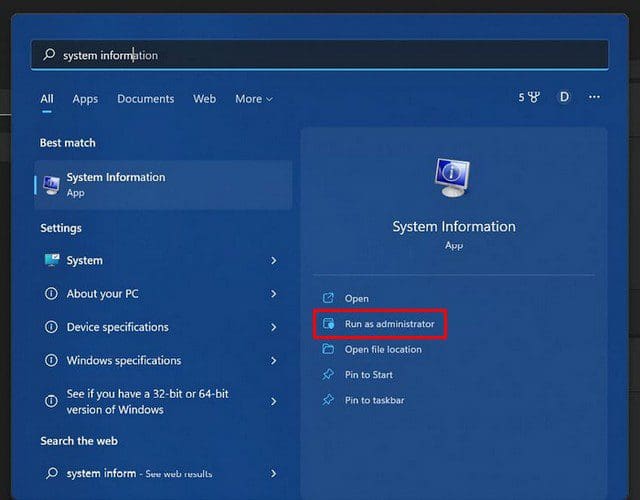
In System Information, you should find the information you need. But if you’re looking for specific specs, you’ll need to click on the other options, such as Hardware Resources, Components, and Software Environment.
Conclusion
There will always be a reason why you may need to check your computer’s specs. As you can see, you have different options depending on the kind of specs you need to know. Which option will you be choosing? Share your thoughts in the comments below, and don’t forget to share the article with others on social media.


