Skip to content
LogoTechnipages
technipages logo
  • Topics
        • Android
        • Browsers
        • Gaming
        • Hardware
        • Internet
        • iPhone
        • Linux
        • macOS
        • Office
        • Reviews
        • Software
        • Windows
        • Definitions
  • Product Reviews
  • Downloads
  • About

Windows 11: How to Change the Keyboard Layout

Judy SanhzJuly 4, 2022 Comments (0)
Fix-Windows-11-Remember-My-Apps-Greyed-Out

You’ll need access to special characters if you write in more than one language. The good news is that you can easily change the keyboard layout on your Windows 11 computer. With a few clicks here and there, you can switch between different layouts. You’ll also see how you can add different languages as well.

How to Switch to a Different Keyboard Layout in Windows 11

To switch to a different keyboard layout, open Settings, followed by Time and language. Click on Language and region to the right.

Time and language Windows 11

Once you’re in Language and region, click on the dots to the right of the English pack.
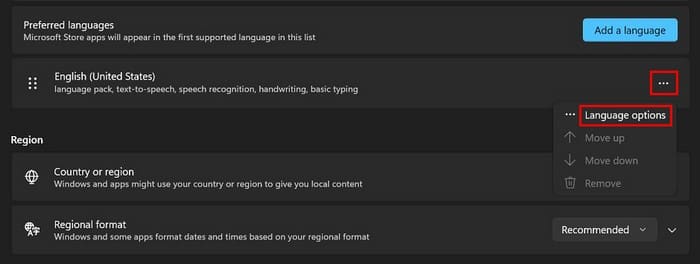
Add keyboard layout Windows 11

Under the Keyboards section, you should see a button to add a keyboard. Click the Add a keyboard button, scroll through your options, and click on the one you want to add. It would be nice to have a search option so you wouldn’t have to scroll so much. Hopefully, the search option will be added soon.

Add keyboard pack Windows 11

When clicking on the Add a keyboard button, it’ll be added automatically. Click on ENG at the bottom right of your display to check if it was added correctly. That’s where you should see your new layout. You can easily switch between layouts by using the Windows and spacebar.

Switch language packs Windows 11

How to Erase a Keyboard Layout on Windows 11

Wish you never installed that keyboard layout, to begin with? You can easily remove it by going to:

  • Settings
  • Time and Language
  • Language and region
  • Click on the three dots to the right of the language
  • Go to the Keyboards section
  • Click on the dots to the right of the option and choose the Remove option

Remove language Windows 11

Thats’ all there is to it when it comes to adding and removing layouts.

Conclusion

When you write in more than one language, you’re going to need access to special characters. With a few licks here and there, you can add the keyboard layouts you need. You can also check to see if it was added correctly and how easily it is to switch between them. How many layouts will you be adding? Share your thoughts in the comments below, and don’t forget to share the article with others on social media.


Categories: Windows

Author Judy Sanhz

You Might Also Like

  • Windows 10 Header

    Password Protect Folders in Windows

    MonaWindows
  • fix-airpods-disconnecting-from-windows

    Fix: AirPods Keep Disconnecting from Windows

    Madalina DinitaWindows
  • outlook-time-limit-for-logging-on-was-reached

    Fix Outlook: The Time Limit for Logging on Was Reached

    Madalina DinitaWindows
  • Thumbnail-Preview-Multimedia-Folder-Windows-11

    Can I Enable Thumbnail Previews in Windows 11?

    Madalina DinitaWindows

Leave a Reply

Your email address will not be published. Required fields are marked *

This site uses Akismet to reduce spam. Learn how your comment data is processed.

300x600
Turning on Triple Touch Zoom on Android

Turning on Triple Touch Zoom on Android

How to Connect Outlook 2023 to Gmail

How to Connect Outlook 2023 to Gmail

Netflix: Change Password

Netflix: Change Password

Everything You Need to Know About WhatsApp Delete for Me

Step-by-Step Guide: How to Use WhatsApp on Your Computer

Android: Enable or Disable Background Data

Android: Enable or Disable Background Data

300x250
profile pic

The Experts Behind Technipages

My name is Mitch Bartlett. I've been working in technology for over 20 years in a wide range of tech jobs from Tech Support to Software Testing. I started this site as a technical guide for myself and it has grown into what I hope is a useful reference for all.

Learn More

300x250 2
technipages logo white
linkedin icon

Technipages is part of Guiding Tech Media, a leading digital media publisher focused on helping people figure out technology. Visit guidingtechmedia.com to learn more about our mission and team.

© 2026 Guiding Tech Media All Rights Reserved

  • About Us
  • Contact
  • Legal & Privacy

© 2026 Guiding Tech Media All Rights Reserved

Information from your device can be used to personalize your ad experience.
Do not sell my personal information.