
Hardware-accelerated GPU scheduling is a new feature added to Windows 10 in the May 2020 update, version 2004. GPU scheduling is the process of coordinating, prioritizing, and submitting work to the GPU for rendering.
Before the introduction of the Windows Display Driver Model in Windows Vista, all data being presented to the GPU for rendering was performed on a first come first serve basis. GPU scheduling allowed the CPU to determine which display requests had priority. This was a key step to ensuring a more responsive user experience when more than one program was trying to use the GPU at one time.
Over time the GPU scheduler has been improved, but by its very nature there is processing overhead and extra latency added. Some of the extra overhead was handled by introducing a frame buffer which waits to group some information together before sending it to the GPU. While this reduces the overhead it negatively affects input delay slightly.
With hardware-accelerated GPU scheduling, the task of scheduling GPU processing is offloaded to a dedicated processor on the GPU itself. By using a dedicated processor for GPU scheduling, the CPU is freed up to perform other processes more useful to performance. The feature is entirely optional, opt-in, and requires compatible graphics hardware and drivers.
Tip: Nvidia graphics card from the 1000 series and newer, or an AMD graphics cards of the 5600 and 5700 series and newer, as well as the latest graphics drivers are required to enable the feature. If your system doesn’t support the feature, it will not appear in the Settings app.
There have been a number of claims regarding the performance benefits of enabling hardware-accelerated GPU scheduling. Microsoft notes in its feature announcement, however, that there is likely to be minimal performance impact, at least to start with. Benchmarks from reviewers have indicated that there are generally minimal changes in performance, but these can be in both positive and negative directions depending on the game being tested.
How to enable hardware-accelerated GPU scheduling
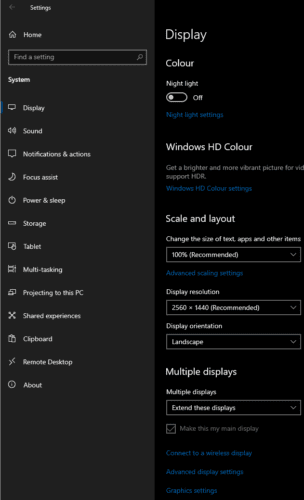
To enable Hardware-accelerated GPU scheduling in Windows 10, open the Settings app by pressing the Windows Key, typing “Settings”, then hitting enter. Once in the Settings app, click on “System”, then scroll to the bottom of the “Display” tab and click on “Graphics settings”.
Click the “Hardware-accelerated GPU scheduling” slider to the “On” position to enable the feature. Note that you will have to restart your computer for the setting to take effect.