Skip to content
LogoTechnipages
technipages logo
  • Topics
        • Android
        • Browsers
        • Gaming
        • Hardware
        • Internet
        • iPhone
        • Linux
        • macOS
        • Office
        • Reviews
        • Software
        • Windows
        • Definitions
  • Product Reviews
  • Downloads
  • About

Windows 10: How to Disable Drag and Drop

Madalina DinitaDecember 8, 2020 Comments (2)
windows 10 disable drag and drop

Drag and Drop is a very useful feature that allows computer users to select an item and then move it somewhere else on the screen. The whole process is done with the help of a mouse.

You can select the item you want to move using the main mouse button. The catch is that you need to hold that button down while moving the respective item. To move the item to the new location, simply release the mouse button. Drag and Drop is a really cool productivity feature.

But if you want to disable it, we’ll show you how you can do that in the guide below.

Steps to Disable Drag and Drop on Windows 10

In order to turn off Drag and Drop, you actually need to change the Drag and Drop sensitivity settings. In other words, you’re going to set the Drag and Drop keys to a very high value. Basically, this value needs to be higher than your screen resolution.

We’re going to use the Registry Editor to tweak the Drag and Drop sensitivity values.

  1. Click on the Windows Search bar and type regedit.
  2. Double-click on the Registry Editor app to launch it.
  3. Follow this path:
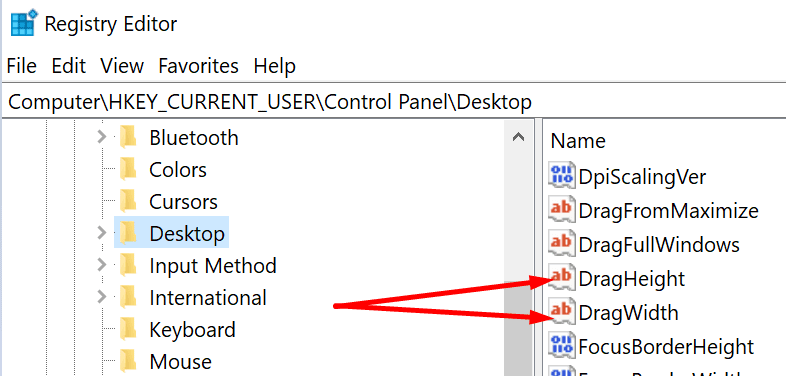
    • HKEY_CURRENT_USER\Control Panel\Desktop.
  4. Then locate the DragHeight and DragWidth keys.drag and drop heigh width settings pc
  5. Select them and assign them a value of 3000 pixels. This will change the Drag And Drop sensitivity in Windows 10.edit drag height registry editor
  6. Restart your computer to apply the changes.
Sometimes, you may need to log in using a different user account for the changes to take full effect.

If the admin account is the only one you have, go to Settings → Accounts  → Family and other users → Add someone else to this PC. add someone else to this pc windows 10
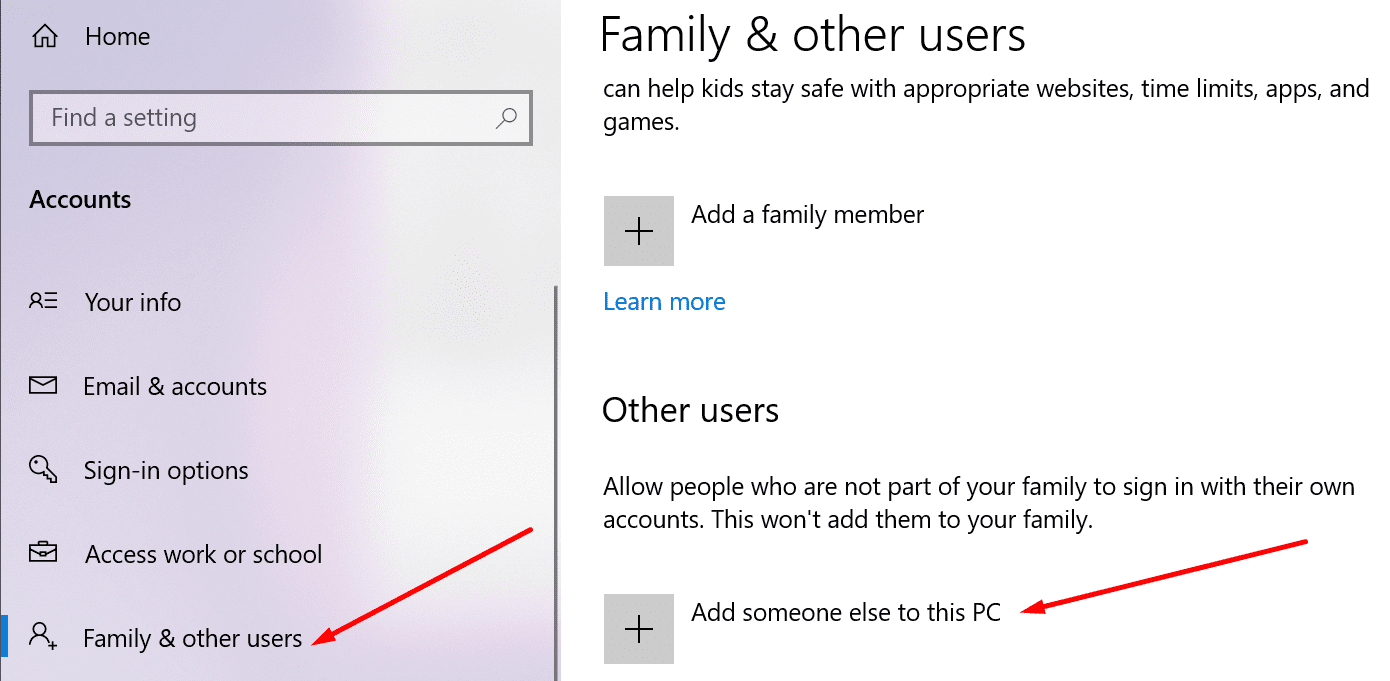
Follow the on-screen instructions to create the new user account. After you edited the sensitivity settings, switch between the two accounts. Then go back to the original account. Drag and Drop should no longer be available.

Of course, if you want to re-enable the feature, you can simply bring the DragHeight and DragWeight keys back to their original values.

Categories: Windows

Author Madalina Dinita

You Might Also Like

  • Fix: Windows Print Spooler Service Won’t Stay Started

    Mitch BartlettWindows
  • Magnifying Glass

    What is File Extension XPS and How to Open It

    Kat ArmstrongmacOS
  • Fix-Error-0x80070490-We-Couldnt-Find-Your-Settings

    Fix Error 0x80070490: We Couldn’t Find Your Settings

    Madalina DinitaWindows
  • windows-error-0x80070003

    Fix Error 0x80070003: Some Update Files Are Missing

    Madalina DinitaWindows

Comments

  1. Pattty says:
    July 8, 2022 at 5:51 am

    Does this disable drag&drop in File Explorer? Desktop shortcuts? Dragging windows around? Text inside of MS Word?

    Why is technipages always so vague with their “help”?

  2. m says:
    April 6, 2022 at 11:16 am

    No! Doing this made it so I couldn’t drag windows around. I just want to turn off moving text around because this happens all the time unintentionally, when I am just trying to select text to copy.

Leave a Reply

Your email address will not be published. Required fields are marked *

This site uses Akismet to reduce spam. Learn how your comment data is processed.

300x600
Turning on Triple Touch Zoom on Android

Turning on Triple Touch Zoom on Android

How to Connect Outlook 2023 to Gmail

How to Connect Outlook 2023 to Gmail

Netflix: Change Password

Netflix: Change Password

Everything You Need to Know About WhatsApp Delete for Me

Step-by-Step Guide: How to Use WhatsApp on Your Computer

Android: Enable or Disable Background Data

Android: Enable or Disable Background Data

300x250
profile pic

The Experts Behind Technipages

My name is Mitch Bartlett. I've been working in technology for over 20 years in a wide range of tech jobs from Tech Support to Software Testing. I started this site as a technical guide for myself and it has grown into what I hope is a useful reference for all.

Learn More

300x250 2
technipages logo white
linkedin icon

Technipages is part of Guiding Tech Media, a leading digital media publisher focused on helping people figure out technology. Visit guidingtechmedia.com to learn more about our mission and team.

© 2026 Guiding Tech Media All Rights Reserved

  • About Us
  • Contact
  • Legal & Privacy

© 2026 Guiding Tech Media All Rights Reserved

Information from your device can be used to personalize your ad experience.
Do not sell my personal information.